Before editing any permission cell, you need to understand that Tanca decides "who can see what" using three stacked layers. Misunderstand any layer and you could accidentally open up or lock down the entire company.
Three layers that determine permissions
| Layer | Where it's set | What it determines |
|---|---|---|
| 1. Access group | Assigned to each employee in HR › profile › Work; viewed quickly in the Access group column of the employee list | Which of the four built-in role types this person belongs to |
| 2. Permissions matrix | Settings › Permissions › Permissions tab | What each group can do in each module — add, edit, delete, export file… |
| 3. Data scope | Branch and department in the employee profile | How many people's data this person can see |
Actual permissions are the intersection of all three layers. A person in the Branch Manager group, granted the Employee list permission by the matrix, but assigned to the ION Orchard branch, will only see ION Orchard's staff — not the whole company.
Four built-in access groups
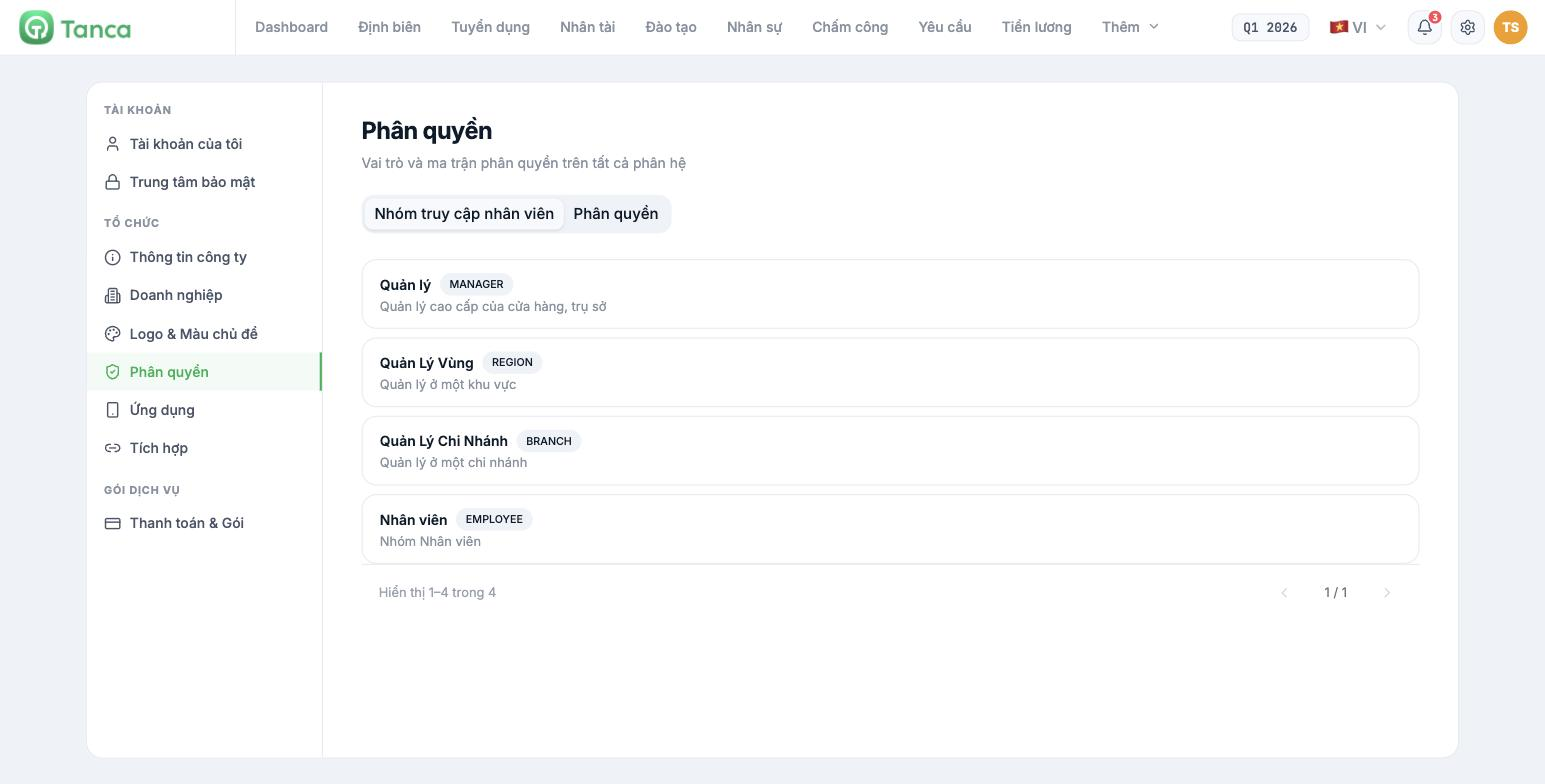
| Group | System code | System description |
|---|---|---|
| Manager | `MANAGER` | Senior manager of a store or headquarters |
| Regional Manager | `REGION` | Manager of a region |
| Branch Manager | `BRANCH` | Manager of a branch |
| Employee | `EMPLOYEE` | Employee group |
These four groups are fixed. The screen has no button to add, edit, delete or rename groups, and clicking a group card doesn't open anything. If your business structure needs a fifth role — for example Chief Accountant or Head of Training — the only current approach is to assign that person to the closest group and then grant individual permissions per person (article C1-04).
What the four groups mean in practice
- Manager is the broadest role, with almost every action in every module enabled by default. This role is for central HR and the board of directors. Assigning this role grants permission to view salaries, contracts and personal information for the whole company.
- Regional Manager sits in the middle: by default they can only view and export files, not add or edit source data.
- Branch Manager is similar to Regional Manager but with a scope one level narrower.
- Employee is the lowest role, for people who only self-serve: their own attendance, their own requests, their own payslips.
The Employee group has no column in the matrix. The matrix only has three columns: Manager, Regional Manager, Branch Manager. The Employee group's permissions are fixed in the system, and you can't edit them from this screen. To loosen or tighten permissions for a specific employee, use the approach in article C1-04.
Recommended order for first-time setup
- Finish setting up branches and departments first — this is the data scope layer; if this layer is wrong, the other two are meaningless.
- Open Settings › Permissions › Permissions tab, go through each module and finalize the matrix for the three manager groups.
- Assign an access group to each employee, with the correct branch and department.
- For people who don't fit the four groups, open their profile and grant individual permissions.
- Verify by logging in with a test account from each group.
The last step can't be skipped. The matrix shows your intent, but what users actually see is the real result. Always keep a test account for each group ready to check after every permission change.

