Chains with multiple stores or factories need a separate schedule for each location, while still keeping an overall view. This article explains how to organize things so that each branch manager only sees and edits their own schedule.
Principles
- Share shift templates. Don't create Morning Shift BR1, Morning Shift BR2 — if the time slot is the same, use one shared shift template and differentiate by scope of application.
- Separate shift assignment rules by branch. If each branch has its own weekly schedule, create a separate rule for that branch.
- Set permissions by access group. Branch managers in the Branch Manager group only see employees in their own branch.
Four filters on the Scheduling screen
| Filter | Options |
|---|---|
| Grouping | By employee · By department · By overlapping shifts |
| Department | All departments, or select individual departments |
| Display mode | Time & attendance (also shows actual hours) · Schedule only (only shows scheduled shifts) |
| Employee status | Active employees · Employees not clocking in · All employees |
Schedule only mode is the one to use when you're building next week's schedule — it drops all actual attendance data, so the grid is cleaner and loads much faster.
Weekly scheduling process for a chain
- Select the week to schedule using the left and right arrows next to Week 37 · 2026.
- Filter Department to the store you're scheduling.
- Switch the mode to Schedule only.
- Compare the number on the Scheduled Shifts card with the number of people needed on site.
- Edit the exception cells: swap shifts, delete shifts for people on leave.
- Switch the filter to By overlapping shifts to check for conflicting schedules (article B7-08).
- Go to the Finalize Weekly Shifts screen to print the on-duty list for each shift.
The Open Shifts row
The first row of the grid is named Open Shifts — these are shifts not yet assigned to anyone. Use it when you know the store needs one more person on Saturday but haven't decided who. Employees can take open shifts themselves through the shift registration feature (articles B7-06 and B7-12).
Assigning field tasks
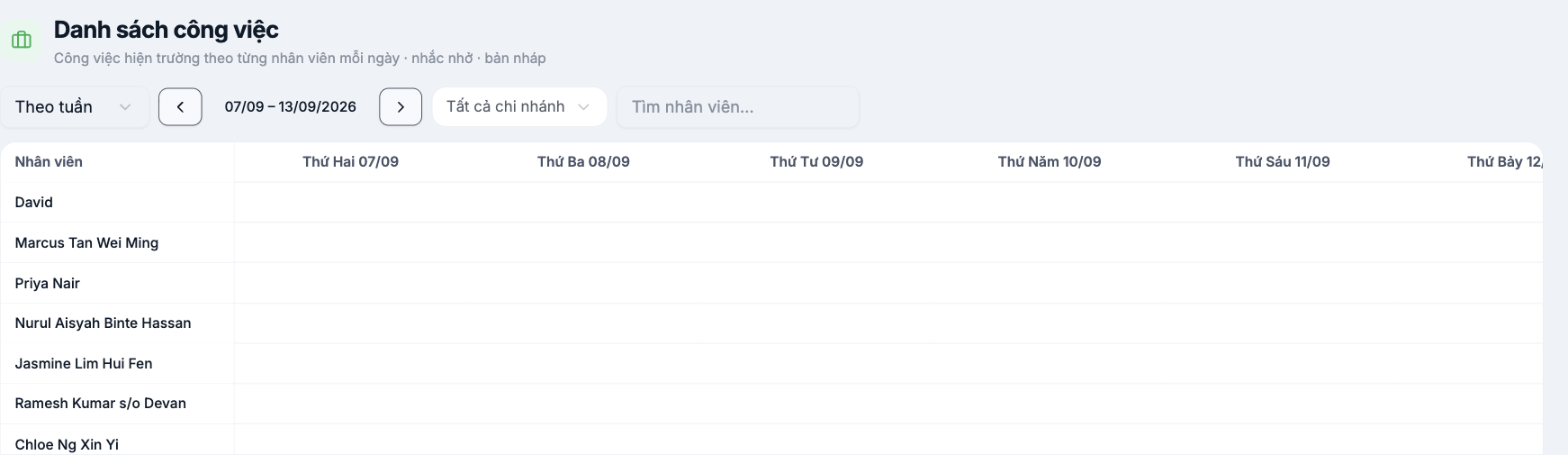
The Task List screen is a different layer, not shifts. Shifts answer what hours this person is present; the task list answers what this person is working on today, and where. Use it for technical, delivery, and maintenance teams — people with fixed shifts but destinations that change every day.
The task catalog is defined in advance in Settings › Scheduling › Tasks, then assigned to each employee by day on this screen.
Troubleshooting
| Symptom | Solution |
|---|---|
| A branch manager can see employees from other branches | Check that account's access group and branch on the Permissions tab of the profile (article B2-17) |
| The grid loads very slowly | Switch to Schedule only mode and filter by department instead of viewing the whole company |
| An employee transfers branches mid-week | Update the branch in the employee profile, then reschedule shifts for the rest of the week |

