The Security Center is an overview screen of how secure the account you are logged in with is. This article describes exactly what the screen currently offers and spells out what it can't do yet, so you don't rely on it by mistake.
Opening the screen
- Click the Settings gear in the top-right corner.
- In the left column, under the ACCOUNT group, select Security Center.
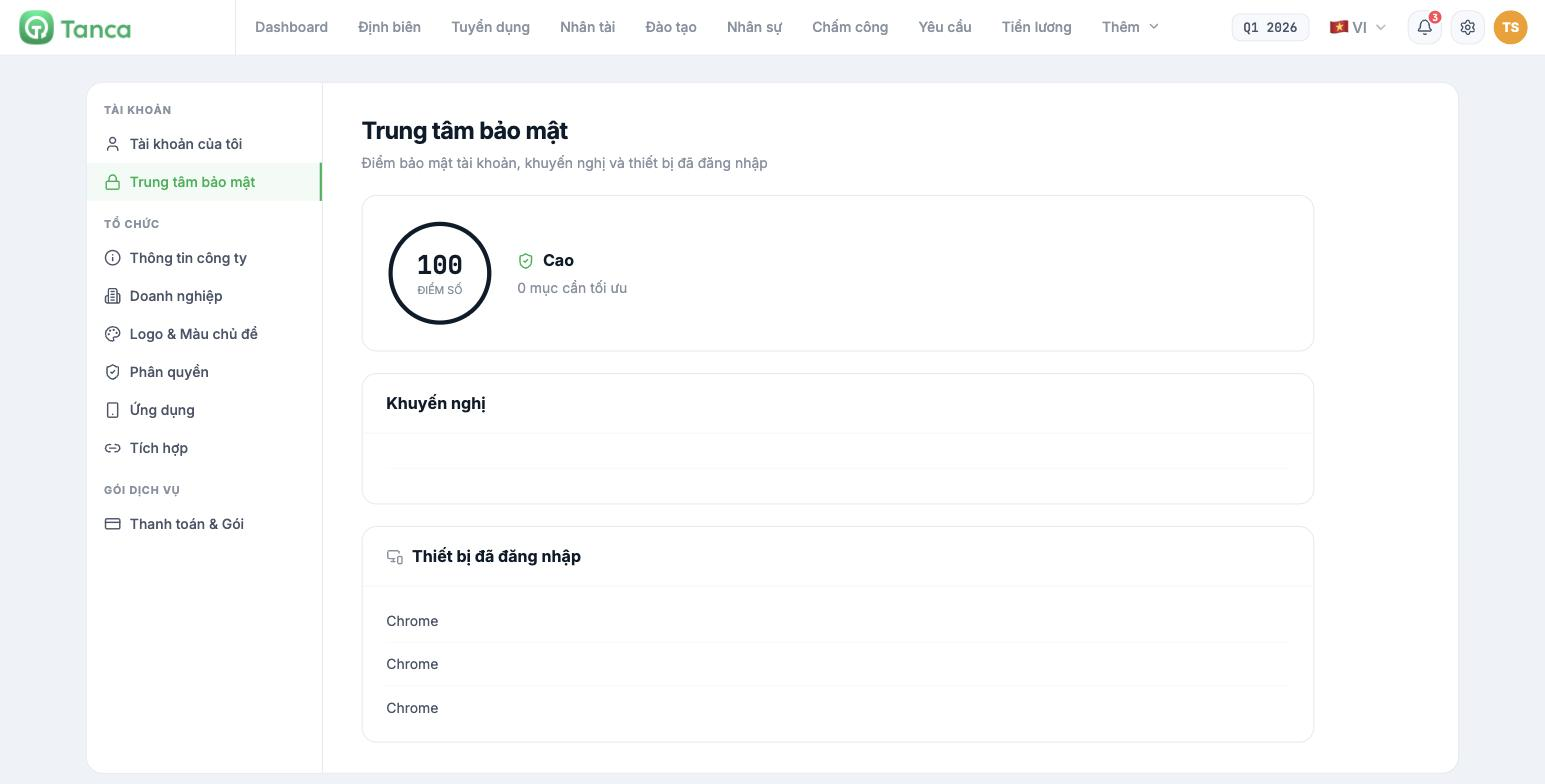
Three sections on the screen
| Section | Content |
|---|---|
| Score | A number from 0 to 100 with a rating (High / Medium / Low) and the number of items to optimize |
| Recommendations | A list of things to do to raise the score. Empty when there are no more items to optimize |
| Logged-in Devices | A list of your account's login sessions |
Understanding the security score correctly
The security score only rates the account that is logged in, not the whole business. A score of 100 means your own account has no more items the system suggests optimizing — it does not mean all of the company's HR data is safe.
The biggest real-world risks are not counted in this score: mistakenly assigning the Manager group to people who don't need it, leaving the branch blank in a manager's profile, or accounts of people who have left the company still being active. To find out whether your company is safe, review according to articles C1-03 and C1-08 rather than looking at this number.
Logged-in Devices — what you can and can't see
| Task | Current status |
|---|---|
| See how many sessions are open | Yes |
| Know which browser was used to log in | Yes — shows the browser name |
| Know when the login occurred | Not yet available |
| Know the IP address or location | Not yet available |
| Remotely log out an unknown device | Not yet available |
| View other employees' devices | Not yet available — you can only view your own account |
Because remote logout isn't available yet, when you suspect an account has been compromised, the response is to change the password immediately. For employee accounts, use the Reset Password button in their profile (article C1-05).
Where to look to find out what an account has done
The Security Center is not the place to trace activity. The activity log is in the History tab of each employee profile, and that is where you'll find the time, device, operating system and IP address. See article C1-07.
Monthly tasks
- Open the Security Center and resolve all items in Recommendations, if any.
- Count the sessions in Logged-in Devices — if there are more than the number of devices you actually use, change your password.
- Review the employee list according to article C1-03 to catch accounts with excess permissions.

