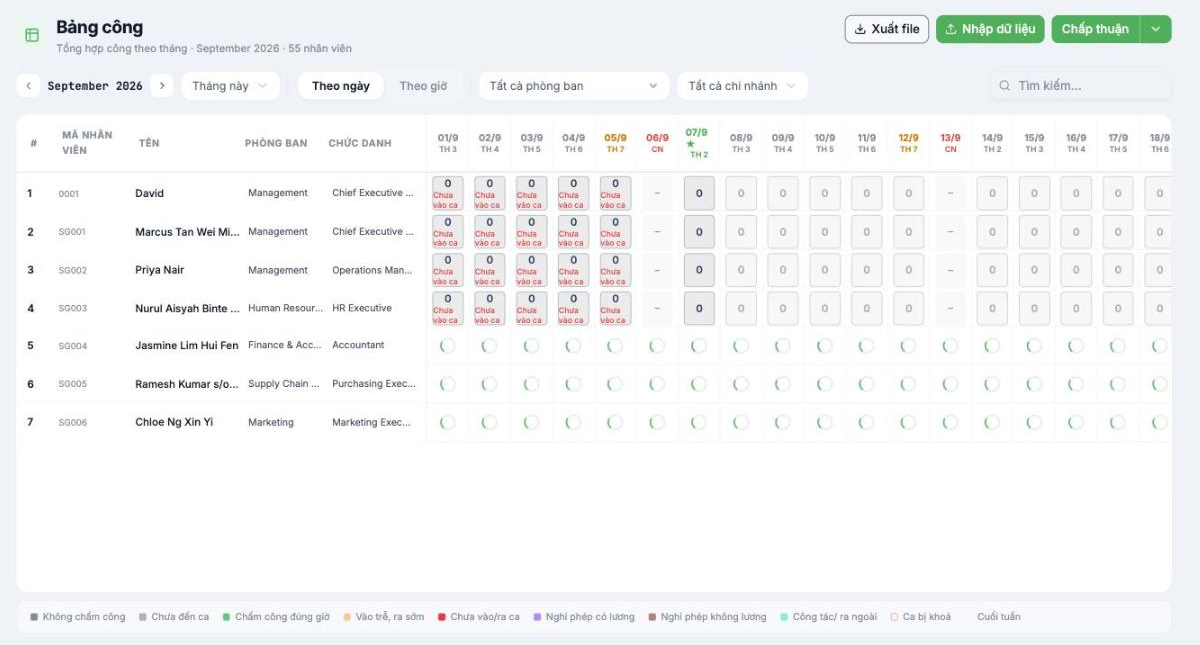
The timesheet is the data aggregated by month and the direct input to payroll. Reading this table correctly is the most important skill for anyone handling time and attendance.
The timesheet is the data aggregated by month and the direct input to payroll. Reading this table correctly is the most important skill for anyone handling time and attendance.
Monthly timesheet — one row per employee, one column per day
Layout
Component
Content
Page header
Monthly working days summary with the month being viewed and the total number of employees
Fixed left columns
# · Employee code · Name · Department · Job title
Day columns
One column per day, with the day of the week. The current day is highlighted.
Intersecting cells
That person's working days for that day, with a color showing the status
The ten statuses in the legend
Status
Meaning
No clock-in
Has a shift but no attendance data at all
Shift not started
A future shift; the time hasn't come yet
On-time clock-in
Clocked in and out within the shift window
Late arrival, early departure
Clocked in but outside the shift window
Missing clock-in/out
Missing one of the two ends — usually forgot to clock out
Paid leave
Has an approved leave request of a paid leave type
Unpaid leave
Has an approved leave request of an unpaid leave type
Business trip/going out
Has an approved business trip or going-out request
Locked shift
The timesheet is locked and cannot be edited
Weekend
A day off according to the employee's schedule
The Missing clock-in/out status is the one that most often needs handling. It usually means the employee forgot to clock out. The correct way to handle it is for the employee to submit an explanation request (article B6-23), not for HR to fix it on their behalf.
Filters and views
Use the left and right arrows to switch months; the This month button returns you quickly.
By day shows working days; By hour shows hours.
Filter by department and branch when the company has many people.
Use the Search box to quickly find an employee.
Three buttons in the top-right corner
Button
Used for
Detailed article
Export file
Export the timesheet to Excel for cross-checking or archiving
Import data
Import attendance data from a file
B6-14
Approve
Approve and finalize the timesheet
B6-15
Reading the timesheet daily
Open the timesheet at the start of the day and look at yesterday's column.
Count the No clock-in and Missing clock-in/out cells — these are what need handling.
Filter by department to assign reminders to the right managers.
At the end of the period, cross-check total working days against payroll before finalizing.