A project is the unit that holds tasks. Setting the right project boundaries from the start matters more than any other setting — get the boundaries wrong and things get messier the more you use it.
Three ways to create a project
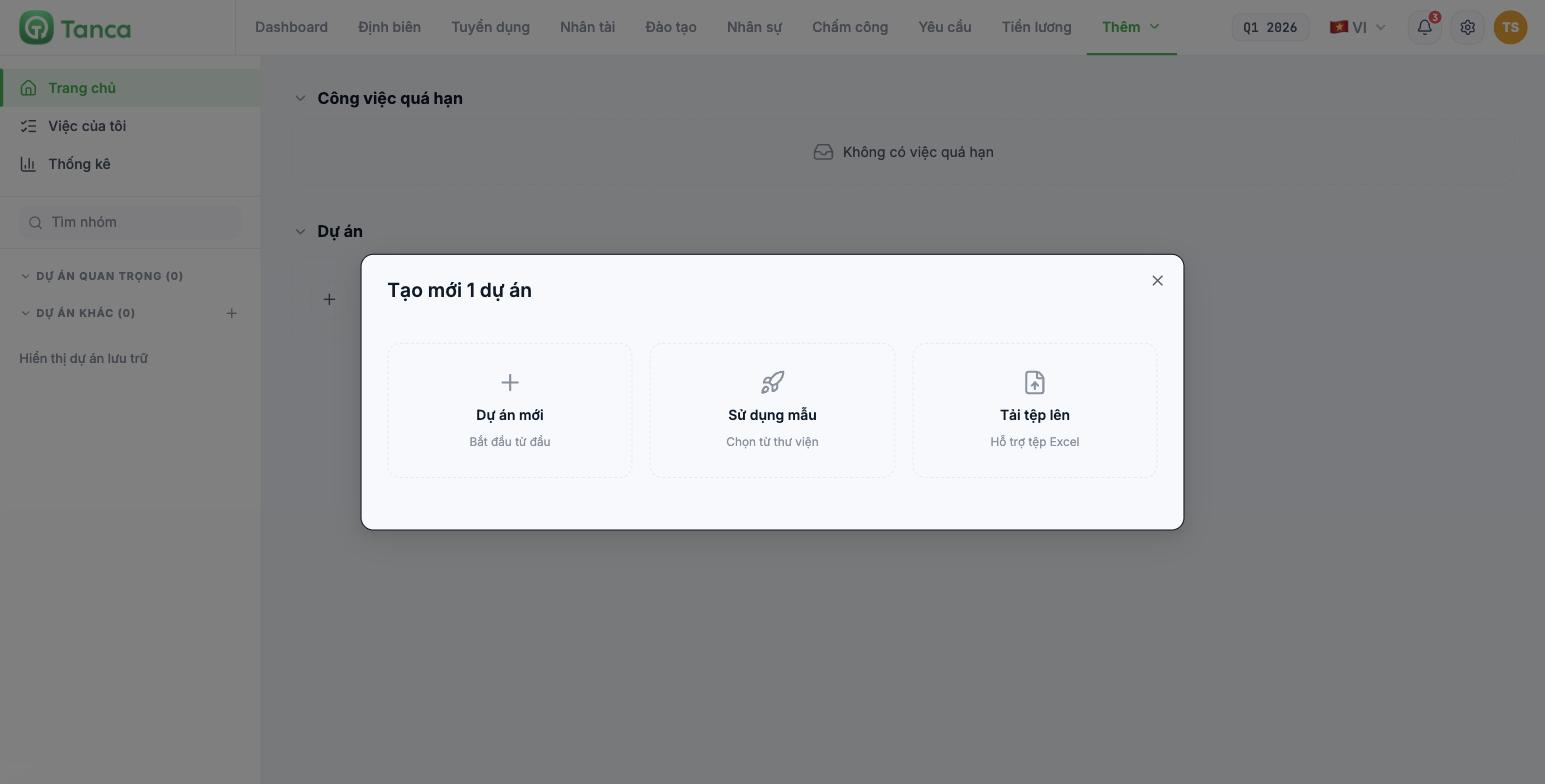
| Method | When to use |
|---|---|
| New project | Start from scratch — the most common method |
| Use a template | Repeat a type of project you've done many times |
| Upload a file | You already have a task list in Excel and want to load it in one go |
The template library starts out empty — Tanca doesn't include any prebuilt templates. Use a template is only useful after your company saves its own templates. For seasonal recurring projects (store openings, year-end stocktakes), build a standard project and save it as a template the first time.
Four fields when creating a project
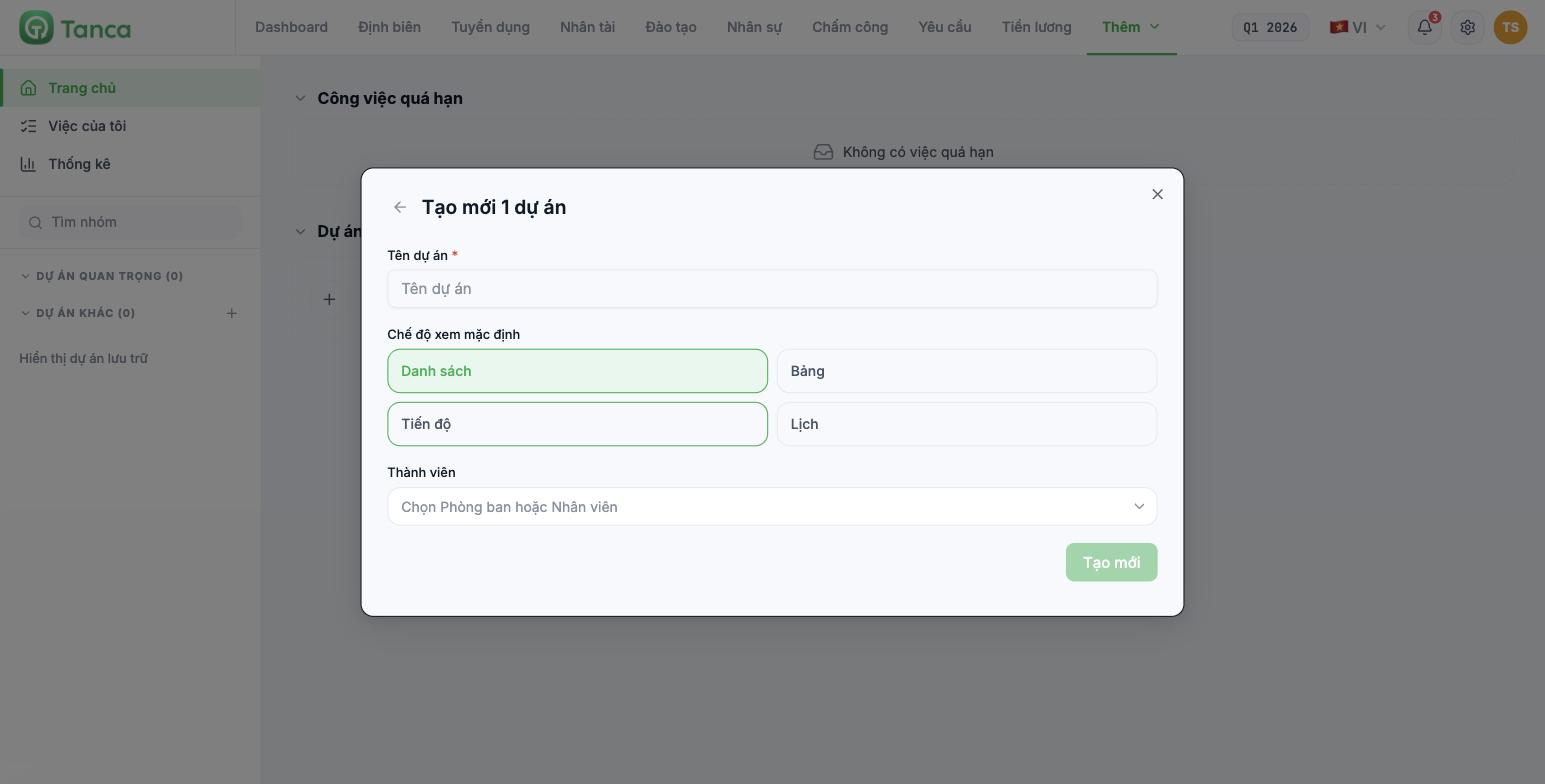
| Field | Required | Notes |
|---|---|---|
| Project name | Yes | See the naming convention below |
| Default view | Yes | List · Board · Progress · Calendar — choose the view your team is most used to |
| Members | No | Select a Department or individual Employees — this is one of Tanca's unique strengths |
Select by department rather than individual people whenever possible: when new people join that department, they're automatically included in the project without you having to remember to add them.
How to set project boundaries correctly
| Type | Example | When to use |
|---|---|---|
| By department | Store operations — Ongoing | Recurring work with no end point |
| By campaign | Jewel Changi store opening Q4 2026 | Has a clear start date and end date |
| By workflow | New employee onboarding | The same chain of steps repeated for each subject |
A practical rule: a project should have fewer than 100 open tasks and a single accountable owner. Exceeding that is a sign it should be split. Don't create one giant project called "Marketing department tasks" and stuff the whole year into it.
Agree on a naming convention
- Campaign projects: `<Task> — <Unit> <Period>`, for example Jewel Changi store opening Q4 2026.
- Ongoing projects: `<Department> — Ongoing`.
- Don't put people's names in project names — people change, projects don't.
After creating
- The project appears in the left column under the Other projects group. Click the ☆ next to its name to move it to Important projects.
- Go to the Configuration tab to set up task groups and labels (articles B10-03, B10-04).
- Start adding tasks on the List tab using the Add task… field (article B10-05).

