Creating a course involves two separate parts: entering the course information, then building the content. This article covers the first part; the content part is in article B16-03.
Course list
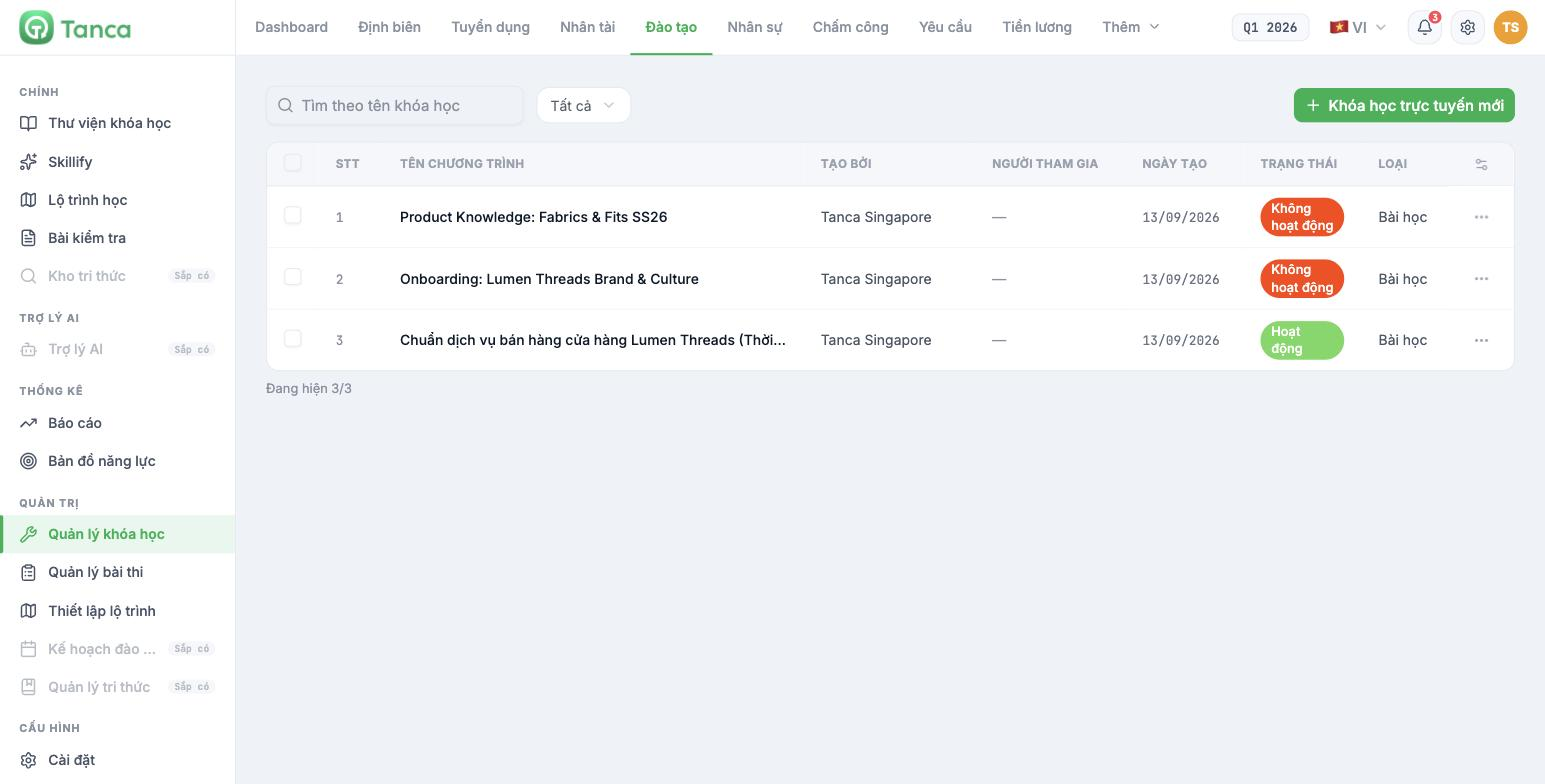
Go to Training, and in the left column under the ADMINISTRATION group, select Course management.
| Column | Content |
|---|---|
| Program name | Course name |
| Created by | Creator |
| Participants | Number of learners |
| Created date | Date it was set up |
| Status | Active or Inactive |
| Type | Content type, for example Lesson |
Click the three dots at the end of a row to open three options: Edit content · Edit · Delete. Clicking the course name opens the course's Statistics screen, not its content.
Create a new course
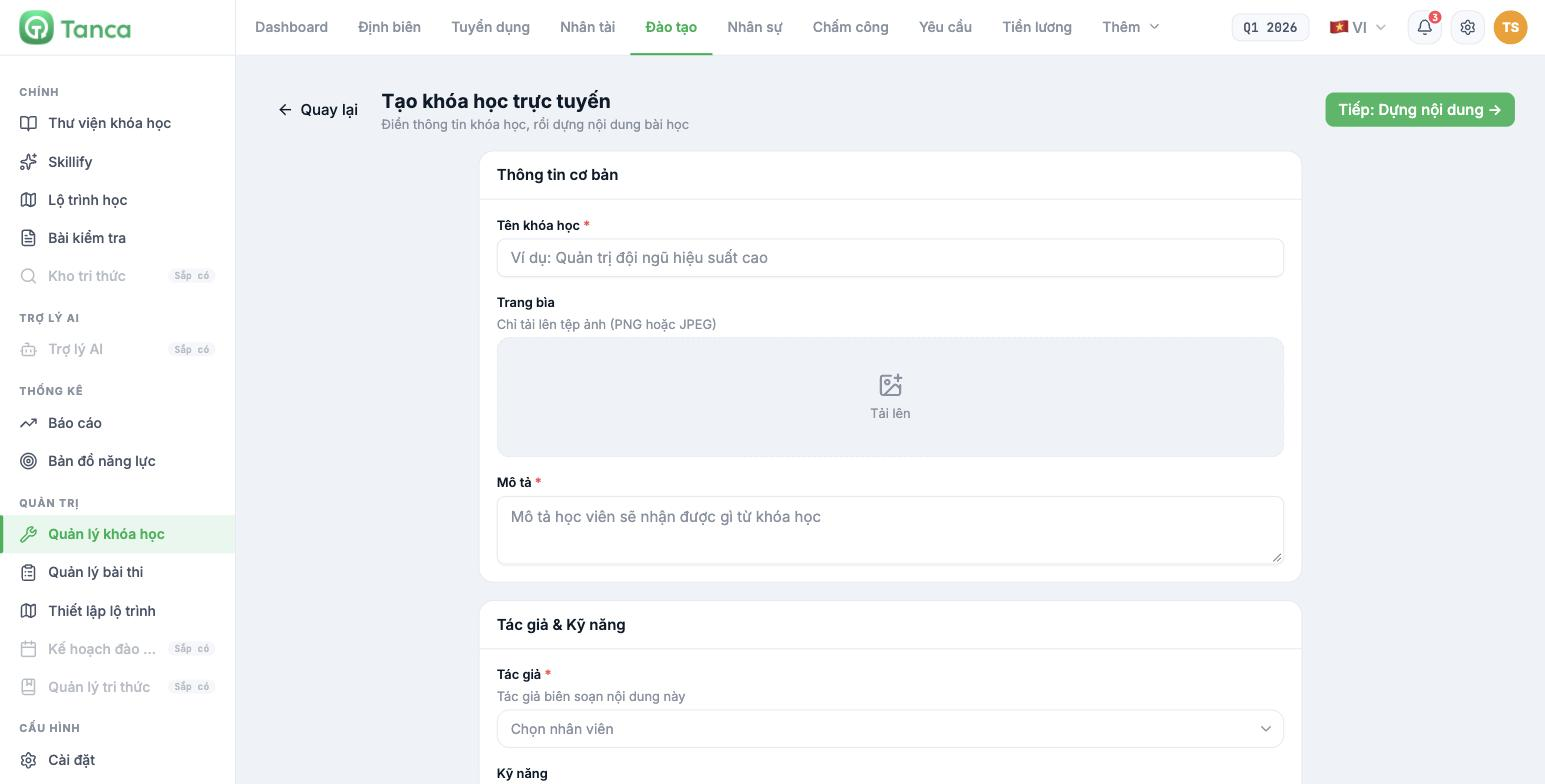
Click + New online course. The form is divided into four blocks.
Block 1 — Basic information
| Field | Notes |
|---|---|
| Course name * | Name it after what learners can do after the course, not after the name of the material |
| Cover | Upload PNG or JPEG image files only |
| Description * | Describe what learners will gain from the course |
Block 2 — Author & Skills
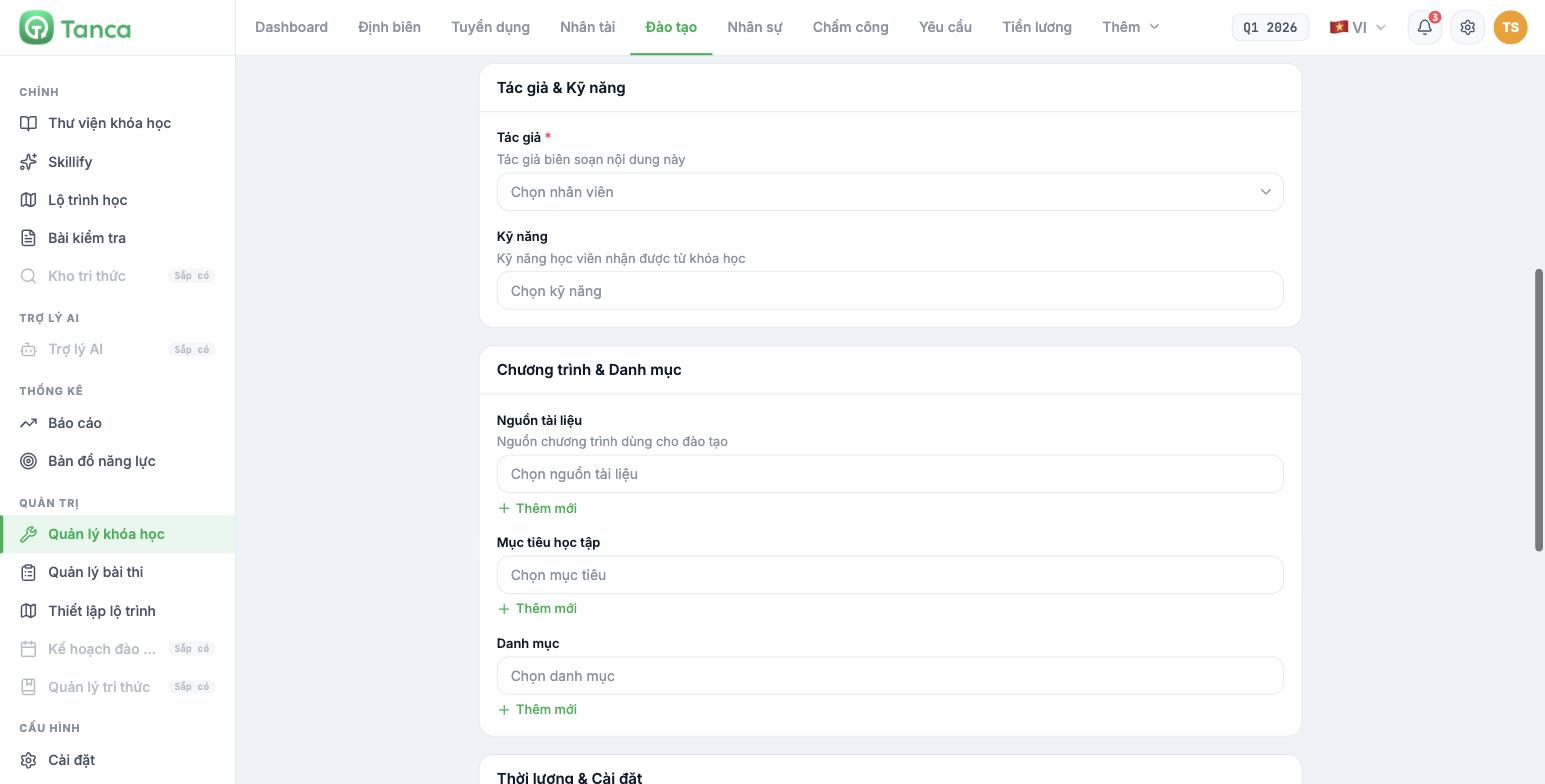
| Field | Notes |
|---|---|
| Author * | Select the employee who wrote the content |
| Skills | Skills learners gain from the course — see article B16-04 |
The Skills field is the most important field in the entire form, even though it's optional. It's what connects the course to the competency system and to employees' learning recommendations. Leave it blank and the course is just a video sitting in the library.
Block 3 — Program & Category
| Field | Notes |
|---|---|
| Material source | The program source used for training. Has an inline + Add new button |
| Learning objectives | The course's objectives. Has + Add new |
| Category | Course classification. Has + Add new |
Set a Category starting with your very first course. Learners' course library filters by category; courses without a category are hard to find once the library has a few dozen courses.
Block 4 — Duration & Settings
| Field | Meaning |
|---|---|
| Course duration | Estimated total learning time. Entered in Days / Hours / Minutes |
| Completion deadline | Deadline for learners to complete it. Entered in Days / Hours / Minutes |
| Answer required | Learners must answer every question for it to count as completed |
| Priority course | Shown in learners' priority list |
| Show comments | Show all comments to every learner |
| Active | Opens this course to learners |
| Save as template | Reuse this structure for future courses |
Enter the Duration honestly. It's the number learners look at to decide whether to start now, and the number you use to calculate the company-wide time cost when assigning mandatory courses.
Keep Active off until the content is built and you've tried it out. A course switched to Active is one learners can access immediately.
After saving
Click Next: Build content → to move on to writing chapters and lessons (article B16-03). To go back and edit the course information, use three dots › Edit in the list.
Turn on Save as template for the first course you build carefully. Later courses built on that structure will be much faster and will stay consistent with one another.

