The skill library is a shared repository for the entire company. Every competency framework draws its skills from here, so the quality of the library determines the quality of every review cycle that follows.
Open the library
- Go to Talent.
- In the left column, under the CONFIGURATION group, select Settings.
- Select the Skill library tab (the first tab).
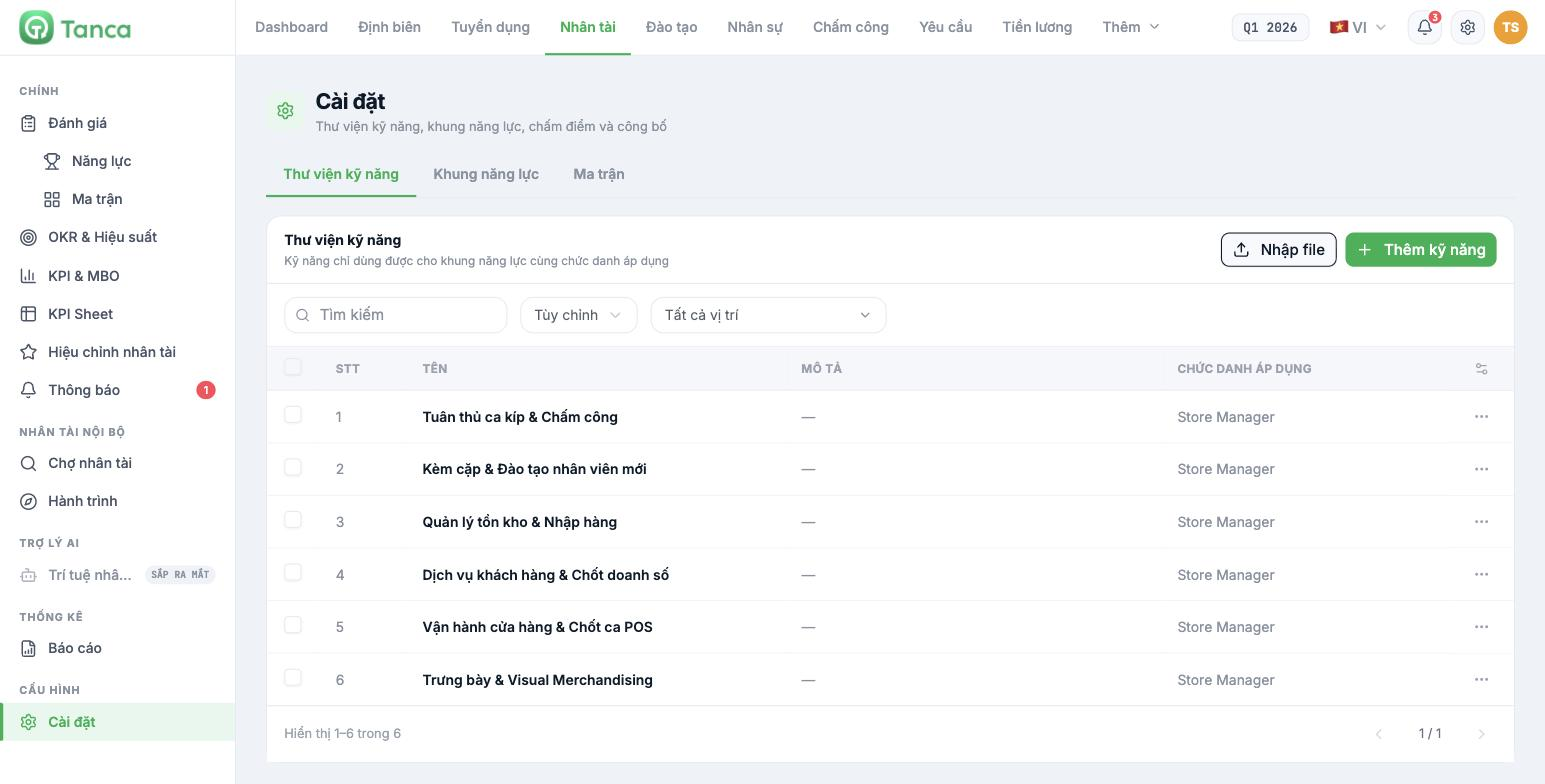
| Column | Content |
|---|---|
| No. | Sequence number |
| Name | Skill name |
| Description | General description of the skill |
| Applicable job titles | The job titles that can use this skill |
The core rule of this screen: a skill can only be used in a competency framework for the same applicable job title. If you forget to tick a job title, the skill will not appear when building the framework for that job title. This is the number one cause of the question "I created the skill, so why can't I select it?"
Add a skill
- Click + Add skill in the top-right corner.
- Enter the Skill name — required.
- Select the Applicable job titles — required. You can tick several job titles at once.
- Enter a Description — recommended; this is the sentence raters read to understand what the skill means.
- Fill in the five behavior levels in the Levels section — see article B13-03.
- Click Save.
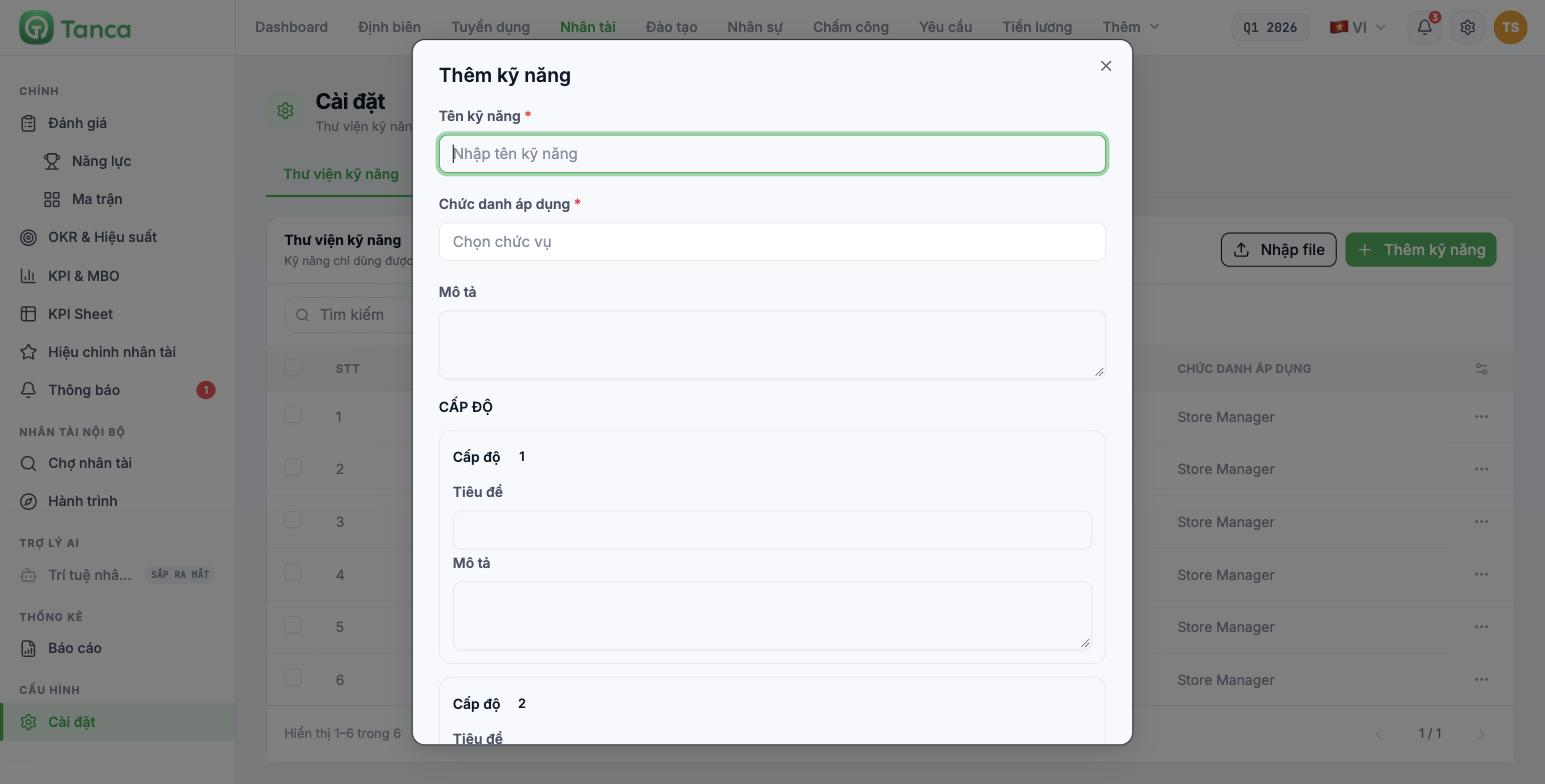
Select applicable job titles
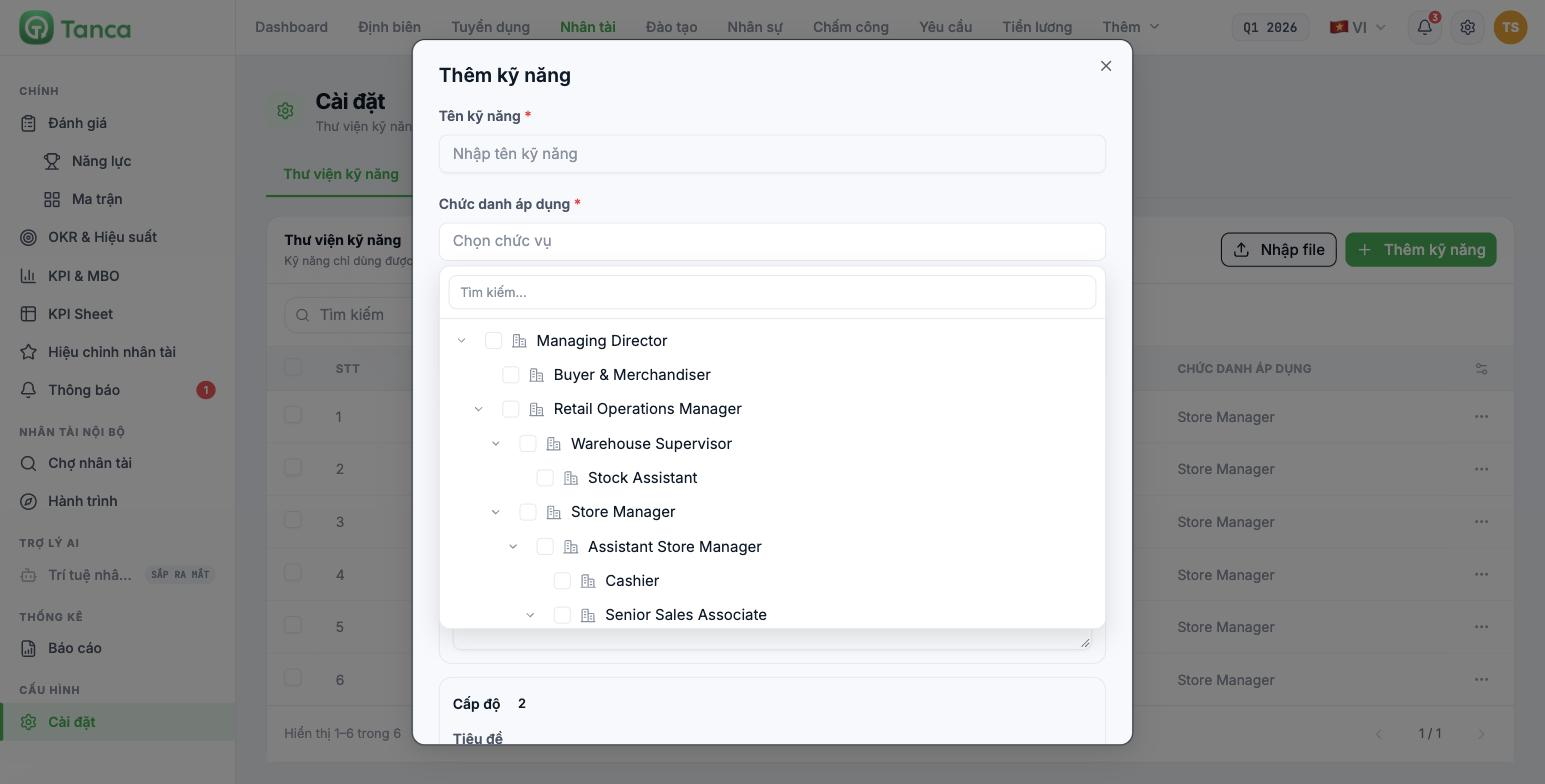
This field shows your company's job title tree following its exact reporting hierarchy, with a search box at the top. Tick the checkbox of each job title the skill applies to.
- For a skill shared across several levels, tick the whole group — for example, Customer service ticked for Store Manager, Assistant Store Manager, and Senior Sales Associate.
- For a skill meant for only one level, tick exactly that level; don't tick broadly for convenience — broad ticking clutters the choices in other job titles' competency frameworks.
- Job titles not yet in the tree must first be set up in your company's job title section; they cannot be created from here.
Import many skills at once
The Import file button lets you load a list of skills from a file instead of typing them one by one. Use this when your company already has a competency framework in Excel.
Skills imported from a file usually have only a name and job titles, without the five behavior levels. After importing, reopen each skill to add the five levels; otherwise they can't be used in the framework-building step.
Search and filter
| Tool | Purpose |
|---|---|
| Search box | Filter by skill name |
| Custom box | Filter by groups you define yourself |
| All positions box | Filter by applicable job title — use it to check whether a job title has enough skills |
Four rules for naming skills
- Name skills after the work, not personal qualities. POS shift closing and cash count is measurable; Careful is not.
- One skill is one job. If the name uses "and" to join two unrelated tasks, split it into two.
- Don't put the group name into the skill name. Groups have their own place when building the framework.
- Don't create duplicates. Before adding, type into the Search box to see whether the skill already exists. Duplicate skills split the same person's score across two rows.
Practical experience: a job title needs about 6 to 10 skills, divided into 3 to 4 groups. Fewer, and the review can't tell who is better than whom; more, and raters give up halfway.

