The Tasks module is where you assign work and track progress. What sets it apart from typical task management tools is that the data here is linked to employee records, so work results can be used for end-of-period reviews.
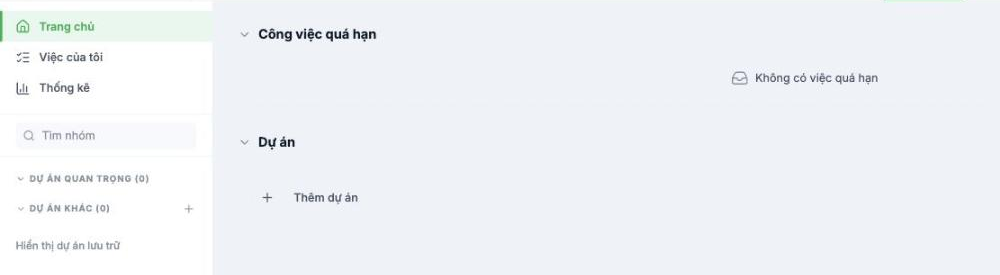
Structure
| Component | Role |
|---|---|
| Home | Overdue tasks and project list |
| My Tasks | Tasks assigned to you by others |
| Statistics | Progress and workload reports |
| Important Projects | Projects you have pinned to the top |
| Other Projects | All remaining projects |
Getting started
- Go to the Tasks module.
- Click + Add Project to create your first task group — it can be an actual project, a department, or a campaign.
- Within the project, create each task: task name, assignee, due date.
- Track progress on the project screen; overdue tasks automatically surface in the Overdue Tasks section on the home page.
Using it effectively
- Start with a single project. Create ten projects on day one, and two weeks later nine of them will be abandoned.
- Every task must have a due date. A task with no due date will never show up on the overdue list.
- One task, one person responsible. Assigning a task to the whole team means no one is responsible.
- Update the status as soon as it's done; don't wait for the weekly meeting.
During go-live, the Tasks module belongs to the fourth rollout phase — after time & attendance, requests, and payroll are running smoothly. Don't rush to bring the whole company onto it in the first month.

