Sending to the right people is half the value of an announcement. Tanca gives you three levels of recipient selection, taken directly from your organizational structure. This article shows how to use those three levels and where it's easy to choose wrong.
Three levels of recipient selection
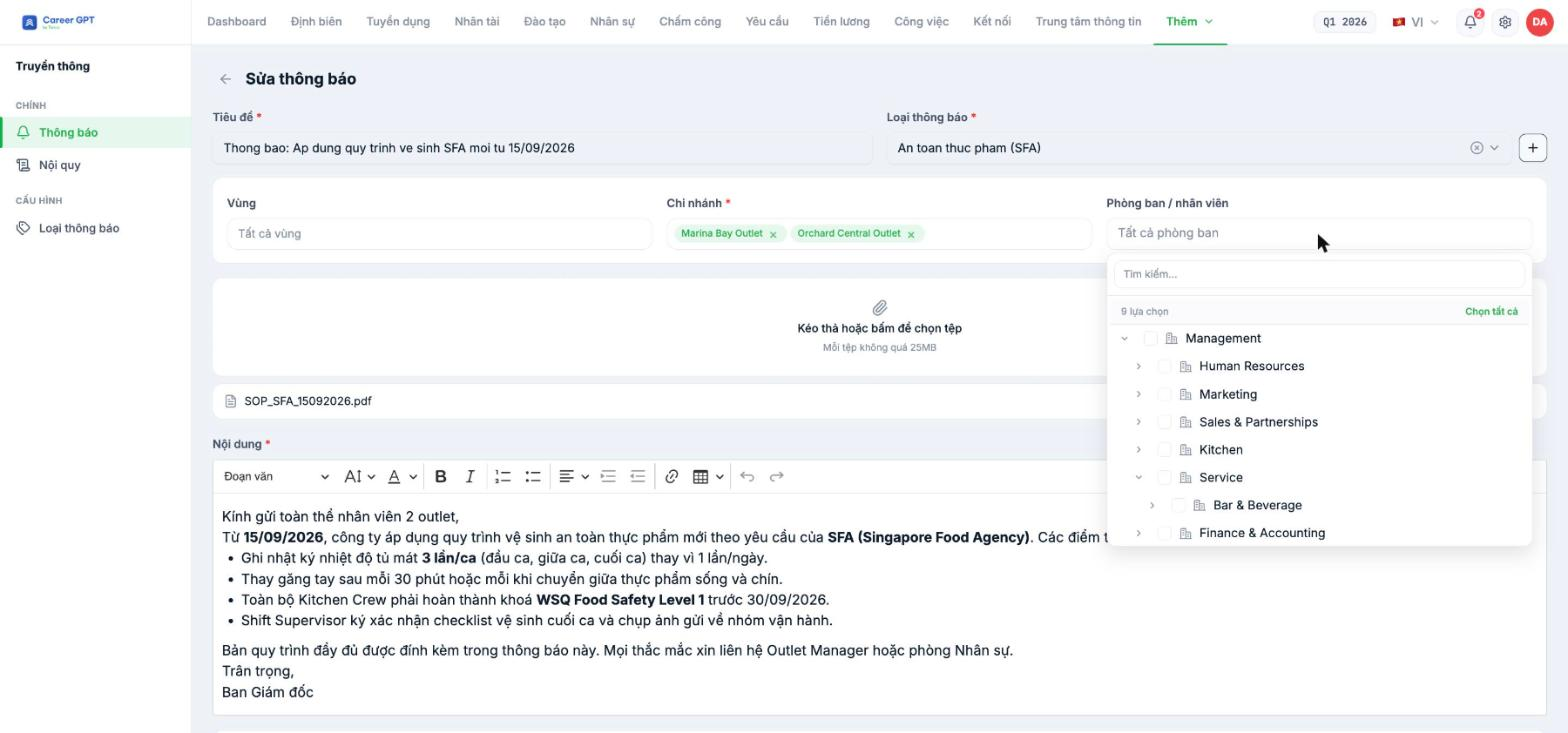
| Field | Required | Content |
|---|---|---|
| Region | No | Defaults to All regions. Only used when the business has defined regions in its organizational structure |
| Branch | Yes | Select one or more branches. This is the main filtering level |
| Department / employee | No | Defaults to All departments. Filters further within the selected branches |
The three fields are nested: the department tree only shows departments belonging to the branches you selected. So select the Branch first, then open the department tree.
Reading the department tree
The department tree follows exactly the structure you built in HR › Organizational Structure: parent departments on top, child departments indented below. The first row of the table tells you the total number of options — for example “9 options” — and has a Select all button on the right along with a Search box.
The tree is expanded down to the child level, so you immediately see the departments actually used for sending announcements without having to expand each branch yourself.
If a department you know exists does not appear in the tree, it is almost always because that department has not been assigned to any branch in the organizational structure. Fix it in HR › Organizational Structure (B1-02), not here.
Check recipients after sending
Open the announcement's `…` menu and select View: the details page has a block clearly showing the Branch and Department that received it. This is the quickest way to answer the question “who was this announcement sent to?”.
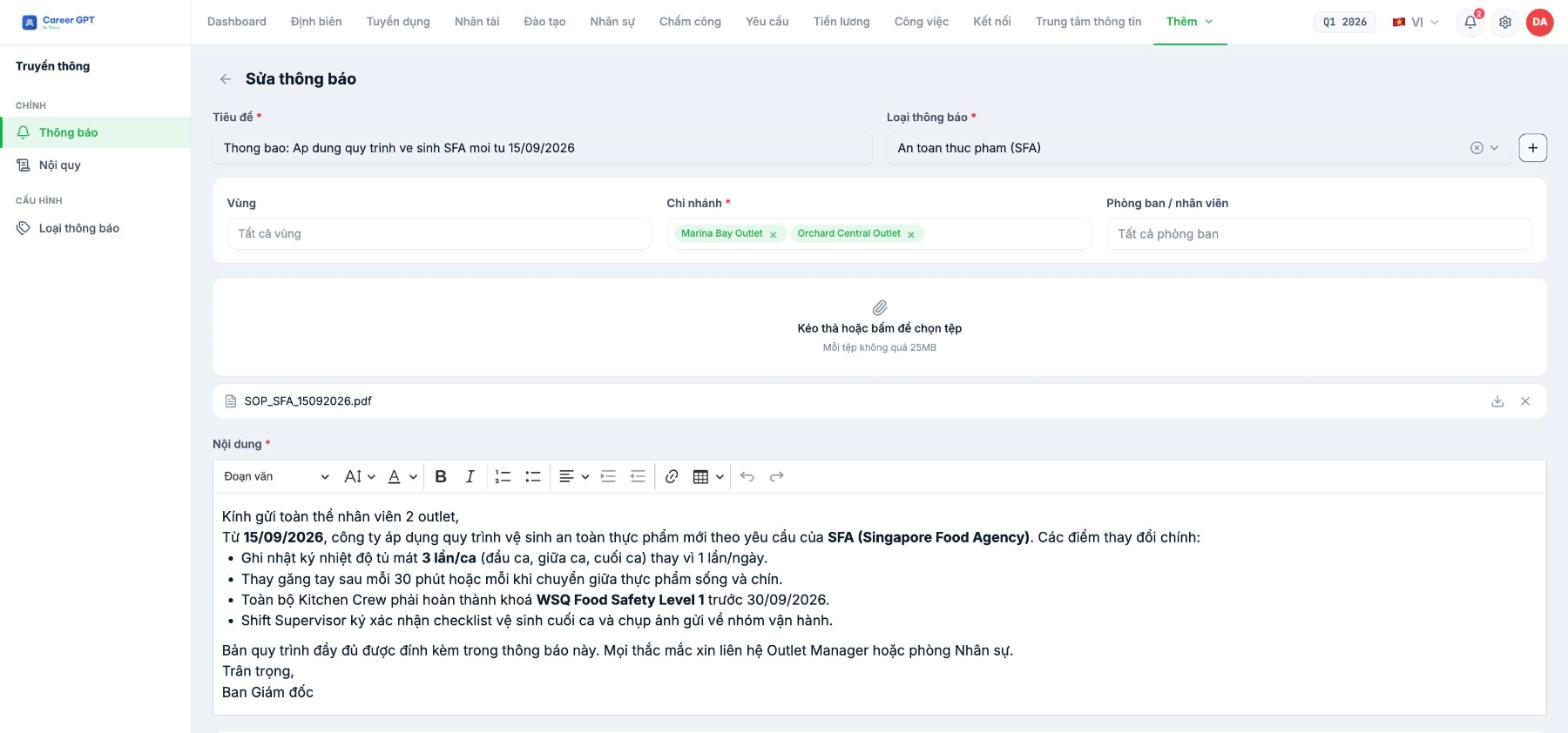
Select Edit if you need to change the recipients. Selected branches appear as tags with an × to remove them, and existing attachments are kept.
When you edit the recipients of an announcement that has already been sent, consider this: whether people who received it earlier lose access to it, and whether newly added people receive a push notification, depends on how the system handles the update. TO BE CONFIRMED BY THE COMPANY before publishing (developers need to confirm the behavior when narrowing or expanding the recipients of an already-sent announcement).
Three common recipient selection mistakes
- *Leaving All departments for an announcement that only concerns the kitchen.* The whole branch receives an irrelevant message, and next time they ignore a real announcement.
- Selecting departments before selecting branches. The department tree will be re-filtered afterward and your selection may be reset.
- Sending to individual employees instead of departments. People who join the department later will not receive the announcement. Select by department so the list updates automatically with staffing.

