Internal documents change constantly: SOPs get new versions, regulations expire, folders need consolidating. This article covers the actions for tidying up the library and how to handle expired documents while the product does not yet have version control.
Six actions in an item's menu
| Action | What it does |
|---|---|
| Rename | Edit the file or folder name |
| Move | Move to another folder, with a folder tree to choose the destination |
| Make a copy | Duplicates the item, automatically adding the suffix `(1)` |
| Add to favorites | Star it to open quickly from Favorites |
| Download | Download to your device — this option disappears if download permission is turned off for your role (B20-04) |
| Move to trash | Soft delete, kept for 30 days |
Select multiple rows using the checkbox at the start of each row to perform bulk actions: download, add to favorites, make a copy, move to trash.
The bulk action bar currently does not include Move — the action most needed when tidying up a library — and some labels are still in English (“2 rows selected”, “Clear”). To consolidate folders, move each item individually via the `…` menu.
About version control
The Information Center does not yet have version control. There is no version history for a file, no way to compare two versions, and uploading a file with the same name creates an additional new file rather than a new version. The Help Center structure planned an article on this feature; for now, this article substitutes the working conventions below.
Conventions in place of version control
- Put the version number and effective date in the file name: `SOP-01 Food Safety Hygiene v3 — effective 09.15.2026.pdf`. This is the only thing employees see when looking things up.
- Every folder has a `_Expired` subfolder. Move old versions there instead of deleting them — you still need them in case of disputes or inspections.
- Keep only one current version at the top level. If employees see two files with the same name and different version numbers, they will open the wrong one.
- Write the effective date on the first page of the document, not just in the file name — the file name is lost when people download and rename it.
- Send an Announcement when replacing with a new version (B18-01), and enable required acknowledgment if it is an important document (B18-04).
Trash — 30 days to change your mind
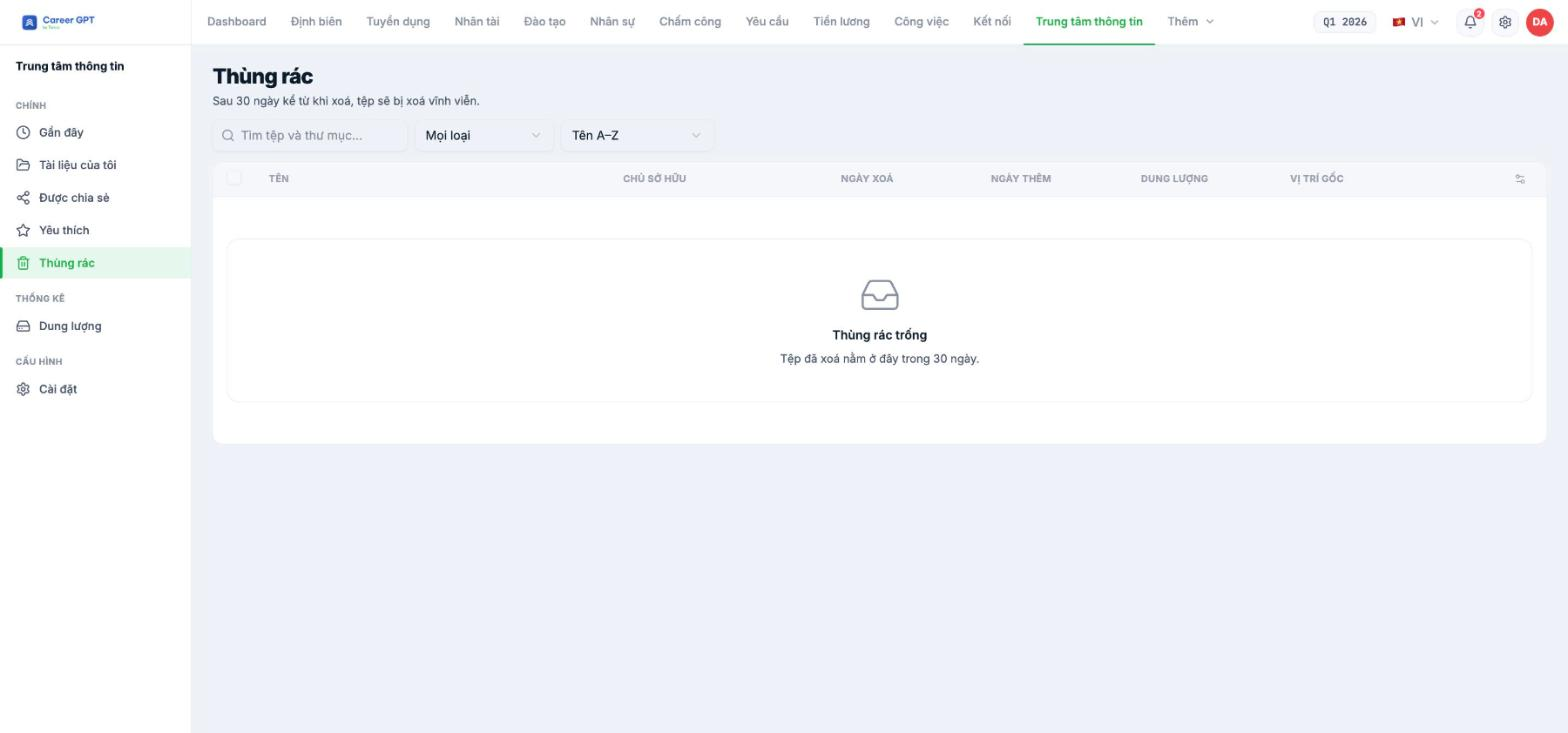
When you move an item to the trash, the dialog clearly reminds you “You can restore from Trash within 30 days”. The trash list has two extra useful columns: Deleted date and Original location — so restoring returns the item to exactly where it was.
- Restore — returns the item to its original location.
- Delete permanently — with the warning “This action cannot be undone”.
Trash currently has no Empty trash button; to delete everything, delete items one by one or select multiple rows. Also, items are permanently deleted automatically after 30 days — if your business needs to keep documents longer due to regulations, don't rely on the trash; move them into the `_Expired` folder.
Logs and traceability
The module does not yet have its own log for renaming, moving, or deleting documents. Traceability relies on the system's general activity log (C1-07). For important folders, limit Edit permission to one or two people so the list of people who can change documents always stays short.

