The most important tab in the profile. It holds all the data about the employment relationship between the company and this person — and it is the source that timesheets, payroll and insurance all read from.
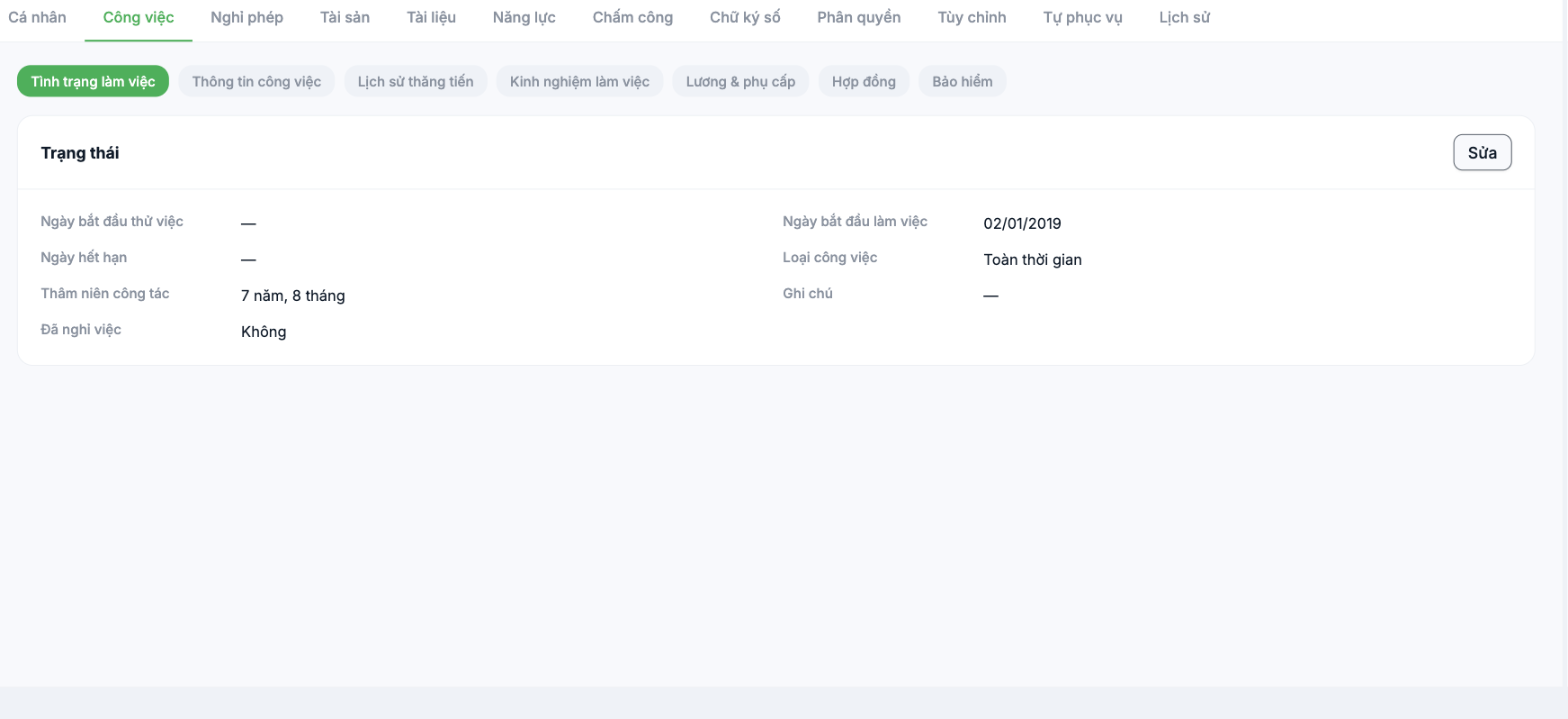
| Group | What it contains | Affects |
|---|---|---|
| Employment status | Probation start date · Start date · End date · Job type · Length of service · Resigned · Notes | Leave balance, seniority, the Probation field in the list, payroll for people who join mid-period |
| Job information | Branch, department, job title, manager, work arrangement | Request approval flow, scope-based permissions, organizational structure reports |
| Promotion history | Changes in job title, department and salary over time | Career progression reports, Job file export |
| Work experience | Previous employers, job titles, duration | Competency profile, internal recruitment |
| Salary & allowances | This person's own salary and allowances | Pay periods |
| Contracts | Signed employment contracts | Alerts for contracts about to expire |
| Insurance | Insurance contribution salary, participation period | Insurance deductions in payroll, reports submitted to authorities |
The most important field: Start date
The Start date field in the Employment status group is the official date the person started work. The system uses it to calculate length of service (shown right below it), to calculate the first year's leave balance, and to calculate pay for people who join mid-period. Entering this date incorrectly is a common reason a new employee's first-month payroll is off.
The Resigned field in the Employment status group is different from Deactivate account under the … button at the top of the page. One records an HR event; the other blocks login. When someone leaves, you usually need to do both — see B2-21.
Steps to edit
- Open the employee profile and select the Job tab.
- Select the data group you want to edit from the row of seven buttons at the top of the tab.
- Click Edit in the corresponding block, make your updates, then save.
Notes
- Changing the branch or department mid-period affects the timesheet and the request approval flow. Do it at the start of a period, and notify both the old and new managers in advance.
- Changing the salary while a pay period is open will cause figures to change midway. Close the period first, then make the change.
- Every change in this tab is recorded in the History tab — see B2-20.

