The shift template is the smallest unit of the entire time & attendance system. Every calculation of late arrival, early departure, full or missing working days is compared against the shift template. This article walks through each field in the shift creation form.
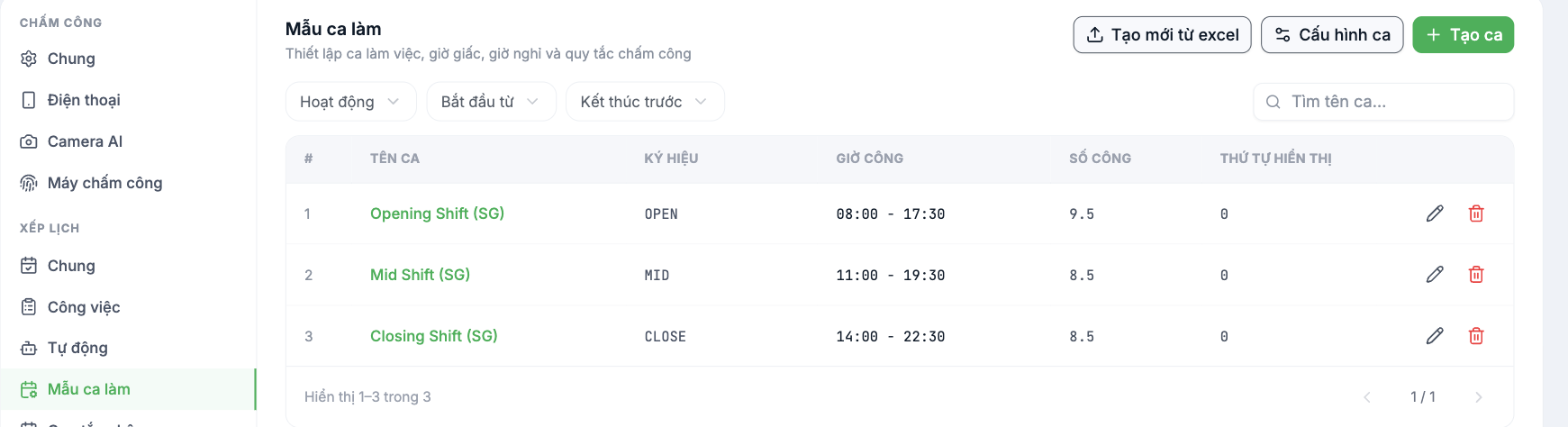
Creating a new shift
- Go to Time & Attendance › Settings › Scheduling › Shift Templates.
- Click + Create Shift.
- Fill in four groups of information: General, Working Hours, Mid-Shift Break, Clock-In Rules.
- Select the scope of application in the last group, then click Create Shift.
GENERAL group
| Field | What to enter |
|---|---|
| Shift name | The name employees will see in the app. Use everyday language: Morning Shift, Split Shift, Kitchen Night Shift. |
| Symbol (shift code) | A short code used on the timesheet and in exported files. For example `S`, `C`, `HC`. |
| Working days | The number of working days one of these shifts is equivalent to. A full-day shift = `1`; a half-day shift = `0.5`. This is not the number of hours. |
| Minimum working hours | Below this threshold, a full working day is not credited. Leave as `0` if not applicable. |
| Number of meals | The number of meals this shift is entitled to, used for the Meals module (article B6-18). |
| Display order | Determines the shift's position in selection lists. Smaller numbers appear first. |
| Report symbol | The character shown in the timesheet cell. Can differ from the shift code. |
| Overtime shift | Check this when the entire shift is overtime, not regular working hours. |
The most common mistake: entering Working days as the number of hours. A 08:00–17:30 shift has 9.5 hours, but Working days is still 1. If you enter 9.5 in this field, each day worked will be counted as 9.5 working days and payroll will be off by nearly tenfold.
WORKING HOURS group — three time ranges
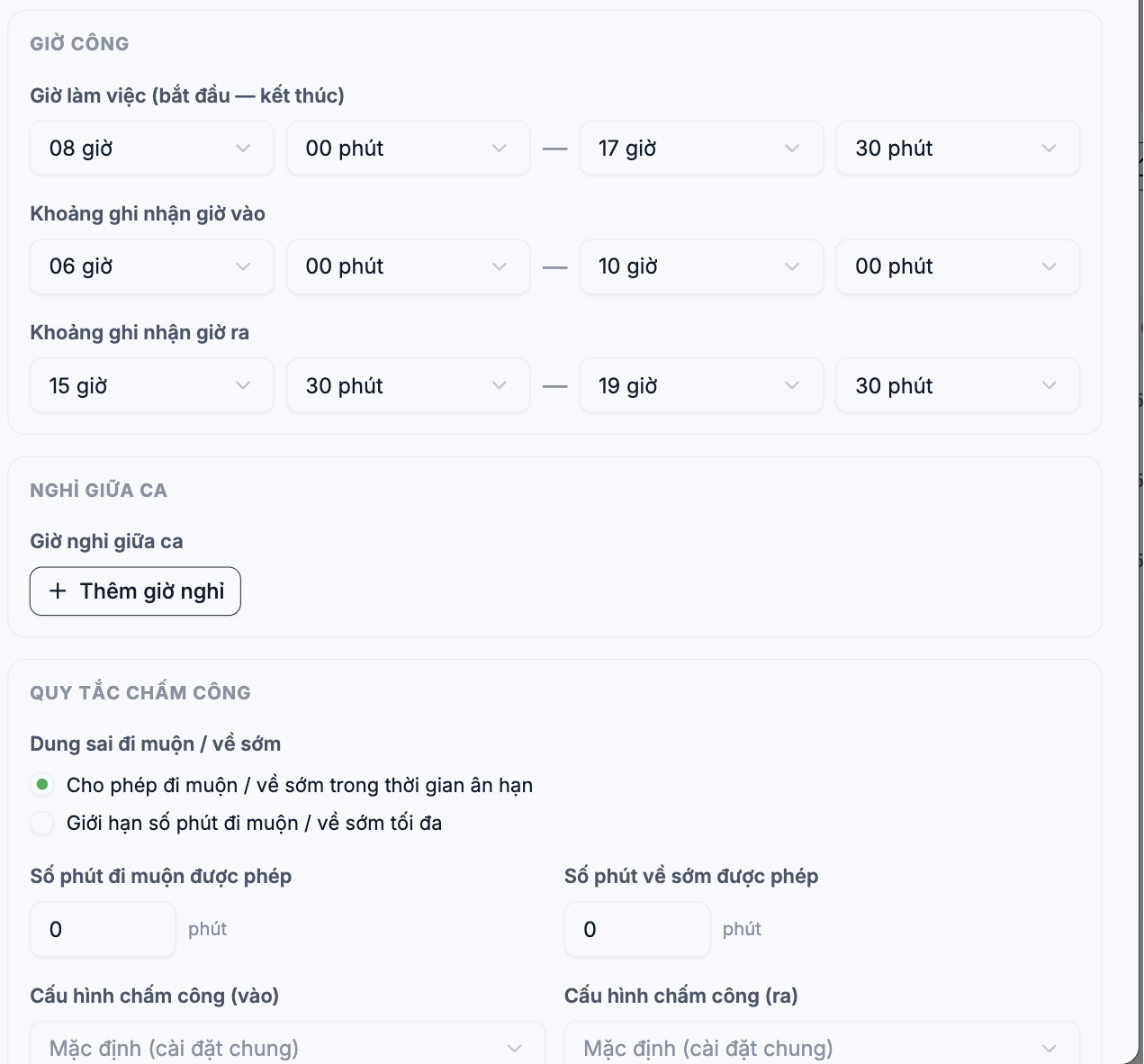
| Field | Meaning |
|---|---|
| Working hours (start — end) | The official hours of the shift. All late arrival and early departure calculations are compared against these two points. |
| Clock-in recording window | The time window in which the system accepts clock-in punches. Punches outside this window are not recorded as the shift's clock-in time. |
| Clock-out recording window | The same, for clock-out time. |
When you change the working hours, the system automatically shifts both recording windows accordingly. If you move the start time from 08:00 to 07:00, the clock-in recording window also moves back one hour. You should still check visually before saving.
Mid-shift breaks and clock-in rules
- Mid-shift break — click Add Break and enter the break period. The system immediately shows the number of minutes deducted. For shifts with multiple breaks, add multiple rows.
- Late arrival / early departure tolerance — choose one of two options: allow within a grace period (arriving late within the threshold is not counted as a violation) or limit the maximum number of minutes (beyond the threshold, the punch is not recorded for the shift).
- Allowed late arrival / early departure minutes — the grace threshold in minutes.
- Clock-in configuration (in) / (out) — leave as Default (general settings) unless this shift needs its own clock-in method, for example a night shift that requires a face photo.
Overnight shifts
A shift ending after midnight is set up as usual: start time 22:00, end time 06:00. The system recognizes it as a shift that spans two days. In the Excel import file, the end time of an overnight shift includes the suffix `HS`, for example `06HS`.
Importing multiple shifts via Excel
- Click Create from Excel at the top of the page.
- Download the template file and fill in one shift per row.
- Upload the file and read the result Imported x/y.
The Excel template currently has fewer fields than the web form — it lacks minimum working hours, number of meals, report symbol, late arrival/early departure tolerance, and clock-in/clock-out configuration. After importing, you still have to open each shift to fill these in. For fewer than ten shifts, creating them manually is faster.

