The remaining four import types don't create new people; they overwrite existing profiles. This is the fastest way to change the same thing for dozens of people: a company-wide pay raise, changing the access group for a department, assigning attendance rules to a branch.
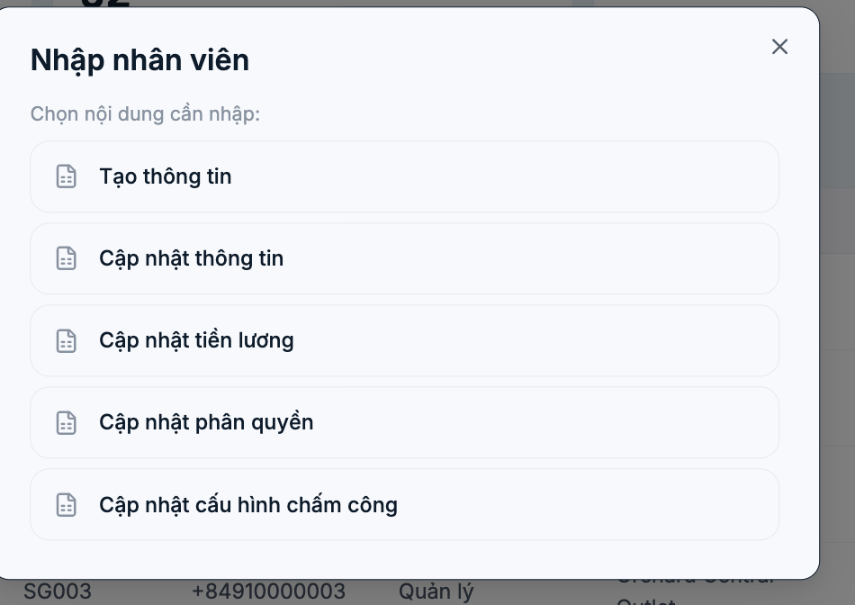
Four update types
| Type | What it changes | Example scenario |
|---|---|---|
| Update information | Any field in the employee profile | Adding bank account numbers for the whole company before the first payroll period |
| Update salary | Salary and salary-linked items | A periodic pay raise for a group of employees |
| Update permissions | Each person's access group | Moving all department heads into the Branch Manager group |
| Update attendance settings | Each person's individual attendance options | Turning on "Clock in from anywhere" for the field sales team |
General process
- Go to HR › Employees, click the arrow next to + Create, and select Import file.
- Select the update type you need.
- Click Template to download the template file for that exact type — each type has a different column structure.
- Fill in the data. The employee identifier column must match the existing profile; otherwise the system doesn't know whom to update.
- Click Choose file and upload it.
- Check a few representative profiles to confirm they changed correctly.
Bulk updates overwrite data and cannot be undone. Before each run, export a copy of the current data to a file (see B2-07) so you have a backup to compare against if the result isn't what you expected.
Four safety principles
- Export the current data to a file first. This is the only backup you have.
- Keep only the columns you need to change. Any column you fill in gets overwritten; the behavior for empty columns may differ between types, so don't fill in more than needed.
- Test with 3 people first. Check the results before running the full list.
- Don't run salary updates while a payroll period is open. Finalize or lock the payroll period first, to avoid figures changing midway.
When not to use bulk updates
- Changes for fewer than five people — opening each profile is faster and less risky.
- Changing the branch or department of people who have attendance data in the current period — handle each case individually to control the impact on the timesheet.
- Employees who are leaving — use the Disable account function in the profile; see B2-21.

