Two numbers determine the outcome of the entire review cycle: the weight of each skill, and the job title's required level for that skill. This article covers both and shows how to set them meaningfully.
Weights — totaling 100% within each group
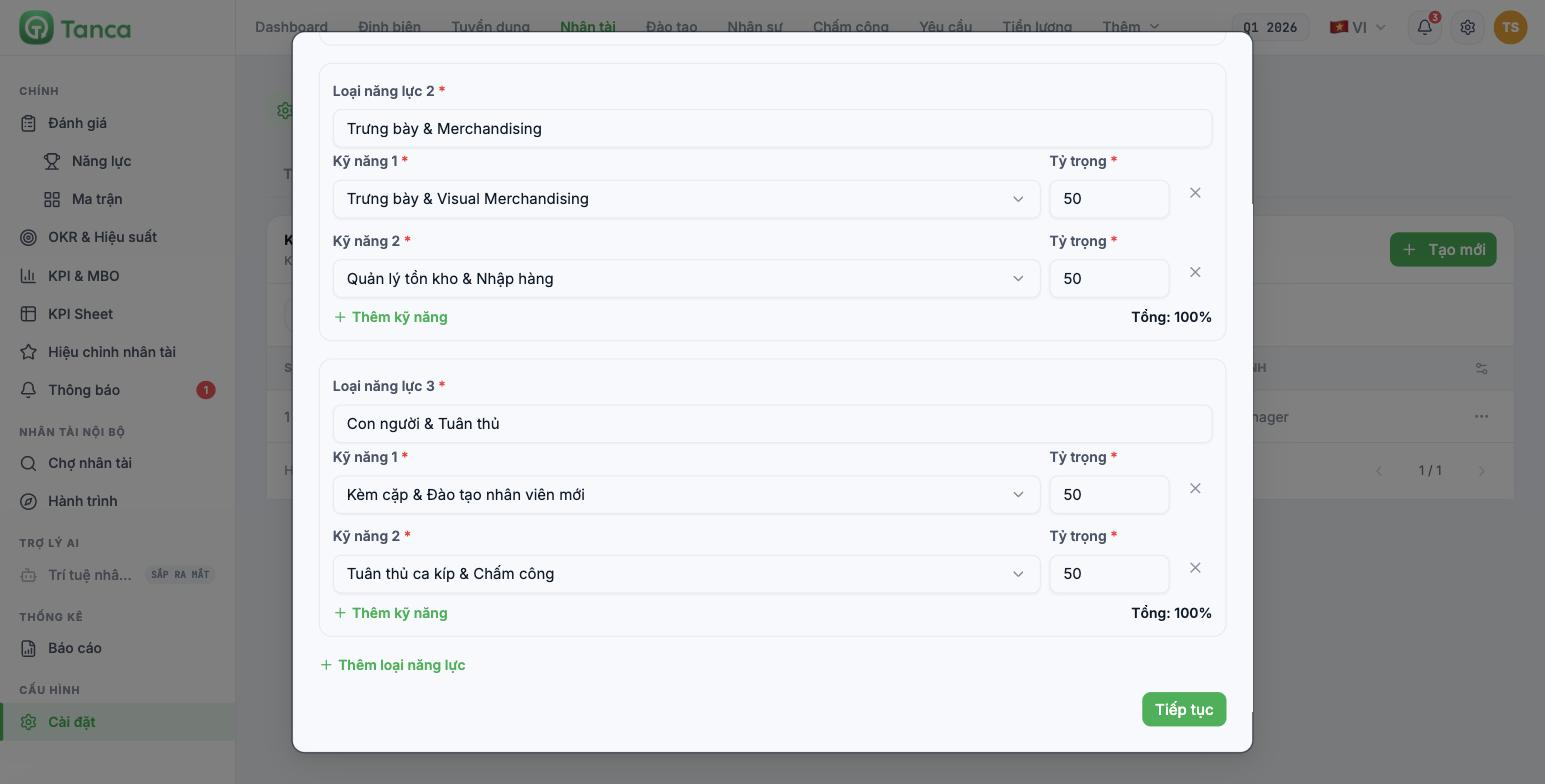
Each Competency type has a Total row in the right corner. The total weight of the skills in that group must equal 100%.
The total is calculated within each group, not across the whole framework. A framework with three groups will have three Total rows, and each must reach 100%. The system shows this number so you can check it yourself — check all three before clicking Continue.
How to set weights meaningfully
- Equal splits are a sensible default when the skills in a group are truly equal in importance.
- Only deviate when you have a reason you can state. If you set 70–30, you must be able to answer "why is this skill more than twice as important as that one?" in front of the department head.
- Avoid odd numbers. Use multiples of 5 or 10. A 37% weight doesn't make results more accurate; it just makes the report harder to read.
- Avoid weights below 10%. A skill so light that it doesn't affect the results should be removed from the framework, not kept just to fill out the set.
Required levels — step 2 of the framework
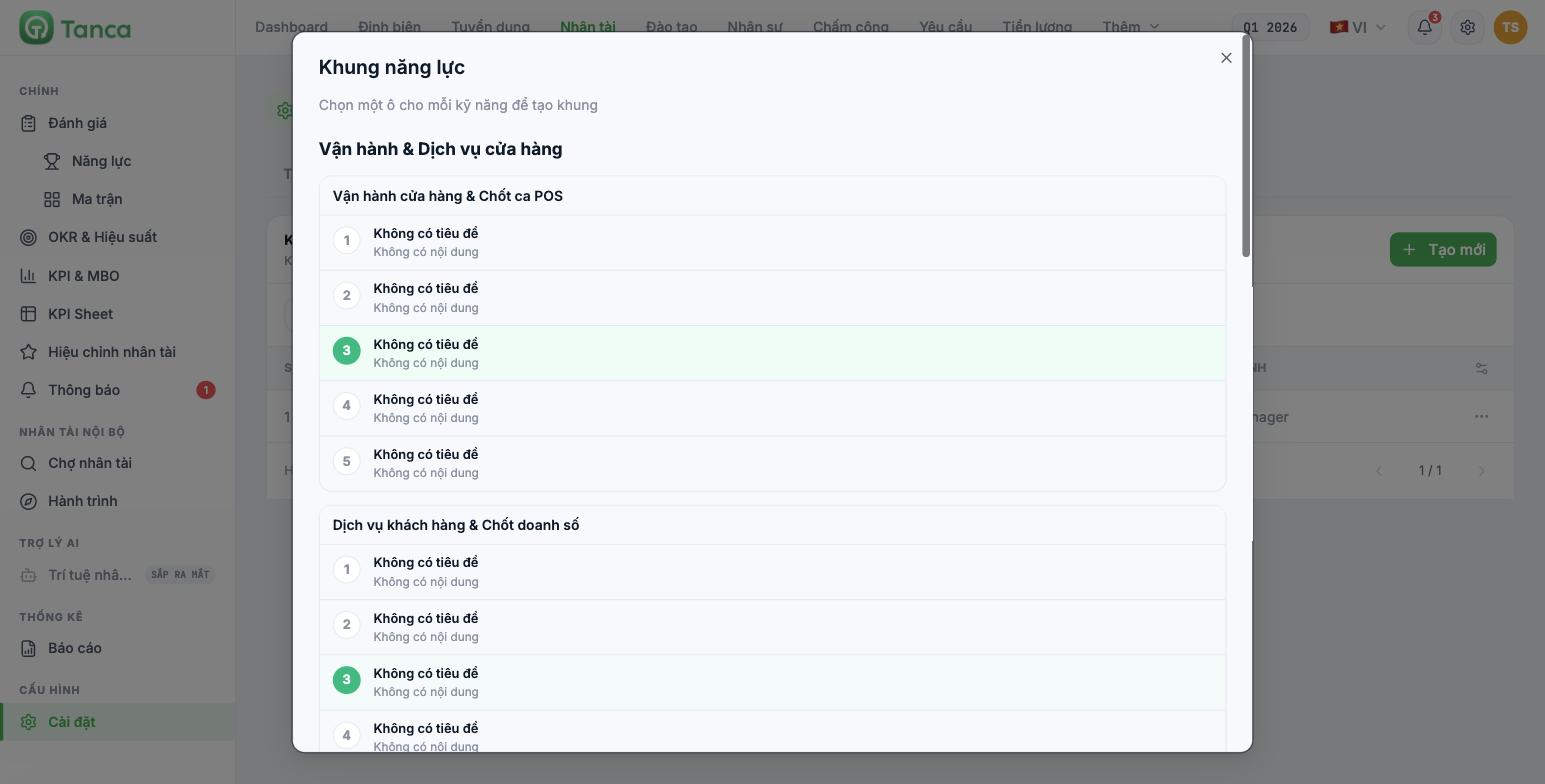
After clicking Continue in step 1, the screen lists each group, each skill within the group, and under each skill the five behavioral levels written in the library. Click a level to select it — the selected box turns green. That is the job title's required level for this skill.
- Go through each skill and click to select the required level.
- Click Back if you need to edit the structure in step 1.
- Click Save when done.
If the levels show "Untitled / No content", it means that skill hasn't had its five behavioral levels written in the library. Stop, go back to the Skill Library, open that skill and write the five levels (article B13-03). Randomly selecting an empty box here will create a framework that no one can rate against.
Choosing the right required level
| Skill type | Typical required level |
|---|---|
| Core skill of the job title — doing it wrong ruins the work | 4 |
| Key skill, used daily | 3 |
| Supporting skill, used occasionally | 2 |
| Skill of a higher level, included to guide development | 3 — don't set 5 |
Don't set level 5 as the requirement for a job title. Level 5 is the benchmark level, able to teach others — making it the minimum requirement means almost the whole company will be below standard, and the review results lose all their classifying meaning.
What required levels are used for
- Measuring competency gaps. The difference between the actual level and the required level is that person's training need.
- Promotion decisions. Someone who wants to move up to a higher job title is compared against the required levels of that job title's framework.
- Internal recruitment. The competency framework is the set of criteria for comparing people in the company with an open position.
What to do after saving the framework
- Run a trial review cycle on one person before opening it to the whole department.
- Read the results and ask yourself: does this number accurately reflect that person?
- If it's off, it's usually because of the weights, not the rater — go back and adjust the weights.
- Only expand to the whole company once the framework produces reasonable results.

