Electronic payslips replace paper envelopes. Only you can view your own payslips, and you can look back at previous months at any time without having to ask for them again.
View your payslip
- Open the Tanca app or sign in on the web.
- Go to Payslips.
- Select the month you want to view.
- Select the pay period. The payslip is displayed as a list of individual lines.
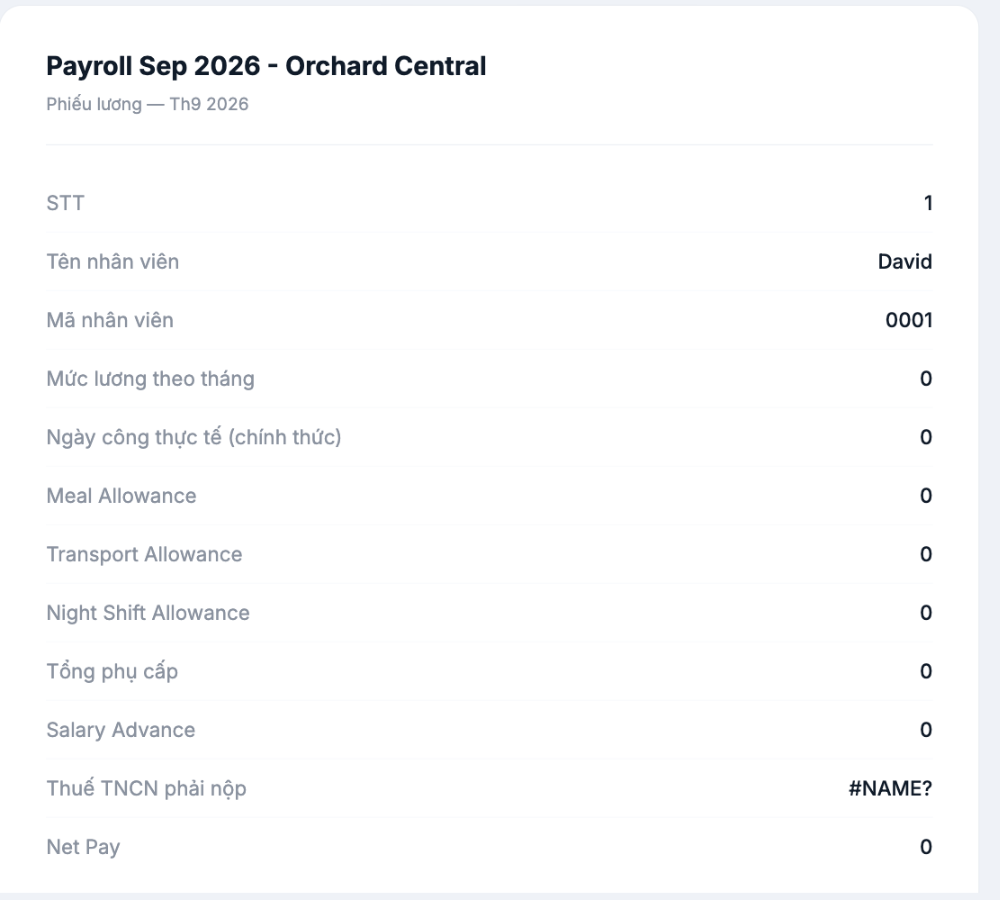
Reading your payslip
The lines on the payslip are divided into four groups, read from top to bottom:
| Group | What it includes |
|---|---|
| Identification | Name, employee ID, pay period |
| Calculation basis | Salary, actual number of working days |
| Additions | Each type of allowance, overtime, bonuses, and the total line |
| Deductions | Salary advances, insurance, taxes |
| Net pay | The amount deposited into your account — the last line |
The line names are set by your company when it builds the payroll, so they may differ between companies. If you don't understand a line, ask — that's a reasonable question, not a bother.
Three figures to check yourself every month
- Number of working days — compare it with your timesheet (article B6-22). This figure affects almost every other line.
- Allowances — check that all the allowances you're entitled to are included.
- Net pay — compare it with the actual amount deposited into your account.
Check within the first few days after receiving your payslip. If you discover a problem several months later, tracing it back is much harder, and some items may already be past the settlement period.
Downloading and saving payslips
- Click Export to download the payslip to your device.
- Payslips are often required when applying for a bank loan, renting a home, or preparing personal paperwork.
- It's a good idea to save your own copy each month rather than relying entirely on the system.
When your payslip doesn't appear
| Situation | Cause |
|---|---|
| This month's payslip isn't showing yet | The company hasn't approved and published the payroll yet. Ask HR for the monthly release date |
| Last month is visible but this month isn't | The pay period is still being processed, and payslips are temporarily hidden |
| The Payslips section isn't visible | The company hasn't enabled the feature, or your account hasn't been granted permission |
| A line shows strange symbols instead of a number | This is a technical error — report it to HR immediately; don't guess |
Regarding the last row of the table above: if you see a cell showing letters and a question mark instead of an amount, it's an unresolved formula error. Take a screenshot and send it to HR.
Who can view your payslip
Only you and the people the company has granted permission to — usually HR and payroll accounting. Coworkers and your line manager cannot view it by default. If you want to know exactly which groups have access, ask HR; this is information you have the right to know.

