Your objectives only mean something when the numbers are updated regularly. This article covers three things: viewing assigned objectives, adding key results, and updating progress.
Viewing your objectives
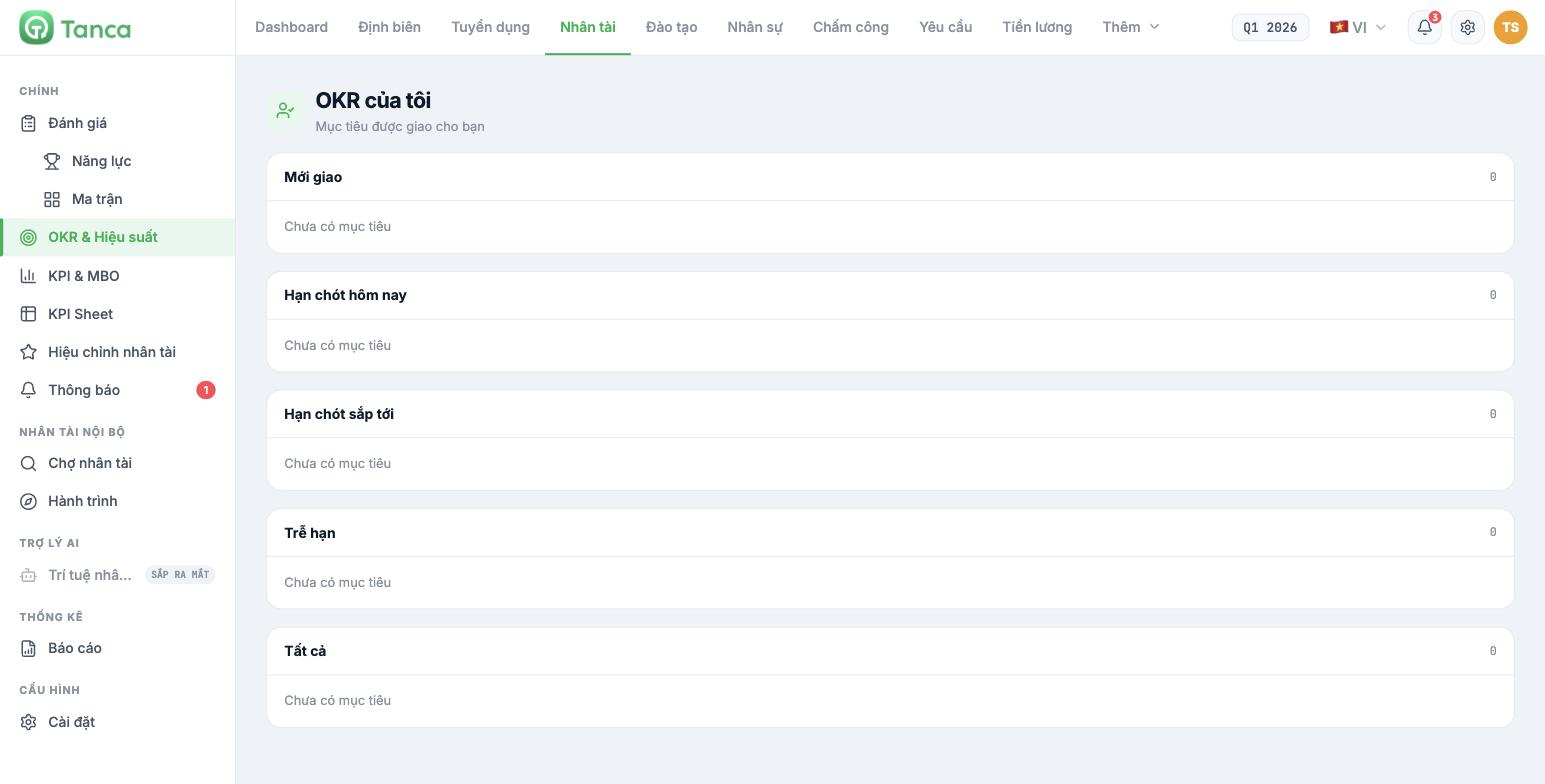
Go to Talent › OKR & Performance, click ⋯ at the top of the page and select My OKRs. The screen is divided into five groups:
| Group | Meaning |
|---|---|
| Newly assigned | Objectives just assigned to you — read them and confirm with your manager |
| Due today | Must be updated or closed today |
| Upcoming deadlines | Due soon — prioritize them this week |
| Overdue | Past the deadline and not yet completed |
| All | All of your objectives in the cycle |
To see them in the context of your whole department, go back to the Individual tab on the main OKR page and filter by your name.
Adding a key result
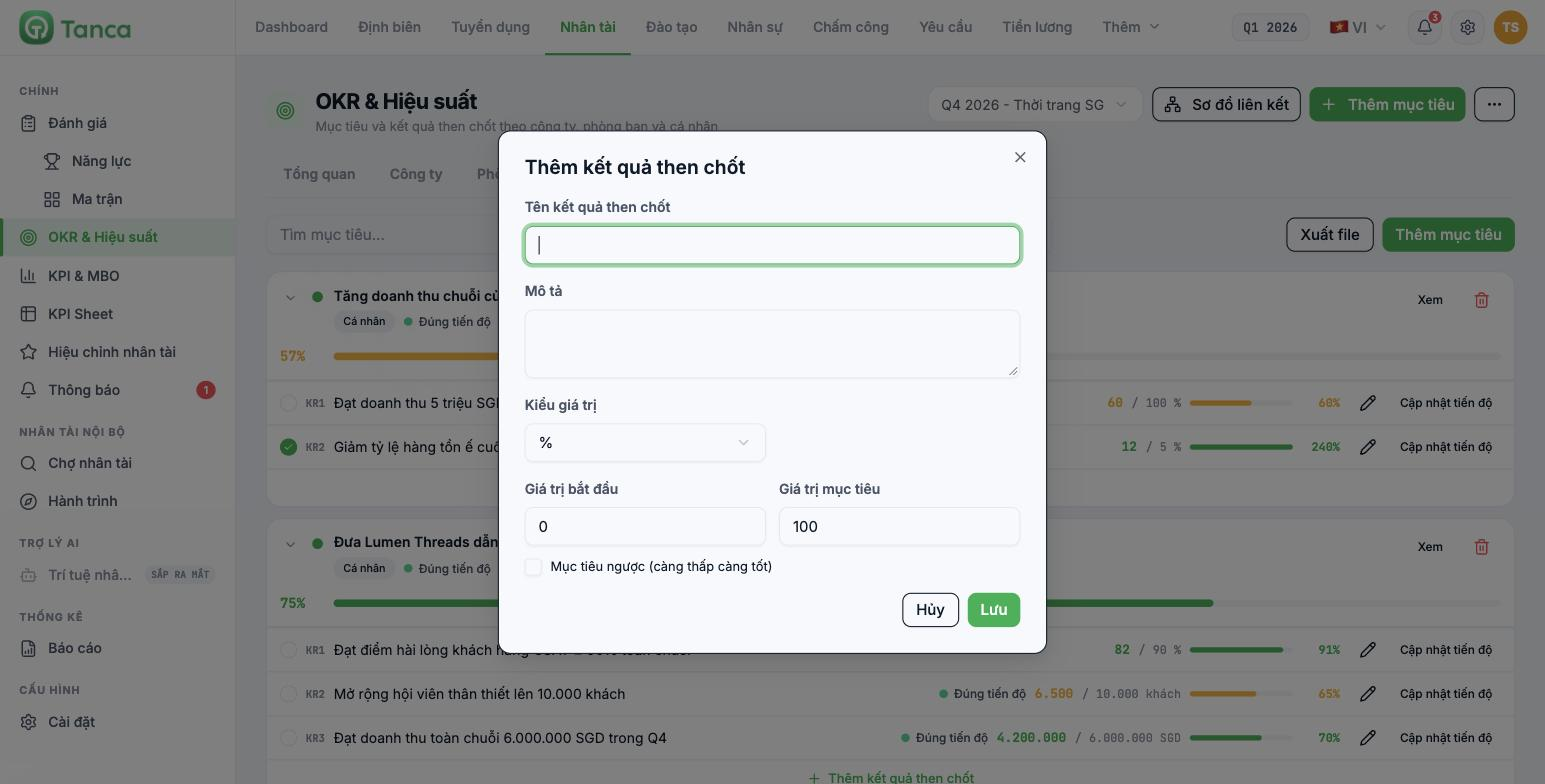
Open the objective and click + Add key result. Fill in:
| Field | Notes |
|---|---|
| Key result name | Include a number, e.g. Achieve a CSAT score of 90 across the chain |
| Description | How it is measured, the data source |
| Value type | Default is `%`. Change it to the real unit if measured in money, customers, orders… |
| Start value | The current figure at the time the objective is set |
| Target value | The figure you want to reach by the end of the cycle |
| Inverse target (lower is better) | Check this box if the metric is an error rate, inventory, cost, waiting time… |
Forgetting to check Inverse target is the most common mistake. In that case, when you reduce the number, the system interprets it as going backwards. If you forgot, click the pencil icon on the KR row to fix it.
Updating progress
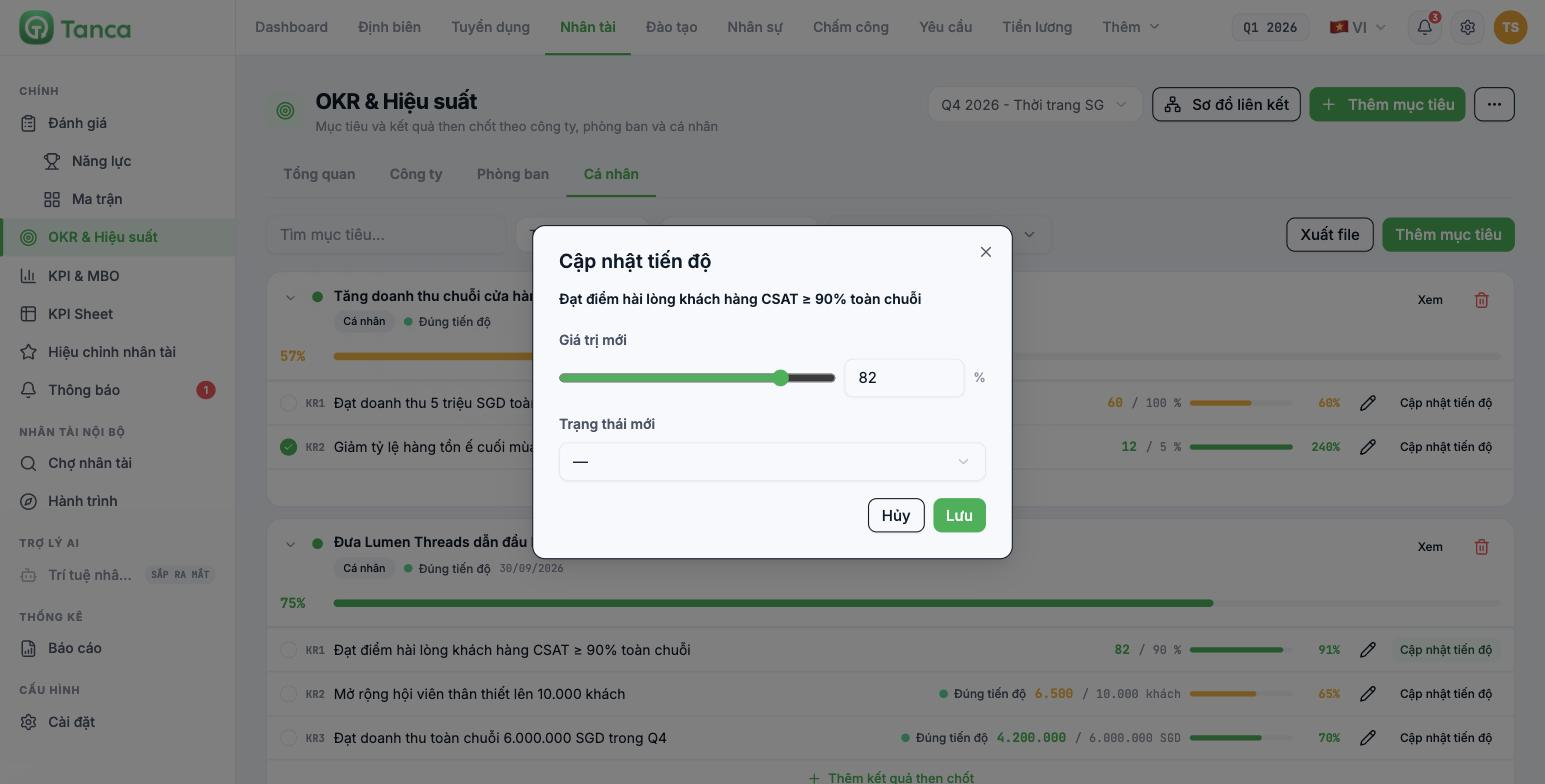
- On the KR row, click Update progress.
- Drag the slider or type directly into the New value field.
- Choose the New status: On track · Behind schedule · Needs attention · Not set.
- Click Save.
Every update is recorded — click History on the KR row to review the values entered. This is what your manager looks at when assessing whether you are staying on top of your objectives, so update regularly every week instead of saving it all for the end of the cycle.
For KRs with Inverse target checked, the percentage shown on the KR row is currently incorrect (it may exceed 100% and show the completed checkmark early). Look at the percentage on the objective row — that figure is calculated correctly.

