The first thing to do when your company starts using Tanca. It takes about three minutes.
Steps
- Open the App Store (iPhone) or Google Play (Android), search for Tanca, and install it.
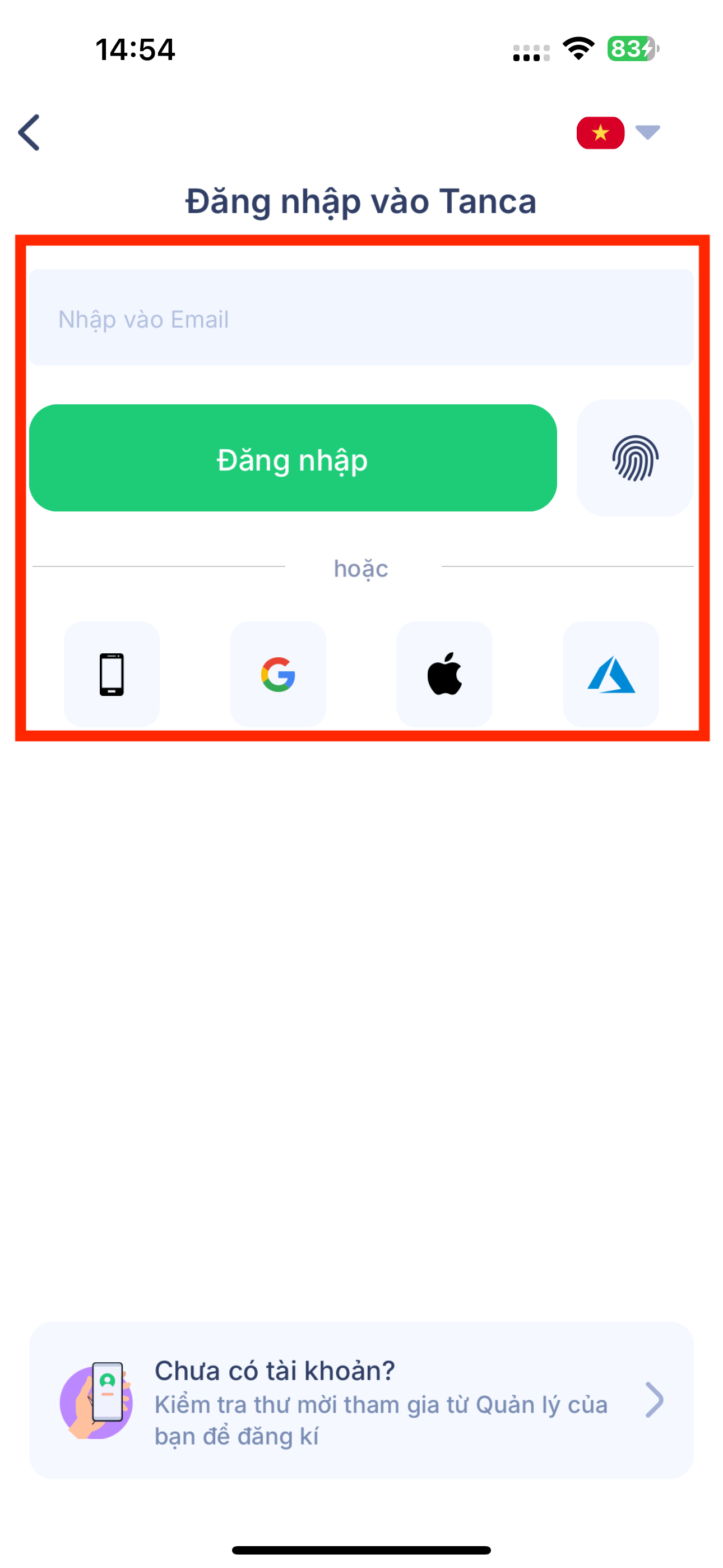
- Open the app and choose a sign-in method: phone number, email, or Google. Use the exact phone number or email that HR registered for you.
- Enter the password HR sent you. If you haven't received one, ask the person in charge of HR — they can reset your password for you.
- Change your password the first time you sign in.
Allow the permissions the app asks for: Location, Camera, and Notifications. Without them, you won't be able to clock in.
| Symptom | What to do |
|---|---|
| Account not found error | You're entering the wrong phone number or email. Ask HR which details your profile is registered with. |
| Incorrect password error | Ask HR to reset your password. They can do it right from your profile. |
| Signed in but everything is empty | Your profile hasn't been assigned to a branch or department yet. Ask HR to add it. |
Don't share an account with colleagues. Every clock-in, request, and payslip view is tied to an account; sharing one will cause timesheet errors and expose salary information.
Next steps
- A3-02 — Clock In Daily on Your Phone
- A3-06 — Turn On Notifications So You Never Miss What Needs Your Attention

