The Statistics screen is where a survey round delivers its value. This article shows how to read the two metric cards at the top of the page, the two tabs below, and how to export data for deeper analysis.
Opening the Statistics screen
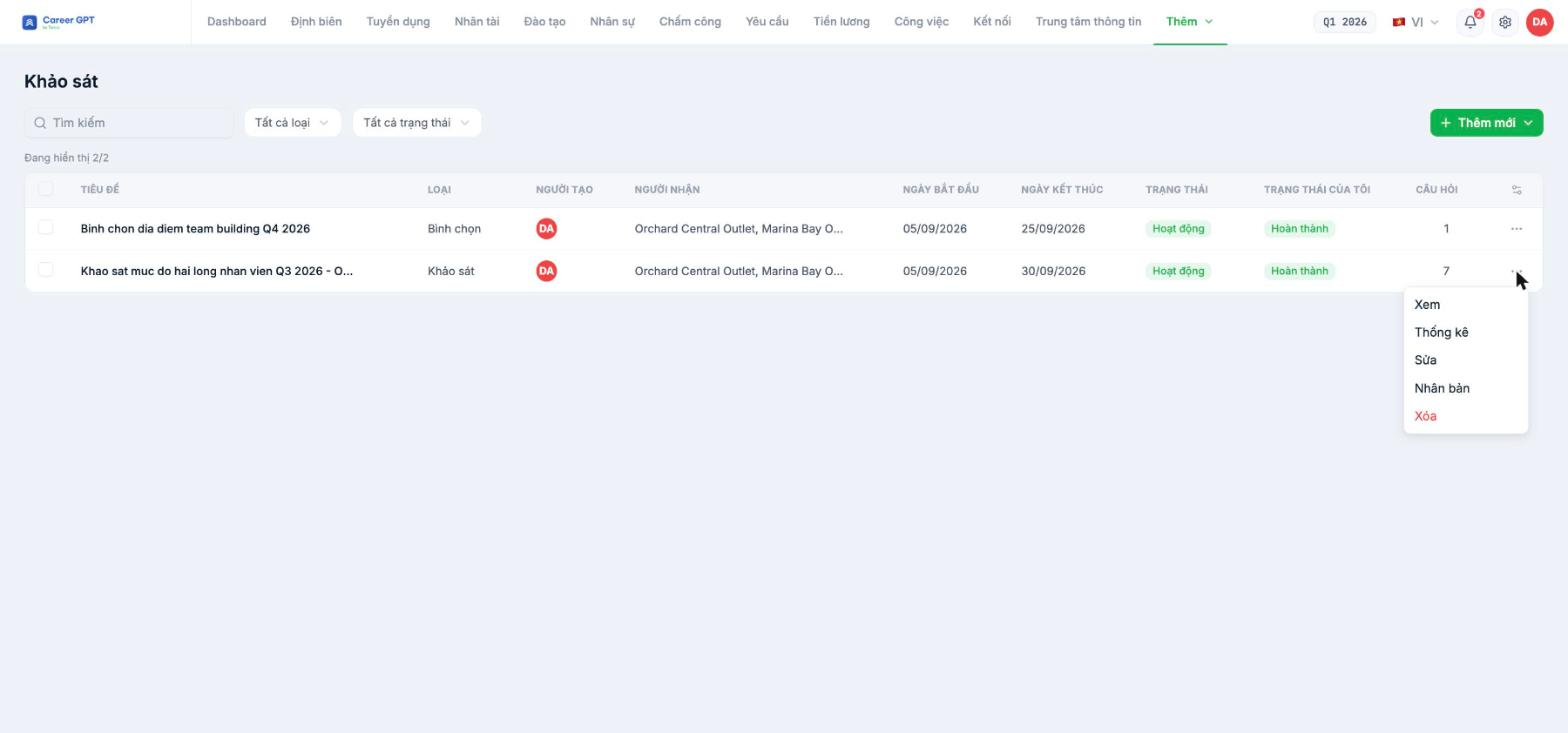
Go to Surveys, open the `…` menu at the end of the row, and select Statistics. Note that this menu option only exists on Survey rows — Poll rows don't have a Statistics option (see B19-04).
The two metric cards at the top
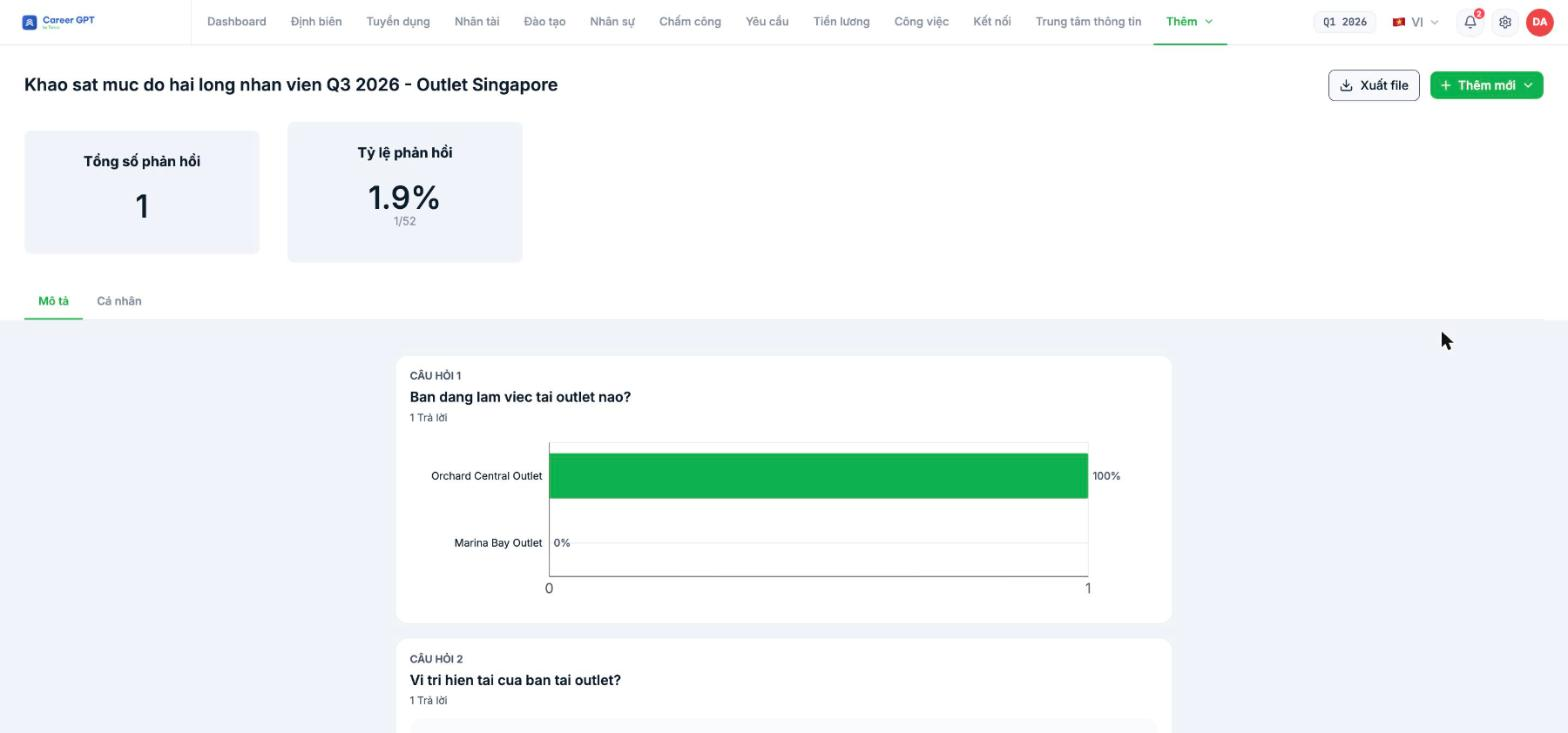
| Card | How to read it |
|---|---|
| Total responses | The number of people who have submitted. This is the denominator you use when reporting |
| Response rate | A percentage along with the actual fraction, for example 1.9% — 1/52: 1 person submitted out of 52 recipients |
Below the two cards are two tabs: Summary (aggregate charts for each question) and Individual (one response at a time).
Summary tab — charts for each question
Each question is a card showing the number of responses followed by a chart. Multiple-choice and checkbox questions are shown as bar charts with percentages; dropdown questions as pie charts with a legend; scale questions show the distribution by score; open-ended questions list each answer.
For Multiple-choice grid questions, the number on the card is counted by number of rows, not by number of people — one person answering a 4-row grid is recorded as “4 Responses”. Always take the denominator from the Total responses card at the top of the page. Row labels on grid charts may also be cut off or missing; when you need precision, cross-check with the Individual tab.
Individual tab — one response at a time
This tab pages through each response, showing all questions and answers organized by section, with a page counter at the top. It's the most reliable place to check when you suspect a chart is drawn incorrectly.
For anonymous surveys, each response shows “Response from Anonymous” instead of the respondent's name — see B19-03 on the limitations of this mechanism.
Exporting data
The Export button in the top-right corner downloads all responses to your computer so you can analyze them in Excel: slice by branch, calculate average scores by department, compare two survey periods.
For engagement surveys run on a recurring basis, export the file right after closing each round and save it with a naming convention that includes the period — Tanca doesn't yet have a screen for comparing periods, so you have to build the over-time comparison table yourself.
TO BE CONFIRMED BY THE COMPANY before publishing (the format and columns of the exported file need to be confirmed so the instructions can be more specific).
Reading results correctly: four rules
- Always report the response rate alongside the results. A 4.5/5 star result from 3 respondents out of 200 recipients tells you nothing.
- Break down by branch before drawing conclusions. A company-wide average often hides a branch that is having problems.
- Read open-ended answers first, charts second. Charts tell you how many; open-ended answers tell you why.
- Share part of the results back with employees. Any survey round without follow-up feedback will sharply reduce the response rate of the next round.

