Bring your company's brand identity into the system. It's a small task but has a real effect: when employees see their company's logo on the sign-in page, they trust that it's an internal system, not an unfamiliar service asking for personal information.
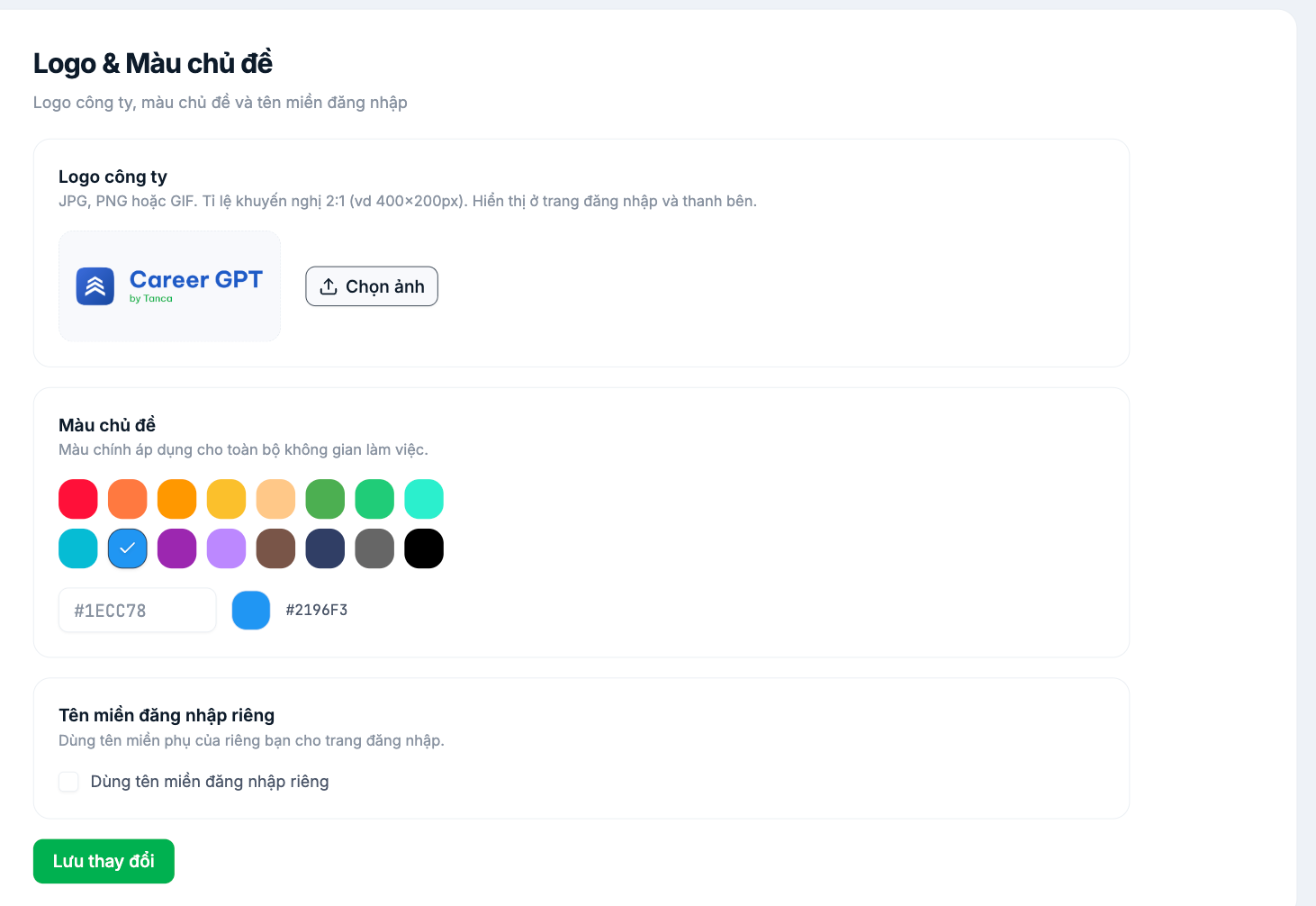
Company logo
- Format: JPG, PNG, or GIF.
- Recommended ratio 2:1, for example 400×200 pixels.
- Displayed on the sign-in page and in the system's sidebar.
- Click Choose Image to upload.
Use a logo with a transparent background (PNG) so it looks good on both light and colored backgrounds. A logo with a solid white background will show a white block on the sidebar.
Theme color
- Sixteen preset colors, or enter your own hex color code in the field below.
- This color applies to the entire workspace: buttons, labels, selected items.
- Choose the primary color from your company's brand identity so the system looks consistent with your other tools.
Custom sign-in domain
Check Use a custom sign-in domain if you want employees to sign in through your company's subdomain instead of the shared domain. This requires DNS configuration on your company's side, so coordinate with your IT department before turning it on.
TO BE CONFIRMED WITH THE ENGINEERING TEAM: the DNS records to point and the time it takes to take effect when enabling a custom sign-in domain. Not included in this article until official instructions are available.
Steps
- Go to Settings › Organization › Logo & Theme Color.
- Upload your logo, choose a theme color, and check the custom domain option if needed.
- Click Save Changes.
- Sign out, then reopen the sign-in page to check that the logo displays correctly.

