Shift scheduling is deciding who works which shift, on which day. Timesheets, payroll, and every late arrival report are calculated back from this schedule — if shifts are scheduled incorrectly, every number downstream will be wrong. This article shows the right order to get started.
Three data layers, done in the right order
Many businesses jump straight into the Scheduling screen and then struggle because there's nothing to schedule yet. Shift scheduling in Tanca has three layers, which must be built from the bottom up:
- Shift templates — define what a shift is: name, start time, end time, break time, late arrival tolerance. Done in Settings › Scheduling › Shift Templates (article B7-02).
- Shift assignment rules — assign shift templates to each day of the week, for which branches and departments. Done in Settings › Scheduling › Shift Assignment Rules (article B7-03).
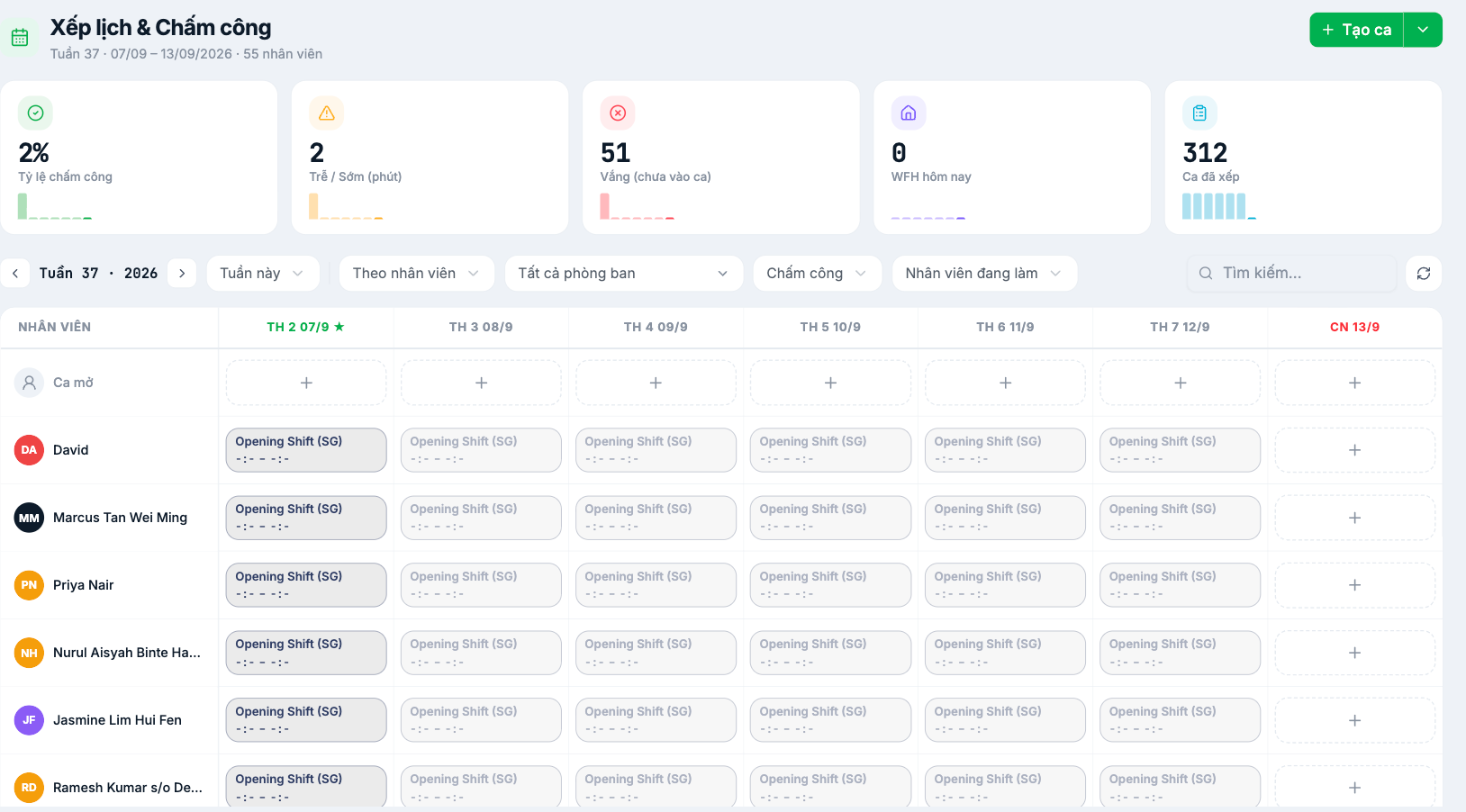
- Weekly schedule — the Scheduling screen automatically generates shifts according to the rules; you only edit the exceptions.
Office-based businesses with fixed hours only need one shift template and one rule and they're done — the schedule runs on its own indefinitely. Only shift-based models (F&B, retail, manufacturing, healthcare) need to touch the Scheduling screen every week.
Four screens in the Work Schedule group
| Screen | What it's used for |
|---|---|
| Scheduling | Employee × 7 days grid. Where you view and edit the weekly schedule. |
| Finalize Weekly Shifts | On-duty list by shift, used for printing and posting in the store and for finalizing the week. |
| Task List | Assigns field tasks to each employee each day (different from shifts). |
| Forecast | An AI tool that suggests the number of people needed per shift based on projected revenue. |
Toggles that determine how shifts are scheduled
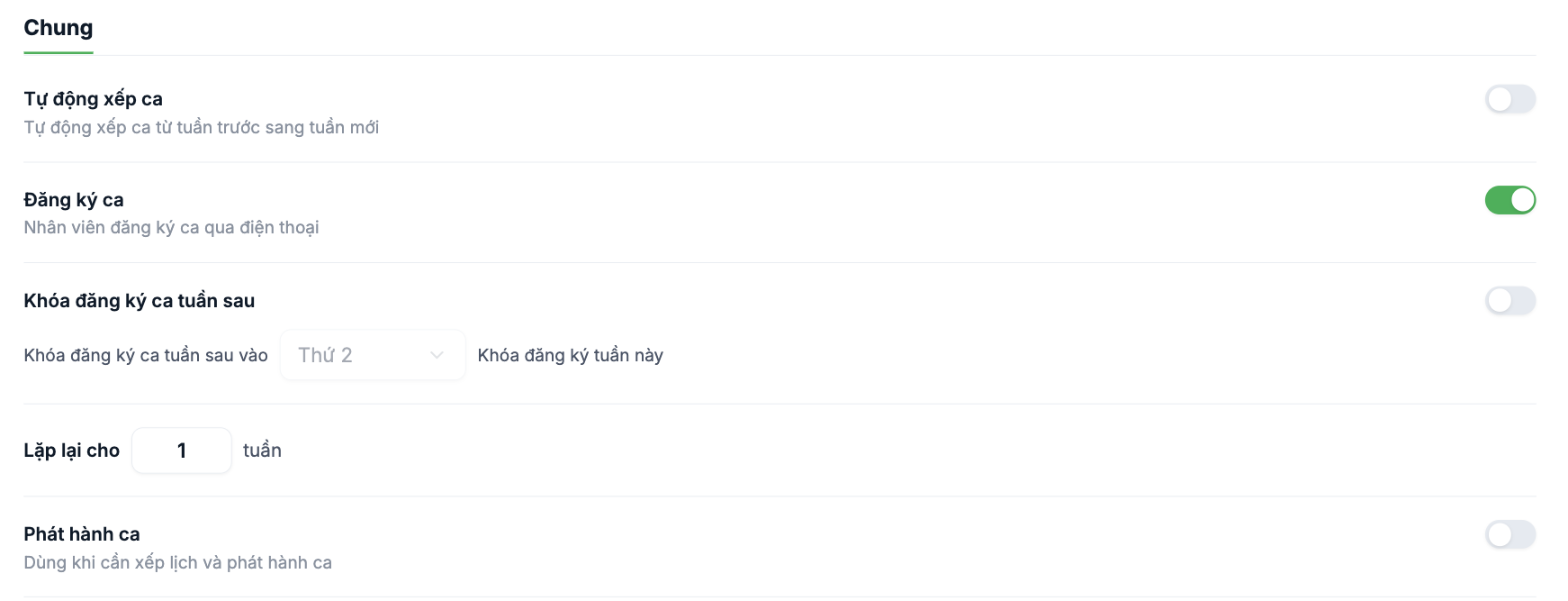
| Toggle | Meaning |
|---|---|
| Auto Shift Scheduling | The system automatically copies the previous week's schedule into the new week. Turn on when your schedule barely changes from week to week. |
| Shift Registration | Lets employees choose their own shifts in the app, with managers approving afterward (article B7-06). |
| Lock next week's shift registration | Sets the registration deadline on a fixed day of the week. After that point, employees can no longer make changes. |
| Publish Shifts | The schedule only appears to employees after the manager clicks publish. Use it when you want to draft the schedule before announcing it. |
| Default shift type | The shift filled in automatically when assigning shifts without selecting a specific one. |
| Maximum shifts per week | Prevents assigning more than this number of shifts to one employee. Set to `0` for no limit. |
| Overtime threshold | The number of hours per day beyond which the excess is counted as overtime. |
This Settings page has no Save button — each toggle saves as soon as you flip it. After making changes, reload the page once to make sure the values were recorded.
Recommended roadmap
- List your business's actual shifts on paper: name, start time, end time, break time.
- Create each shift template following article B7-02.
- Create a shift assignment rule for each shift following article B7-03.
- Open the Scheduling screen and check whether the current week has the correct shifts.
- Run a trial for one week, cross-check the timesheet (article B6-12), and only then roll it out more widely.

