Use this when you need to add ten or more people to the system. The process has only two steps — download the template and upload the completed file — but filling in the file is the time-consuming part, so read article B2-03 before you start.
Before you start
- You have finished setting up Regions, Branches, Departments, and Job Titles in Settings › Organization › Business. The import file references these names.
- You have an employee list, ideally taken from the most recent month's payroll.
- Each person must have their own email, not shared with anyone else.
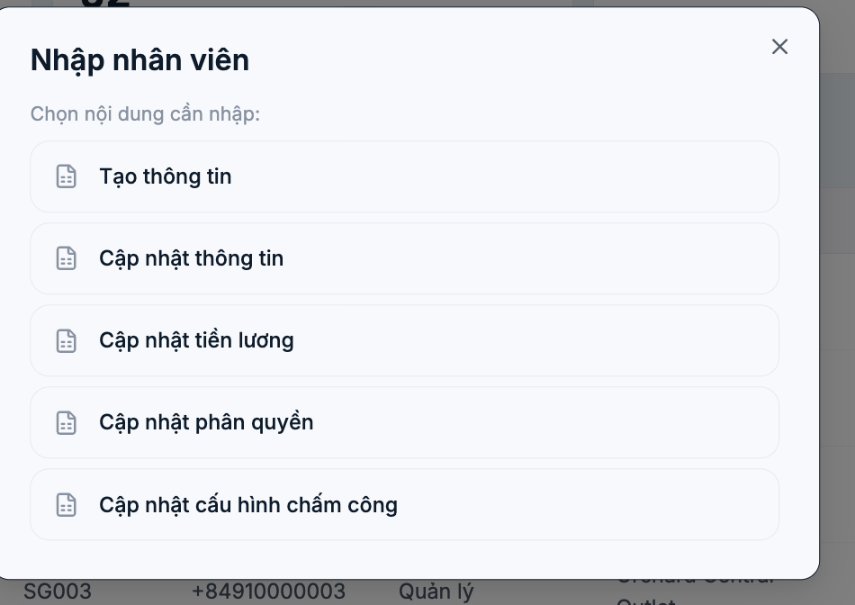
Choose the right import type
| Type | When to use |
|---|---|
| Create information | Add new employees. This is the type used in this article. |
| Update information | Bulk edit existing profiles — see B2-04 |
| Update salary | Bulk adjust salaries — see B2-04 |
| Update permissions | Bulk change access groups — see B2-04 |
| Update attendance settings | Bulk assign attendance rules — see B2-04 |
Steps
- Go to HR › Employees, click the arrow next to + Create, and select Import file.
- Select Create information.
- Click Template to download the file `Import_Create_info.xlsx` to your computer.
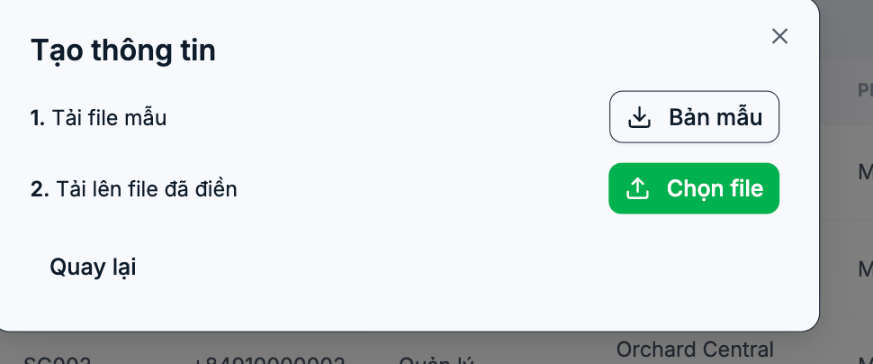
- Open the file and fill in the data — read B2-03 to know which columns are required.
- Test-import 5 people first. Delete the remaining rows, keep only 5 rows, and upload.
- Check those 5 people in the list: are the branch, department, and job title correct?
- If they are, go back and upload the full file.
- Compare the Total employees at the top of the page with the number of people in your old payroll.
The 5-person test import is the step most often skipped and also the one that saves the most time. Get one convention wrong in the file — for example, a department name that doesn't match — and hundreds of rows will be wrong the same way, and fixing them after import takes many times longer.
After the import
- Filter by each department to check the headcount of each department.
- Find profiles missing a job title or start date and fill them in.
- Send login information to employees, or use the self-service invitation link — see B2-05.
- Keep the imported file for future cross-checking.
Frequently asked questions
| Question | Answer |
|---|---|
| Can I undo an incorrect import? | There is no undo button. You must delete employees one by one or use the Update information type to overwrite the data. |
| What if I import the same file twice? | It will report duplicate emails and reject those rows; no duplicate records are created. |
| Can I import people who have already left? | You can, but you shouldn't. The list will swell and all reports will be skewed. |
| How many rows can a file have? | There is no published limit yet. For a list of several hundred people, split it into multiple files by branch to make checking easier. |

