The Information Center is Tanca's internal storage drive — where you keep SOPs, regulations, forms, and training materials so employees can look them up themselves. This article guides you through building the library from scratch, in the order that requires the least rework.
Module map
| Screen | Path | Used for |
|---|---|---|
| Recent | `/information-hub` | Files you just opened |
| My documents | `/information-hub/my` | All documents you own |
| Shared with me | `/information-hub/shared` | Documents others have shared with you |
| Favorites | `/information-hub/favorites` | Files and folders you have starred |
| Trash | `/information-hub/trash` | Deleted — kept for 30 days |
| Storage | `/information-hub/storage` | How much is in use and what the quota is |
| Settings | `/information-hub/settings` | Security and role-based permissions |
Build the folder tree before uploading files
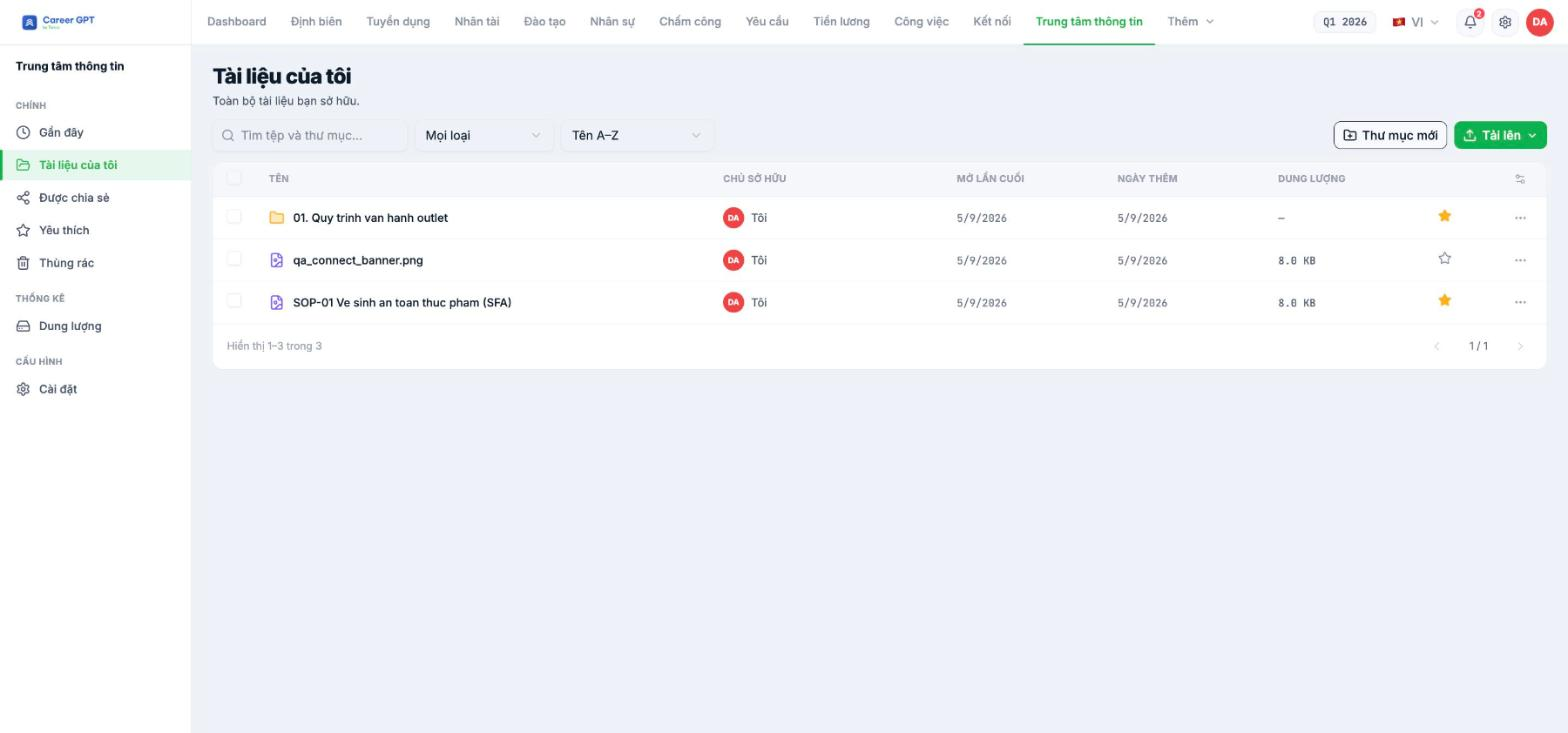
Go to My documents, click New folder, enter a name, and click Create. The button is disabled if the name is empty or contains only spaces.
Put a number at the start of folder names to control the order — folders are always pinned above files in the list:
- `01. Operating procedures` — SOPs by department
- `02. Workplace rules and regulations` — official documents, signed PDFs
- `03. Forms` — request forms, contract templates, evaluation templates
- `04. Training` — course materials, onboarding checklists
- `05. Safety and compliance` — licenses, inspection results
The folder name field currently also accepts the characters `/ \ : * ? " < > |`. These characters cause errors when files are downloaded or synced to employees' devices. Avoid them; use only letters, numbers, periods, and hyphens.
Upload documents
- Open the destination folder first.
- Click Upload and select the files. A progress panel appears in the corner of the screen.
- Wait for the panel to show Done, then check that the file is in the list.
Always open a folder before uploading. During testing on September 5, 2026, uploading a file directly at the root of My documents reported success but the file never appeared — repeated three times. The bug has been passed to the development team. Also, the progress panel always shows the destination as My documents even when you upload into a subfolder, so don't rely on that label; check the actual list. TO BE CONFIRMED BY THE COMPANY before publishing (recheck uploading at the root before publishing; it may have been fixed).
Four columns to read in the list
| Column | Meaning |
|---|---|
| Owner | Me or another person's name. The owner decides sharing permissions |
| Last opened | Currently uses the created date, not updated with actual opens — see the note in B20-05 |
| Date added | Upload date |
| Size | File size; folders show `–` |
Search, filter, and sort
- Search — case-insensitive and diacritic-insensitive: typing `ve sinh` still finds Vệ sinh. This is something this module does better than Surveys.
- All types — filter by file type: images, documents, spreadsheets, folders…
- Sort — Name A–Z, Z–A, Newest, Oldest, Recently modified.
The file type filter currently always returns folders as well: filtering by Documents in a library with no Word files still returns folders as results. When you need an exact count, subtract the folder rows.
Three final steps before opening it to employees
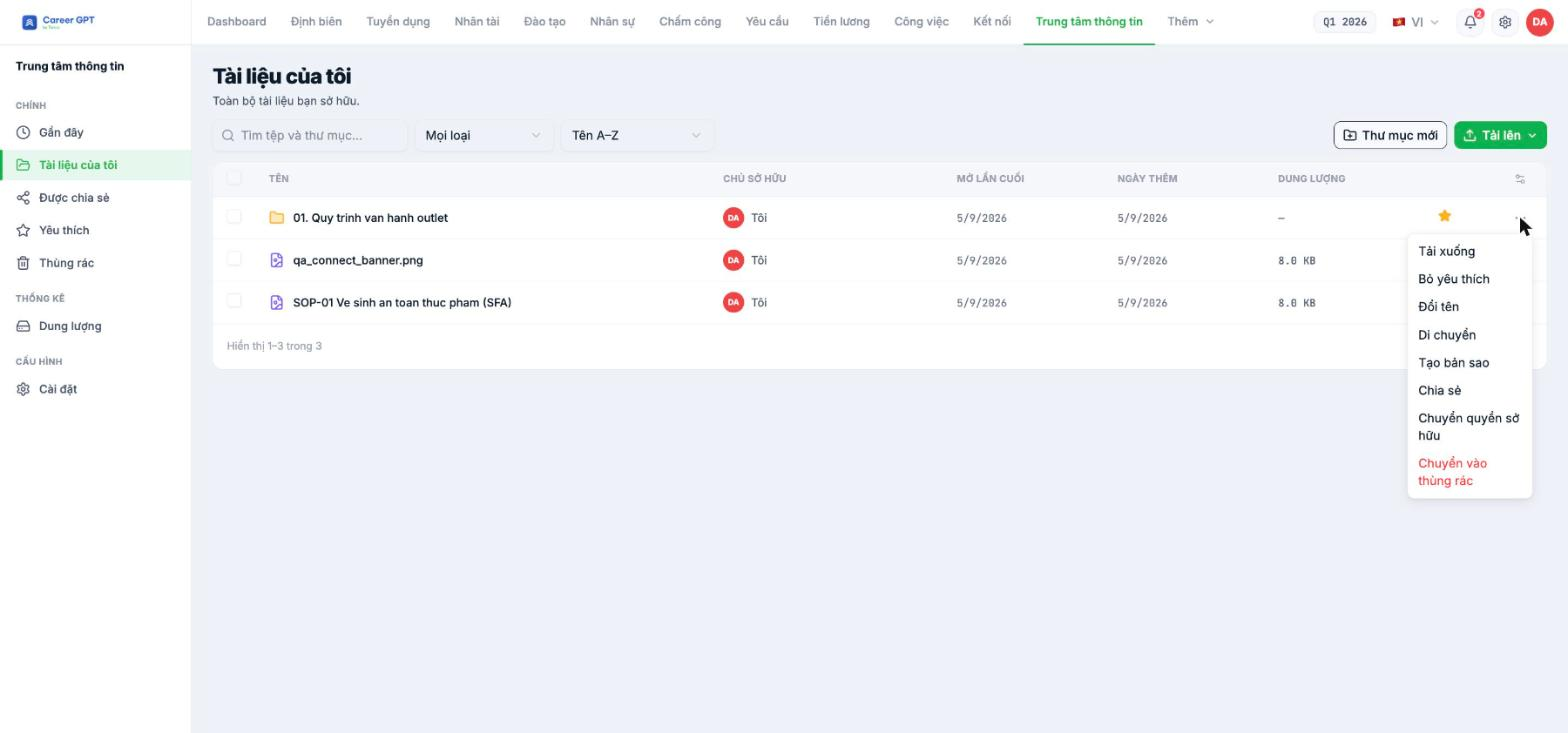
- Share each folder with the right departments, with View only permission (B20-02).
- Review Settings › Permissions to decide which roles can upload and download (B20-04).
- Send an Announcement (B18-01) introducing the library, with instructions on starring documents for quick access (B20-05).

