Where you view every clock-in by every person, spot anomalies and approve confirmations. This is the screen HR opens most during the day.
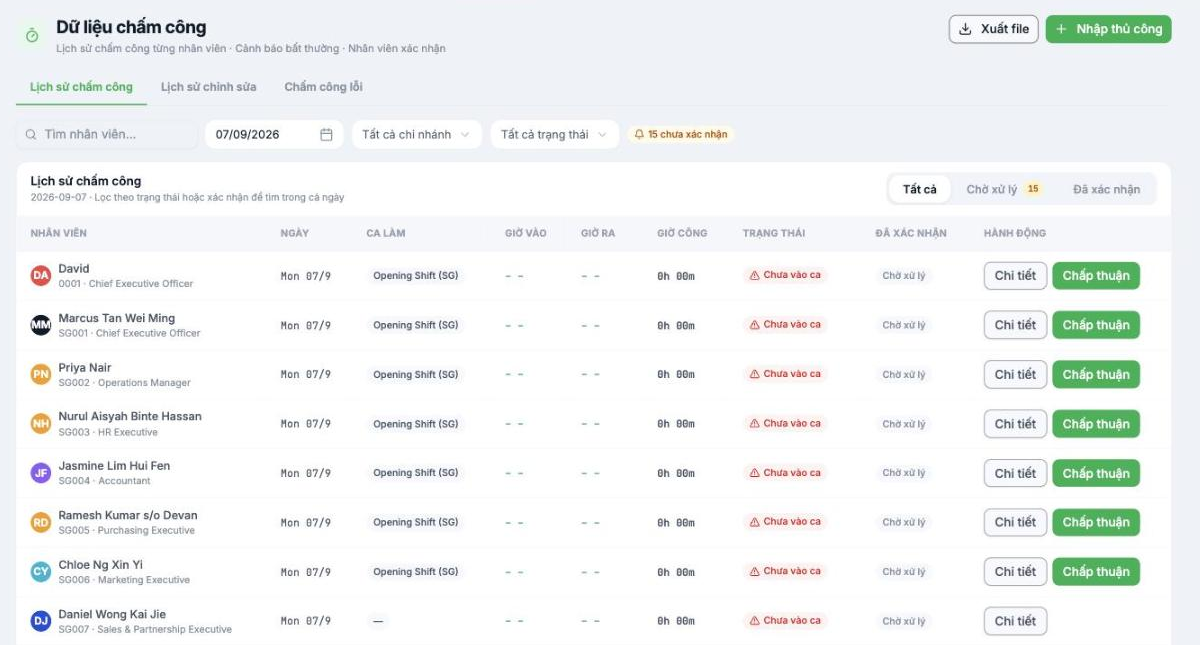
Three tabs
| Tab | Content |
|---|---|
| Attendance History | All clock-ins for the selected date |
| Edit History | Records that have been edited, along with who edited them and what was changed |
| Attendance Errors | Records the system has flagged as having problems |
Table columns
| Column | Meaning |
|---|---|
| Employee | Name, employee ID and job title |
| Date | Date of the record |
| Shift | The shift scheduled for that person. A dash means no shift has been scheduled. |
| Clock-in · Clock-out | Actual clock-in and clock-out times |
| Working hours | Number of hours calculated by the system |
| Status | For example Not yet on shift, with a warning icon |
| Confirmed | Confirmation status: Pending or confirmed |
| Actions | Details and Approve buttons |
Confirmation queue
Three quick filter buttons on the right — All, Pending with a count, Confirmed — along with an n unconfirmed badge in the filter row. This is your to-do list for the day.
The unconfirmed count should reach 0 before finalizing the period. Leaving unconfirmed records until the end of the month turns finalizing the timesheet into a long working session, instead of a few minutes each day.
Daily process
- Open the screen and select yesterday's date.
- Click the Pending filter button.
- For each record, click Details to see the full information.
- If it's valid, click Approve.
- If there's a problem, contact the employee or their line manager and ask them to submit an explanation request.
Two buttons in the top-right corner
- Export File — exports raw attendance data for reconciliation or archiving.
- Manual Entry — adds attendance records by hand, see article B6-14.
When to use the Edit History tab
When there is a dispute over working days. This tab shows which records were edited, who edited them and what value they were changed from and to — objective evidence to resolve the issue.

