Determines what employees see when they open the app on their phones. This is the most overlooked screen, even though most employees interact with Tanca only through the app.
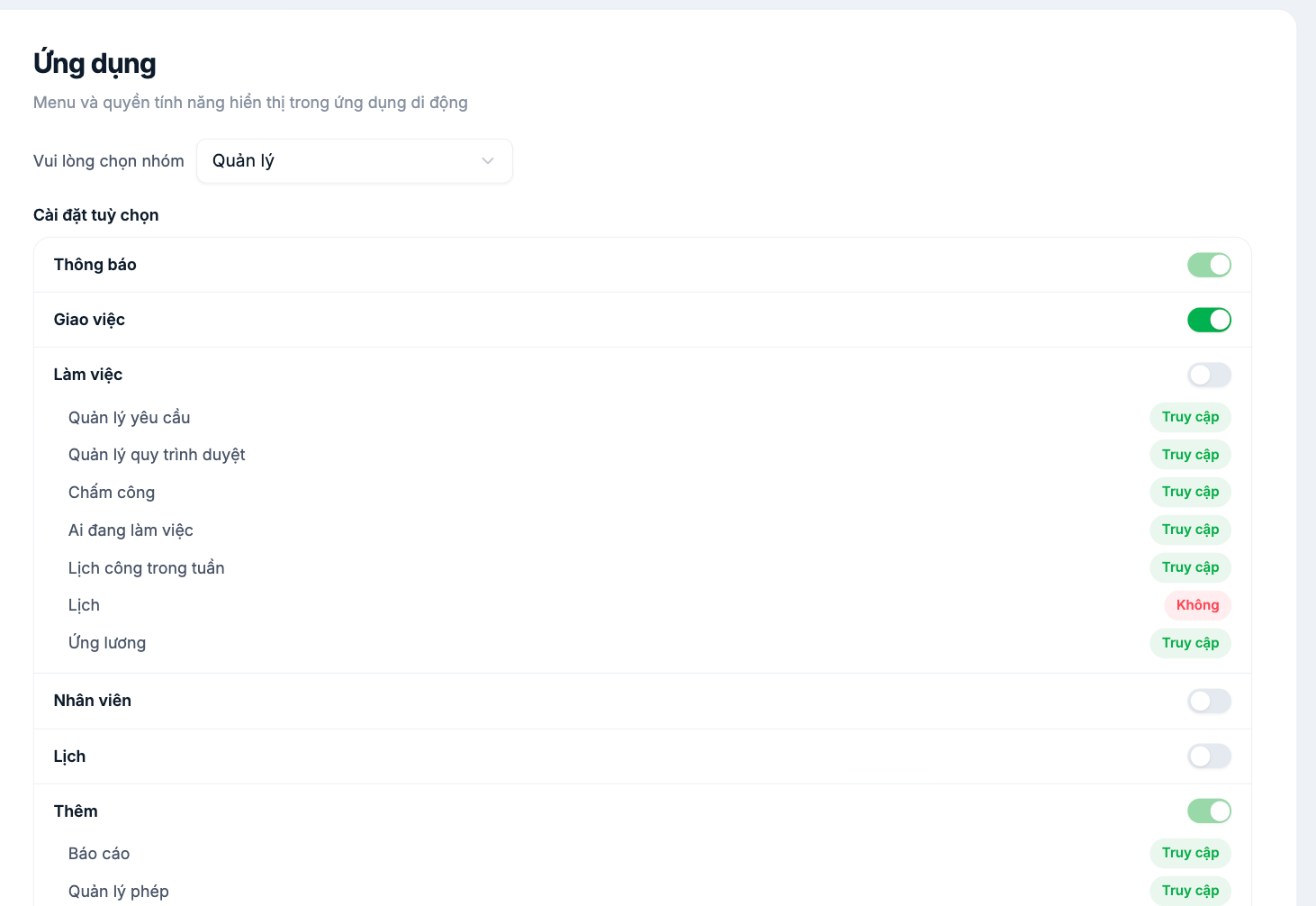
How it works
- Select an access group from the dropdown at the top of the page — each group has its own menu configuration.
- Turn each menu item on or off with the toggle on the right.
- Items that are turned on show a list of sub-features below, labeled Access or None.
Menu groups
| Item | What it contains |
|---|---|
| Notifications | Push notifications and the in-app newsfeed |
| Task Assignment | Assigned tasks and progress |
| Work | Request Management · Approval Workflow Management · Time & Attendance · Who's Working · Weekly Work Schedule · Calendar · Salary Advance |
| Employees | Employee directory and profiles |
| Calendar | Work schedule and leave calendar |
| More | Reports · Leave Management and other secondary items |
Configuration is per access group, not one shared configuration. After changing the Manager group, don't forget to do the same for the Employee group — that is the largest group and also the one that uses the app the most.
Configuration principles
- Employee group: keep it as minimal as possible. Time & attendance, requests, payslips, work schedule. Those four cover most day-to-day needs.
- Manager group: add approval and team monitoring. Request management, approval workflows, who's working.
- Turn off unused items. A long menu full of items that lead nowhere makes employees lose trust in the system.
- Test on a real device after every change, using an account belonging to that group.
Relationship with the employee Permissions tab
This screen sets the default menu by group. The Permissions tab in each person's profile (article B2-17) has a separate Mobile card for individual fine-tuning. Principle: configure here first for the whole group, and only use the individual tab for genuine exceptions.

