Add employees one at a time directly in the interface. This method suits hiring a few people at a time. If you need to bring your whole employee list into the system for the first time, importing an Excel file (article B2-02) is much faster.
Before you start
- Your account must belong to the Manager access group.
- It's best to set up Branches, Departments, and Job Titles in advance so you can select them right away when creating. If they don't exist yet, you can still create the employee and fill them in later.
- Have the employee's work email ready. In practice, this information is required — see the Notes section.
Steps
- Open HR in the top menu bar, then select Employees in the left column.
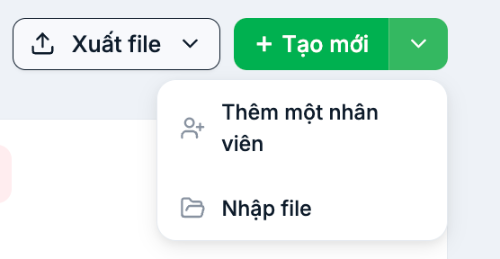
- Click the arrow next to the + Create button in the top-right corner and select Add one employee.
- Enter the Full name. This is the only field with a red asterisk marking it as required.
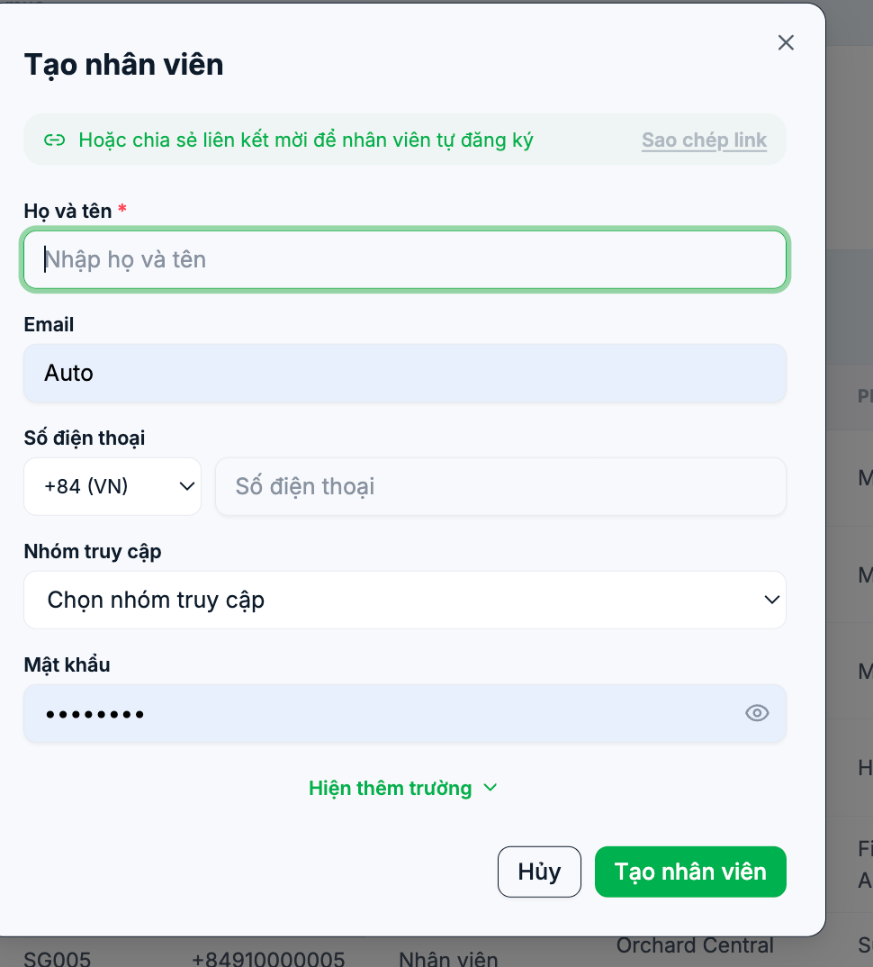
- Enter the Email. This field displays the word Auto by default; you must delete it and enter a real email.
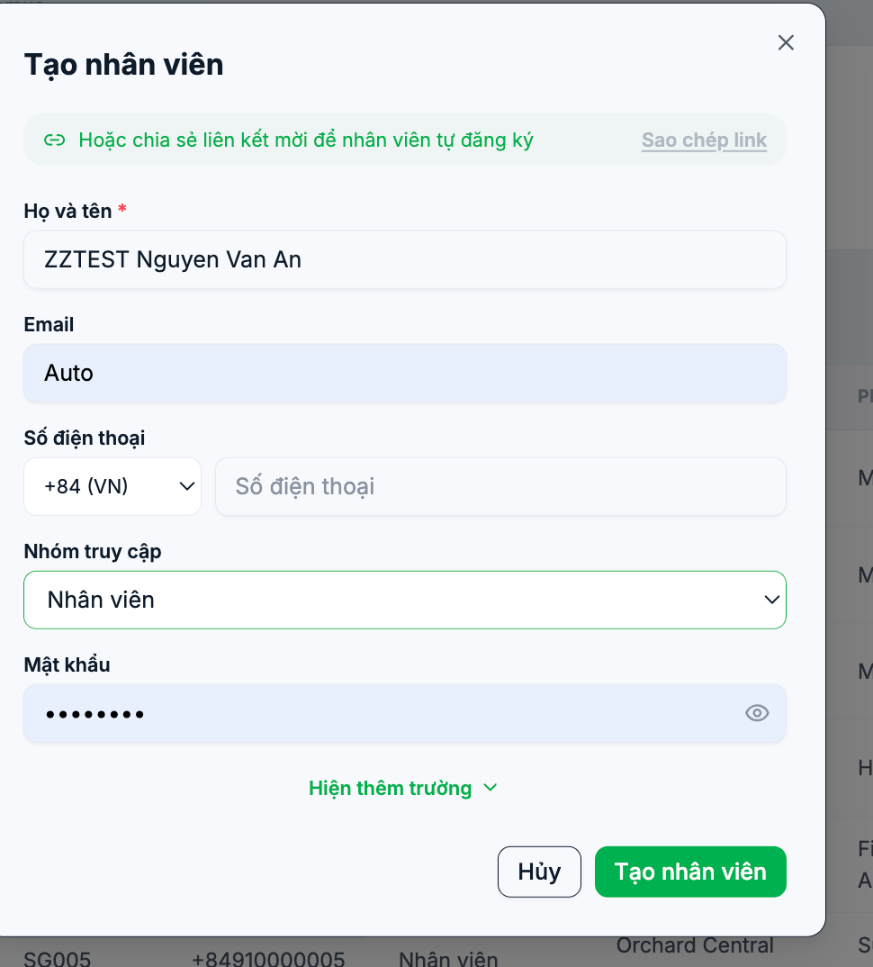
- Select the Access group: Manager, Regional Manager, Branch Manager, or Employee. This group determines whose data that person can see.
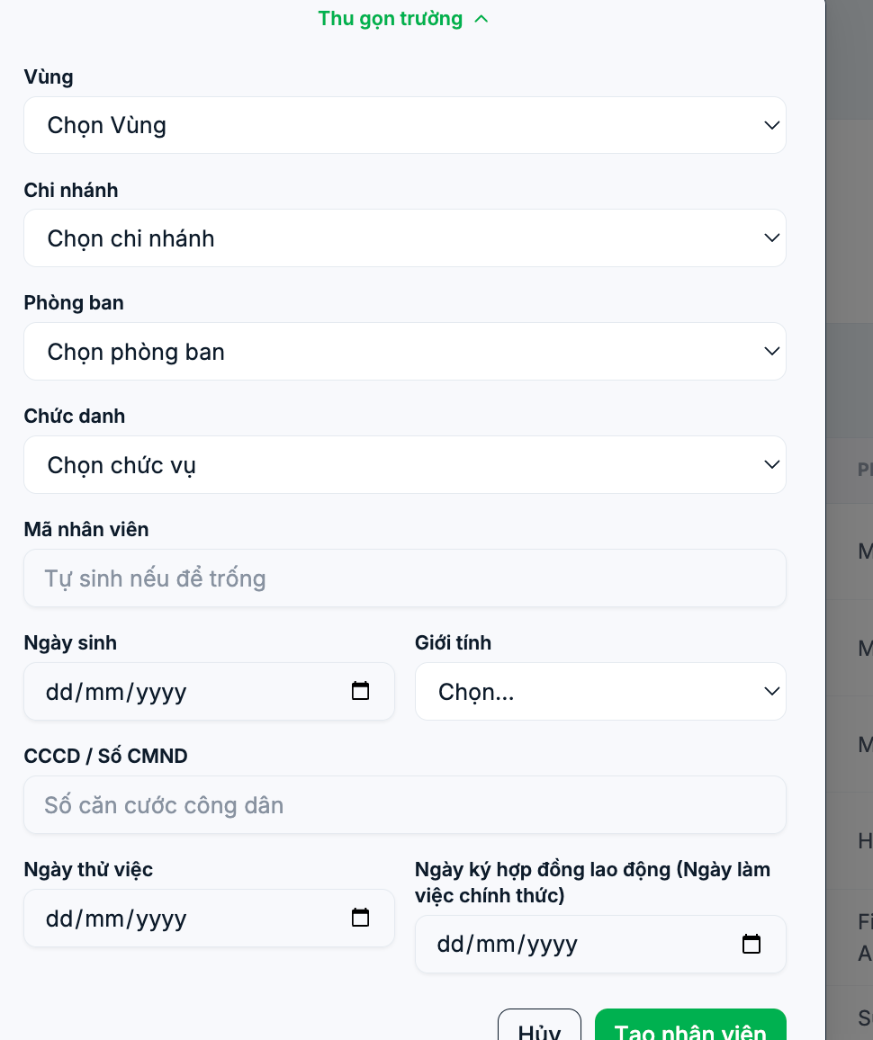
- Click Show more fields if you want to also enter the Region, Branch, Department, Job Title, Employee Code, Date of Birth, Gender, National ID, Probation Date, and Employment Contract Signing Date. This step is optional.
- Click Create employee. The new employee appears in the list and the Total employees box at the top of the page increases by one.

Notes
The Email field displays "Auto" but the system does not generate an email automatically. You must delete the word Auto and enter a real email. If you leave it as is and click Create employee, the window will not close and no error message will appear.
- Employee code: if left blank, the system generates one automatically following the company's existing sequence.
- Password: the system pre-fills a random password. Click the eye icon to view it and send it to the employee, or replace it with another password of at least 6 characters.
- Phone number: if left blank, the system can still create the employee and automatically assigns a temporary number. Enter a real number so the employee receives notifications.
- Don't want to enter it yourself? Click Copy link at the top of the window to get an invitation link, and send it to the employee to fill in their own profile.
If you can't create the employee
| Symptom | Common cause | Solution |
|---|---|---|
| You click Create employee but the window doesn't close and no error appears | The Email field still contains the word Auto | Delete the word Auto and enter a real email |
| An "email already exists" message | The email is already used by another employee, including someone who has left | Use a different email, or find the old profile in the list |
| The Branch or Department you need doesn't appear | It hasn't been set up in Settings | Set it up first and come back, or create the employee and fill it in later |
Related articles
- B2-02 — Admin | Bulk import employees with an Excel file
- B2-03 — Admin | Import file structure and how to fix rejected rows
- B2-05 — Admin | Activate, suspend, and deactivate accounts

