The Information Center is where the company keeps workflows, workplace rules, and forms so you can look them up yourself instead of asking HR every time. This article shows the fastest way to find them and how to pin the documents you use every day.
Five places to look
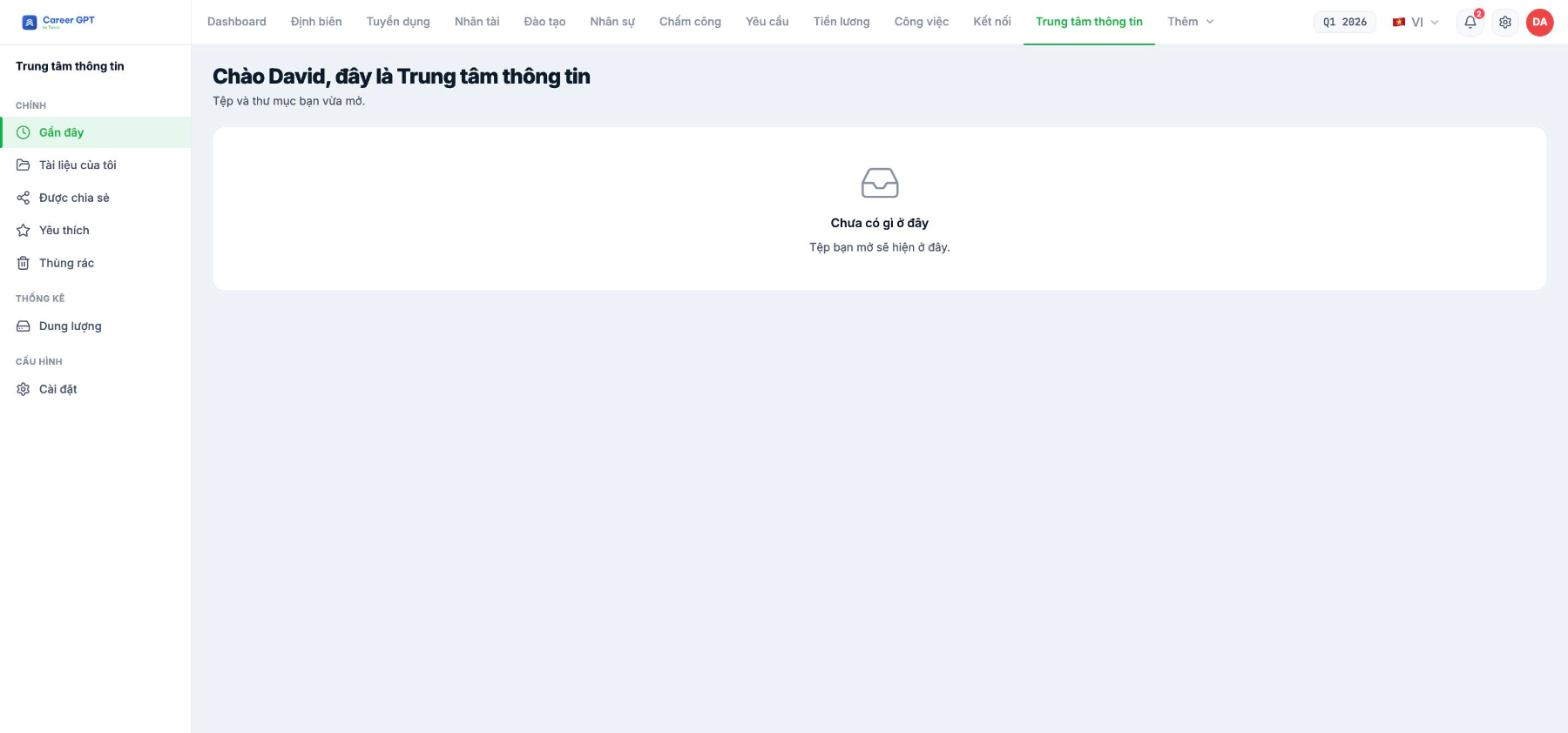
| Section | What's there |
|---|---|
| Shared with me | Company documents shared with you or your department — this is where you'll go most often |
| Favorites | Files and folders you have starred |
| My documents | Documents you uploaded yourself |
| Recent | Files you just opened |
| Trash | Documents you deleted, kept for 30 days |
The Recent section does not yet record when you open files, so it is often empty, and the Last opened column in the list currently uses the created date. Don't rely on these two — use Favorites to return to documents you need frequently. The bug has been logged and is awaiting a fix.
Search — the fastest way
The Search files and folders… box at the top of the list is case-insensitive and diacritic-insensitive: typing `ve sinh` still finds Vệ sinh an toàn thực phẩm (Food safety and hygiene). Just type a few words from the document name — faster than opening each folder.
Next to it are the All types filter (by file type) and the Sort options (Name A–Z, Newest, Recently modified).
Star the documents you use every day
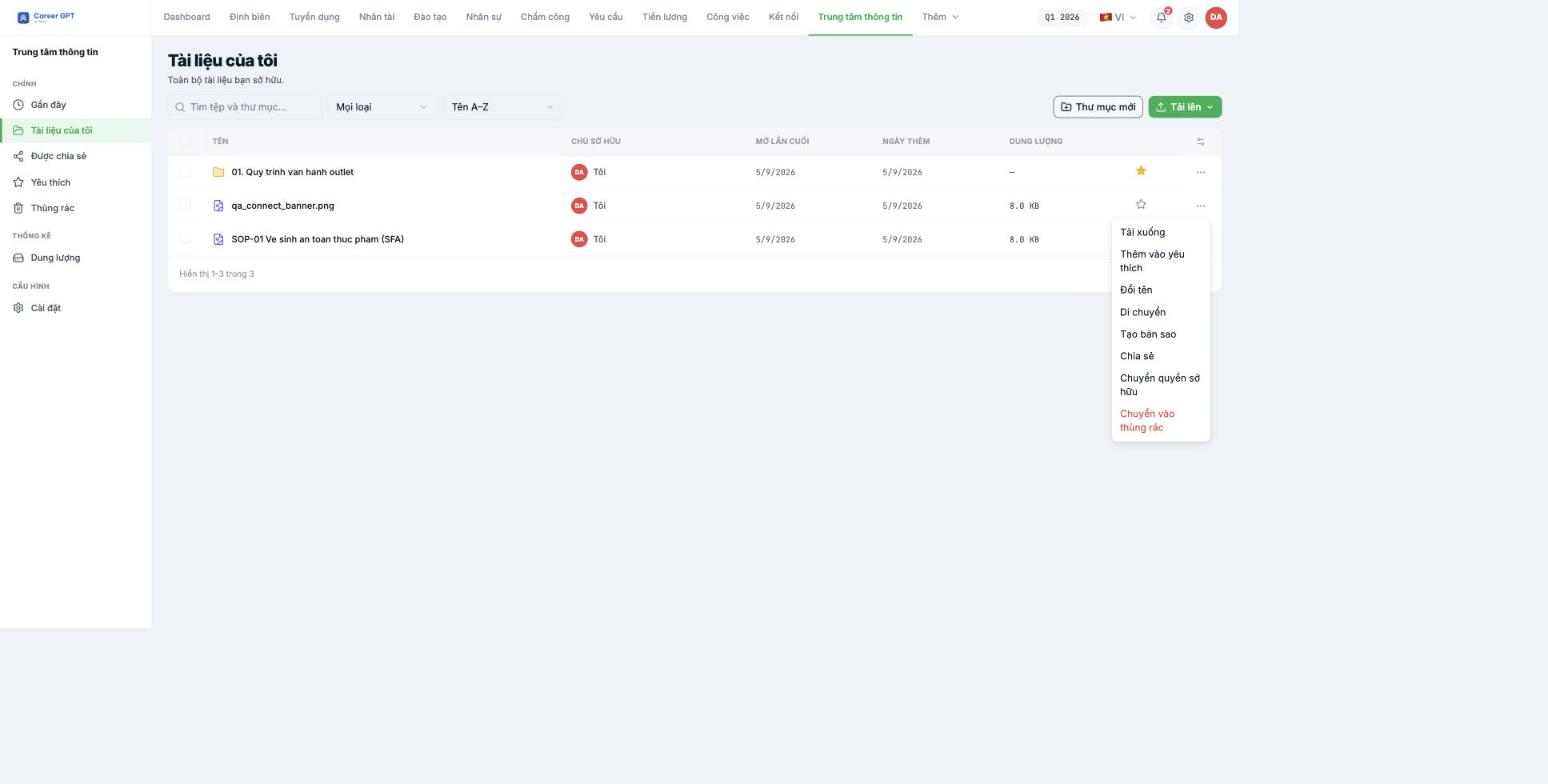
- Find the documents you open often: the sample shift schedule, the store opening checklist, request forms.
- Click the star icon at the end of the row, or select Add to favorites in the `…` menu.
- From then on, go to Favorites to see them right away, without searching again.
You can star folders too, not just files — useful when an entire folder is something you use frequently. Starring is private to you; no one else sees it.
Open and view documents
- Click a folder name to open it.
- Click a file name to preview it. For images, the preview pane has zoom, rotate, and full screen.
- Download is in the `…` menu. If you don't see this option, the company has disabled download permission for your role — view the document directly in Tanca.
When you go inside a folder, the page title still says “My documents” and there is no breadcrumb path or back button yet. If you go several levels deep and lose your way, click the section in the left sidebar again to return to the top. This has been logged for addition.
Can't find a document you were told exists?
- Check the Shared with me section, not My documents.
- Type the name in the search box — the document may be deep inside a folder.
- If you still can't see it, the document has not been shared with you or your department. Message the person in charge of that document, or HR.
- On your phone: if the company has enabled Company WiFi only, you need to be on the company's WiFi network to open the module.

