A document library is only safe if you control who can see what. This article goes through the Share dialog, the two permission levels, the two general access modes — and the areas that still require caution.
The Share dialog
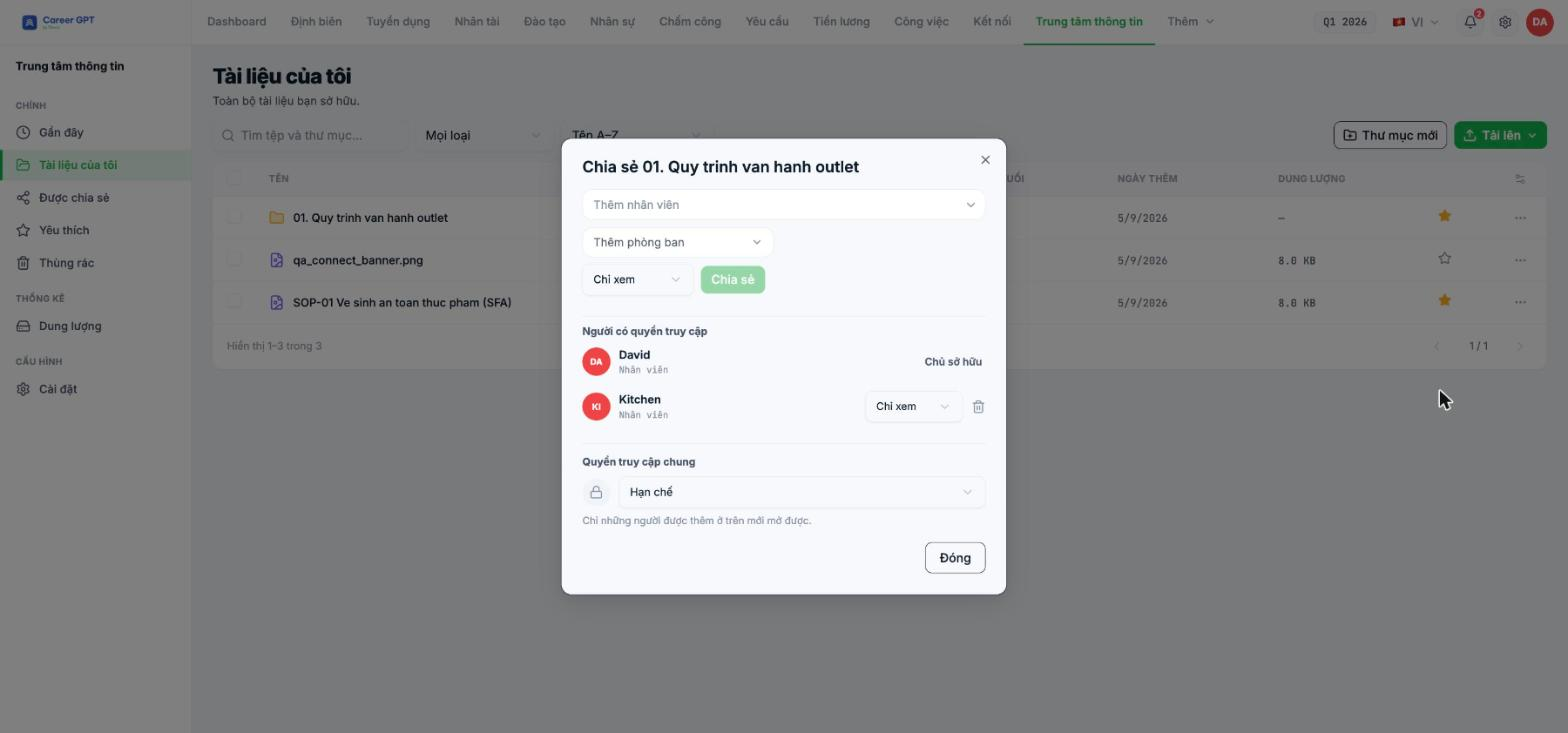
- Open the `…` menu of the file or folder and select Share.
- Choose who to share with: the Add employees field for individuals, the Add departments field for a whole department.
- Choose the permission level in the field below: View only or Edit.
- Click Share.
Sharing a folder applies to all of its contents — this is the recommended approach, rather than sharing files one by one.
Share by department, not by individual. People who join the department automatically get access, and people who move out automatically lose it. Individual lists do not update automatically and become the most common source of document leaks after a few months.
Reading the People with access list
The People with access block lists each entry with a name, avatar, and permission level. The owner's row says Owner and has no delete button; other rows have a field to change the permission and a trash icon to remove access.
A department row is currently still labeled “Employee” below its name. Don't rely on that label to distinguish people from departments — go by the name. This has been logged for a fix.
During testing on September 5, 2026, both removing access and changing the permission level of a row failed with the English message “Wrong body”. This means access that has been shared may not yet be revocable from the interface. Before sharing a folder that contains sensitive documents, try removing access once on a test folder to confirm the bug has been fixed in the version you are using. TO BE CONFIRMED BY THE COMPANY before publishing.
General access: Restricted or Anyone with the link
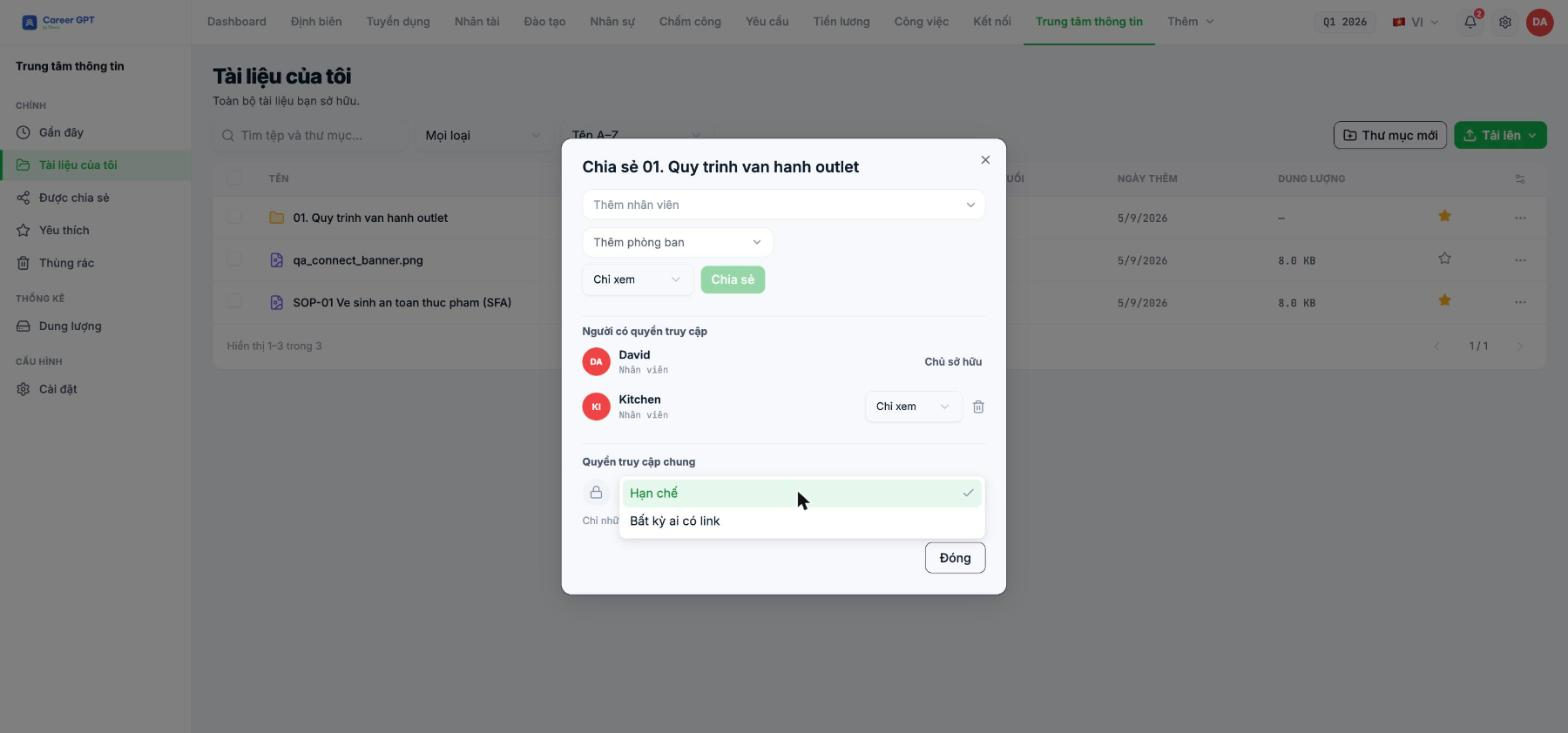
| Mode | Meaning |
|---|---|
| Restricted (default) | Only the people added above can open it |
| Anyone with the link | Creates a public link, valid for 30 days |
The Anyone with the link mode currently creates a link but the page it opens is blank — there is no public view screen yet. Therefore: (1) don't use public links to send documents to partners; it doesn't work yet; (2) if you have enabled it, switch back to Restricted so you don't leave a dangling link. The Copy link button also gives no feedback when clicked, but the link has been copied — don't click it multiple times.
Transfer ownership
When the person in charge of a set of documents changes jobs, use Transfer ownership in the `…` menu. After the transfer, the documents leave the previous person's My documents and appear in Shared with me with the new owner; the menu for someone who is no longer the owner shrinks to only Download and Add to favorites.
This is a task you should add to your offboarding checklist (B2-08) — otherwise, the library will have folders that no one has permission to share anymore.
Four permission rules for an HR library
- The default is View only. Edit permission only for people who actually write the documents.
- Payroll documents, contracts, and personal records do not belong in the Information Center. Use the proper modules with data-scope permissions (B9-15, B2-04).
- Review the list of people with access every quarter, especially for regulations and finance folders.
- Close public links immediately once the job is done; don't wait for the 30-day expiry.

