Shift assignment rules are what make the schedule run on its own without anyone clicking anything each week. You define once who works which shift on which day, and the system automatically generates the schedule for every week after that.
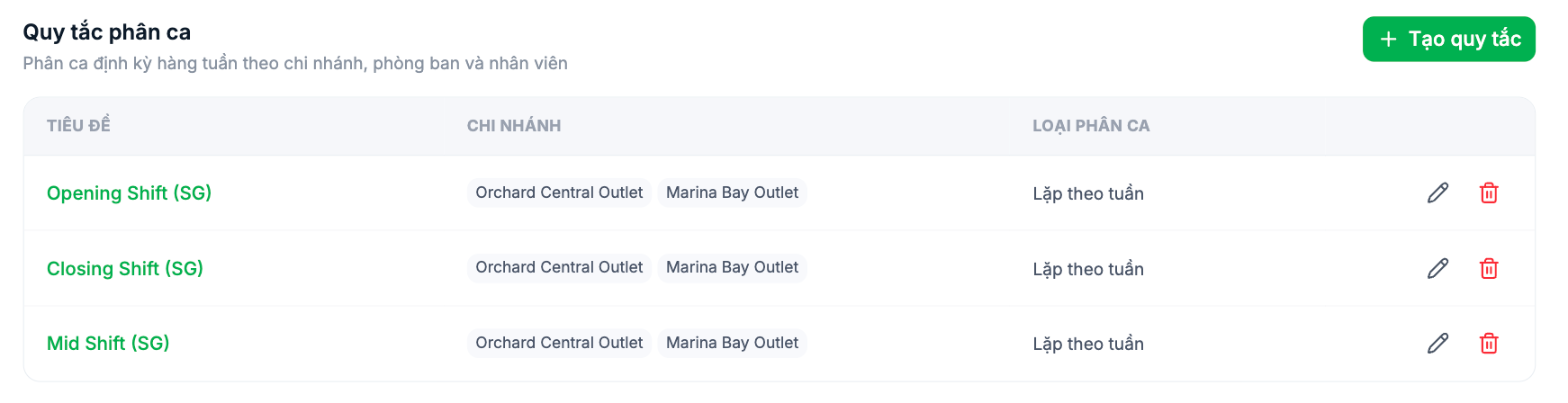
Two ways to apply shifts to employees
| Method | Where to set it up | When to use it |
|---|---|---|
| Scope in the shift template | Directly in the shift creation form, in the Scope & applicable schedule group | The shift is tied to a fixed group of people and almost never changes |
| Shift assignment rules | Settings › Scheduling › Shift Assignment Rules | You need a different shift for each day of the week, or need to edit the schedule without touching the shift template |
Defining the scope directly in the shift template
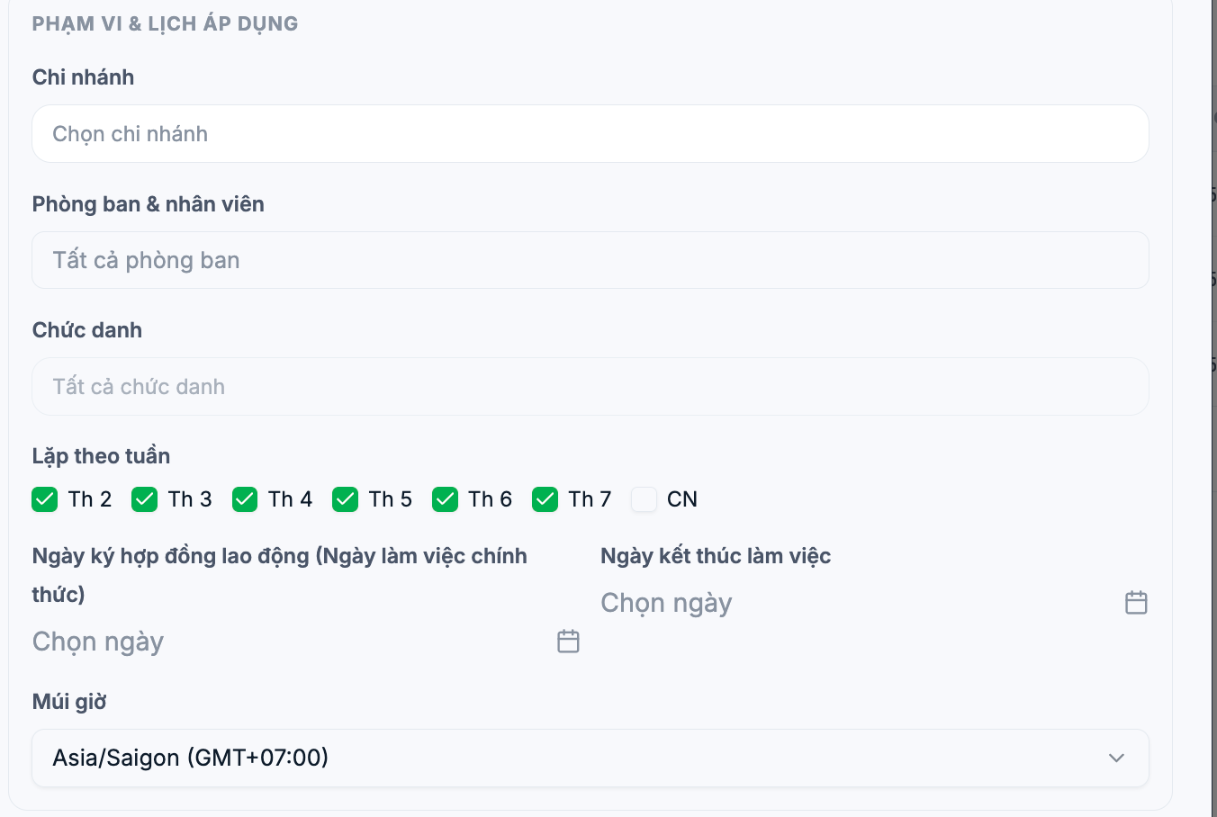
| Field | Meaning |
|---|---|
| Branch | The shift only applies to the selected branches. Multiple selections allowed. |
| Departments & employees | Leave blank for all departments. Select specific ones to narrow it down. |
| Job title | Further filter by job title, for example only the Head Chef works the night shift. |
| Weekly repeat | Check the days of the week this shift runs. Default is Mon to Sat, excluding Sunday. |
| Employment contract signing date | The date the shift takes effect. |
| End of employment date | The date the shift expires. Leave blank to run indefinitely. |
| Time zone | Set to the time zone where the branch operates. Important for businesses operating in multiple countries. |
The label Employment contract signing date (Official start date) is easy to misunderstand — it is the date the shift starts to apply, not the employee's contract signing date. Enter the date you want the schedule to start running.
Creating a shift assignment rule
- Go to Settings › Scheduling › Shift Assignment Rules and click + Create Rule.
- Set a Title — ideally the same as the shift name for easy lookup.
- Select the Assignment type: currently only Weekly repeat is available.
- Select a Branch (required) and a Department (leave blank for all).
- In the Weekly shifts section, select a shift for each day. For days off, leave No shift.
- Click Create Rule.
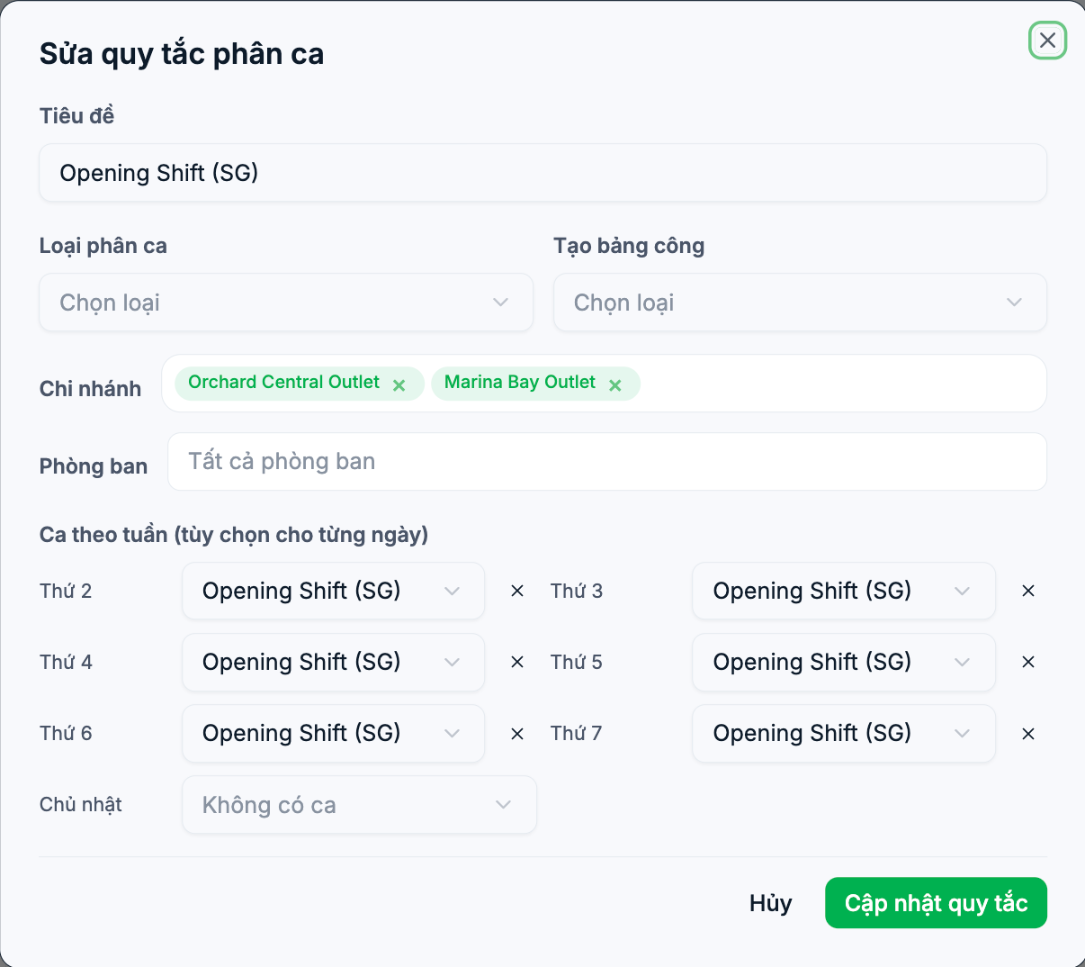
The Weekly shifts section only appears after you have selected a branch — that's why the text "Select a branch first to choose shifts" appears when you first open the form.
Editing and deleting rules
- Use the pencil icon at the end of the row to edit; use the trash icon to delete.
- Deleting a rule does not delete shifts already generated in previous weeks — old timesheets stay unchanged.
- Editing a rule only affects weeks whose shifts have not been generated yet. If the current week already has shifts, edit them manually on the Scheduling screen.
When you reopen a rule to edit it, the Assignment type and Create timesheet fields appear empty instead of showing the saved values. Before clicking Update Rule, re-select these two fields to avoid overwriting them with empty values. We have reported this bug to the engineering team.
Troubleshooting
| Symptom | Common cause |
|---|---|
| The weekly schedule is completely empty | There are no shift assignment rules yet, or the rule has the wrong branch selected |
| Shifts exist but are assigned to the wrong people | The Department or Job title field in the rule filters too narrowly or too broadly |
| Sunday still has shifts | The Sunday field in the rule hasn't been set to No shift |
| Shifts only appear in one branch | The rule only has one branch selected; open it and add the remaining branch |

