Creating a job posting is a five-step wizard. This article walks through each step, pointing out which fields are required and which ones need careful thought before you fill them in.
Before you start
Two things should be ready in advance; otherwise you'll have to stop partway through:
- A recruitment pipeline already built in Settings (article B15-04) — step 3 will ask for it.
- A recruitment competency framework in Active status, if you want AI to score CVs (article B15-05) — step 4 will ask for it.
Go to Recruitment › Job Positions and click Create new position. In the top-right corner there are two buttons you can use at any time: Save draft and Draft JD with AI. The right column shows the Completion level as a percentage.
Step 1 — Information
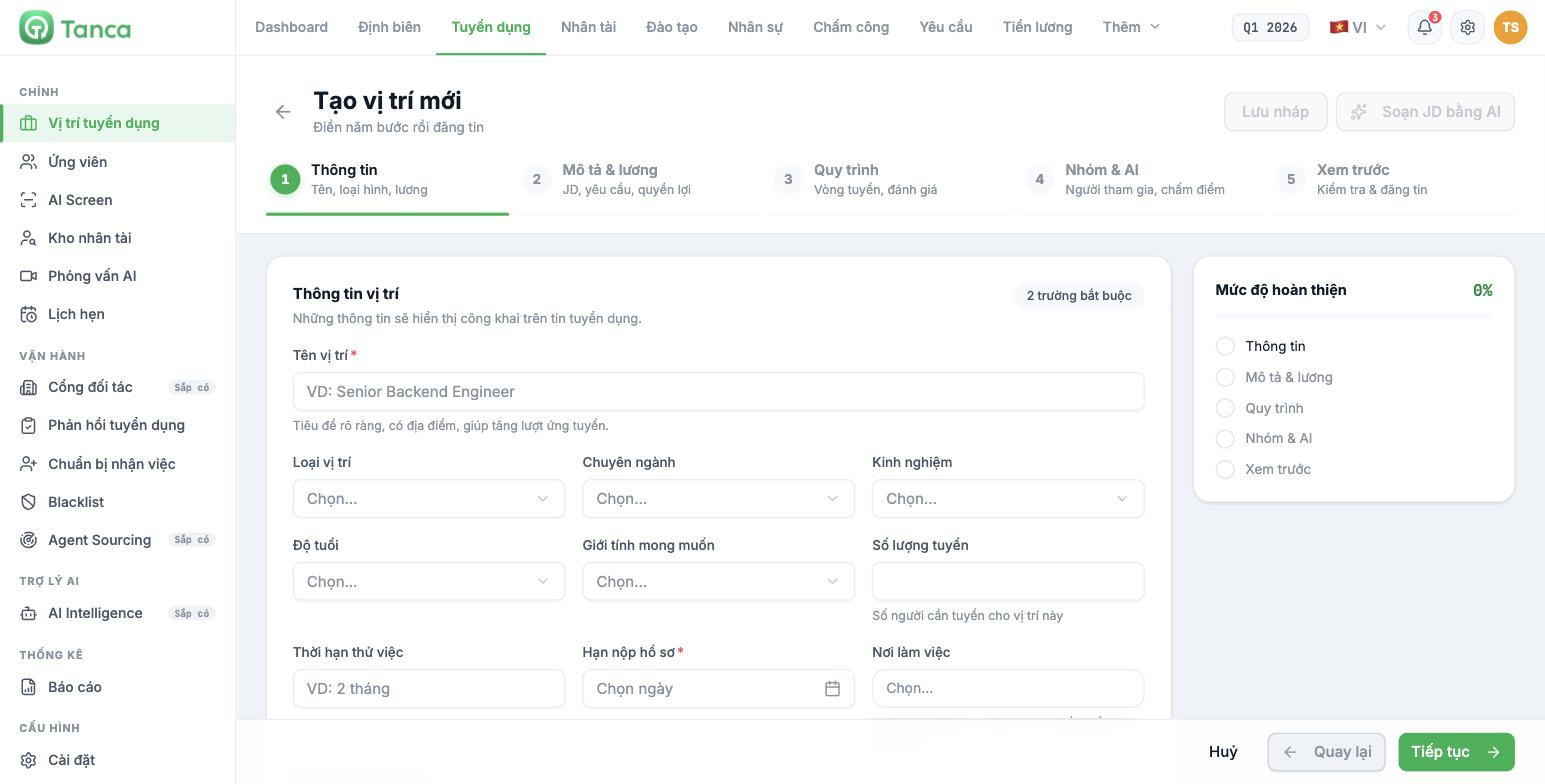
The information in this step is displayed publicly on the job posting. Only two fields are required.
| Field | Notes |
|---|---|
| Position name * | Should include both the job title and the location — `Store Manager - ION Orchard Store (Singapore)` |
| Application deadline * | The date the posting closes |
| Position type · Field · Experience | Used by candidates to filter postings on the career page |
| Age · Preferred gender | See the note below |
| Number of hires | The number of people to hire for this position |
| Probation period | For example `2 months` |
| Work location | Select a branch. One position can recruit for multiple locations |
| Recruitment region | Leave blank for no regional restriction |
| Minimum salary · maximum salary · Negotiable salary | Turn on Negotiable salary if you don't publish a salary range |
*Think carefully about the Age and Preferred gender fields.* This information is displayed publicly on the job posting, and in many markets stating age or gender requirements in job postings is restricted or prohibited. Let your company's legal department decide whether to use these two fields, according to the laws where the company is hiring. Leaving them blank is the safe choice.
The currency symbol is displayed according to the system default, not the company's country. A position in Singapore may still display its salary with the ₫ symbol. Check this in step 5 Preview and state the currency clearly in the Benefits section if needed.
Step 2 — Description & salary
Three content blocks, each with a Suggest button for AI to help draft it:
| Block | Contents |
|---|---|
| 1. Job description | The position's responsibilities and daily tasks |
| 2. Job requirements | Required technical and soft skills |
| 3. Benefits | Compensation, benefits, development opportunities |
The Draft JD with AI button at the top of the page drafts all three blocks at once; the Suggest button drafts one block at a time. Whichever you use, read it over and edit before publishing — AI doesn't know your company's actual benefits policy, and a job posting that promises the wrong benefits is a real risk.
Step 3 — Pipeline
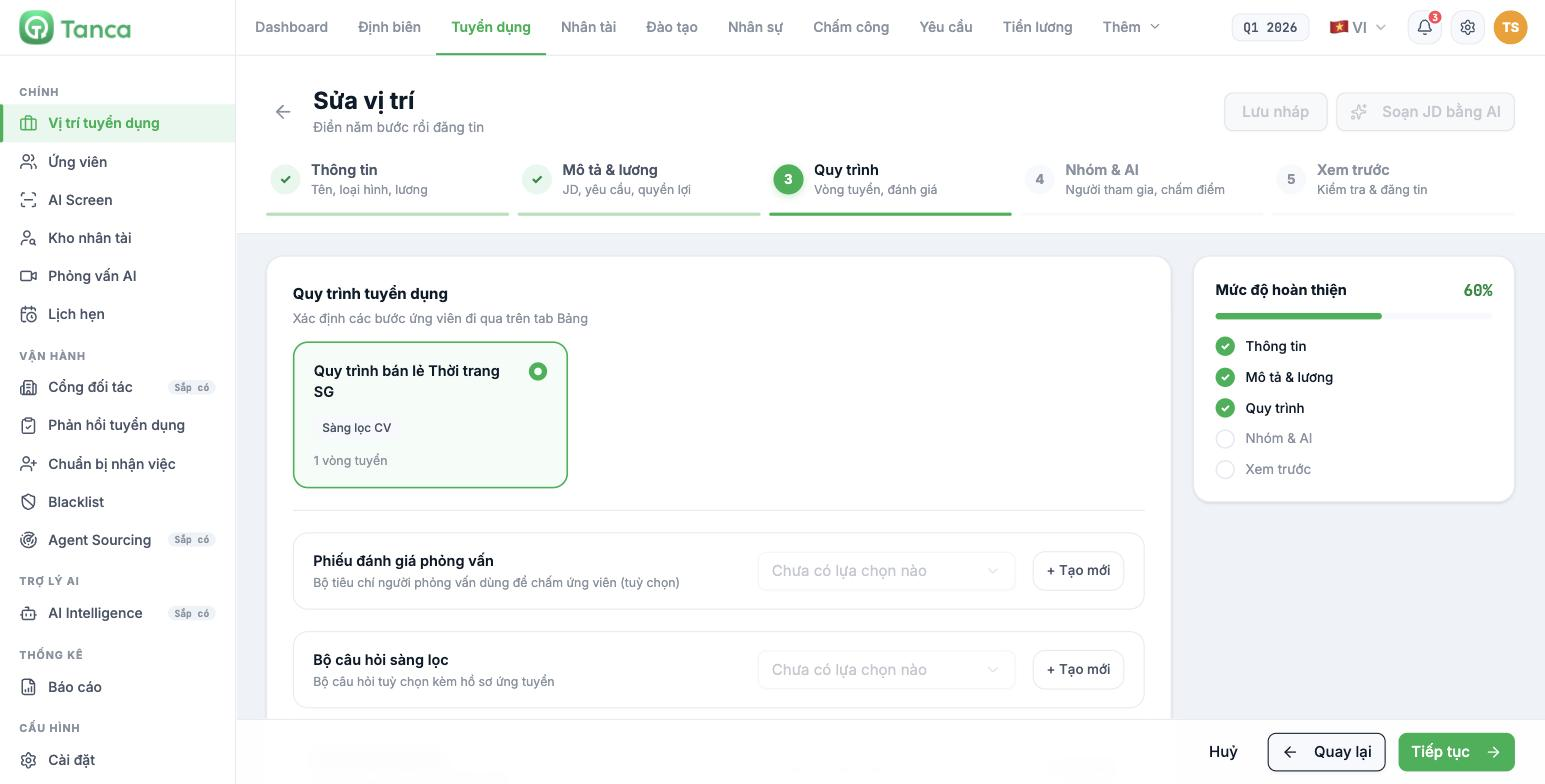
- Select a recruitment pipeline. The selected card shows a blue border along with its list of steps and number of rounds.
- Select an Interview evaluation form — optional.
- Select a Screening question set — optional.
- Select Interview questions — optional.
The last three fields each have a + Create new button so you can create them on the spot without going back to Settings. For the contents of these three fields, see article B15-06.
Step 4 — Team & AI
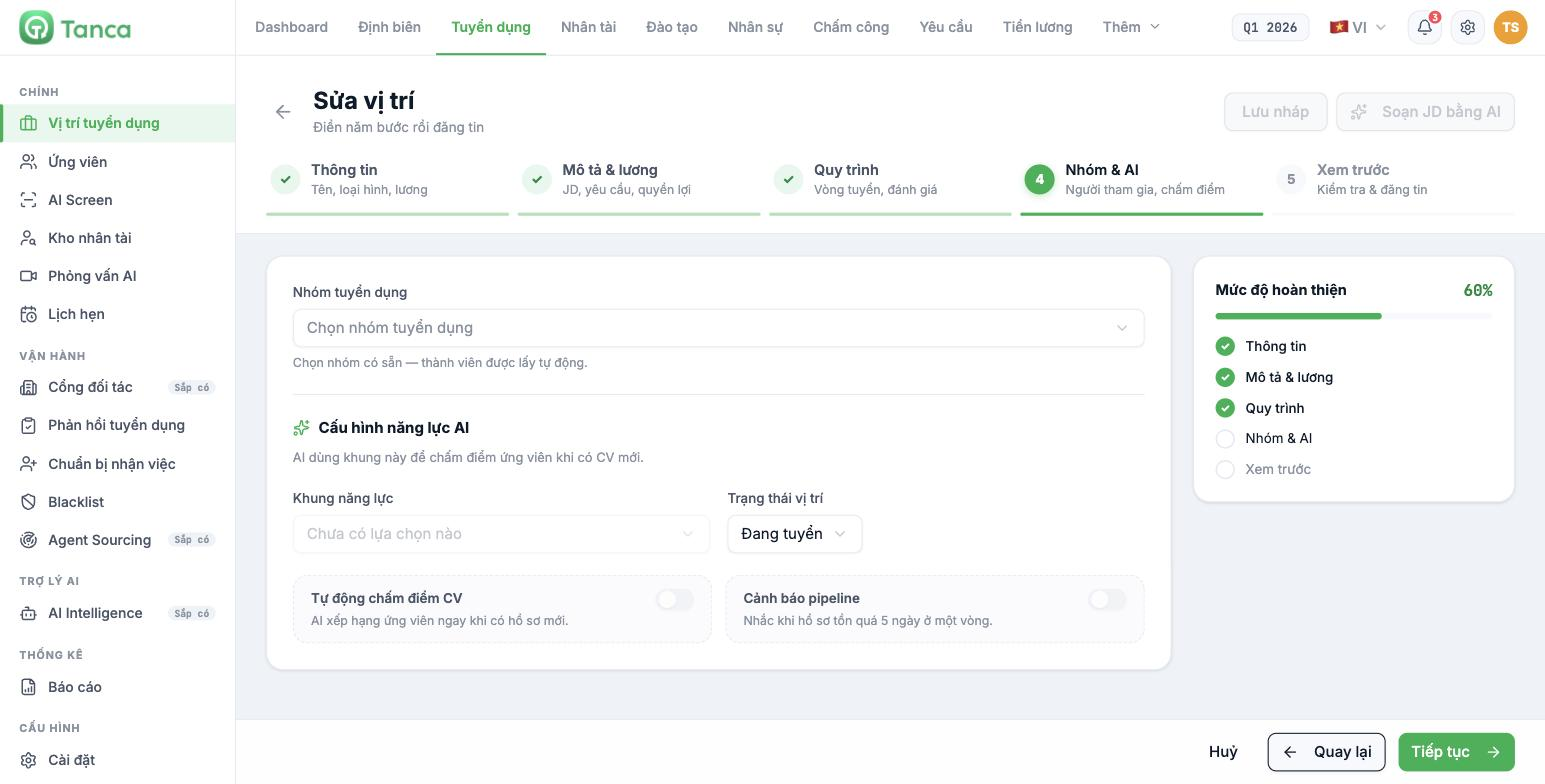
| Item | Effect |
|---|---|
| Recruitment team | Select an existing team — members are added automatically. This determines who sees the position and its applications |
| Competency framework | The framework AI uses to score CVs. Only frameworks built in Recruitment › Settings › Competency Frameworks are listed |
| Position status | Hiring or another status |
| Automatically score CVs | AI ranks candidates as soon as new applications arrive |
| Pipeline alerts | Reminds you when an application has sat in one round for more than 5 days |
The Competency framework field shows "No options available" when you have no framework in Active status in Recruitment › Settings. Frameworks built in Talent don't appear here — that's a separate system (article B15-05).
Turn on Pipeline alerts from the start. The number one reason good candidates lose interest is prolonged silence, and 5 days is a reasonable threshold for reminding the owner.
Step 5 — Preview
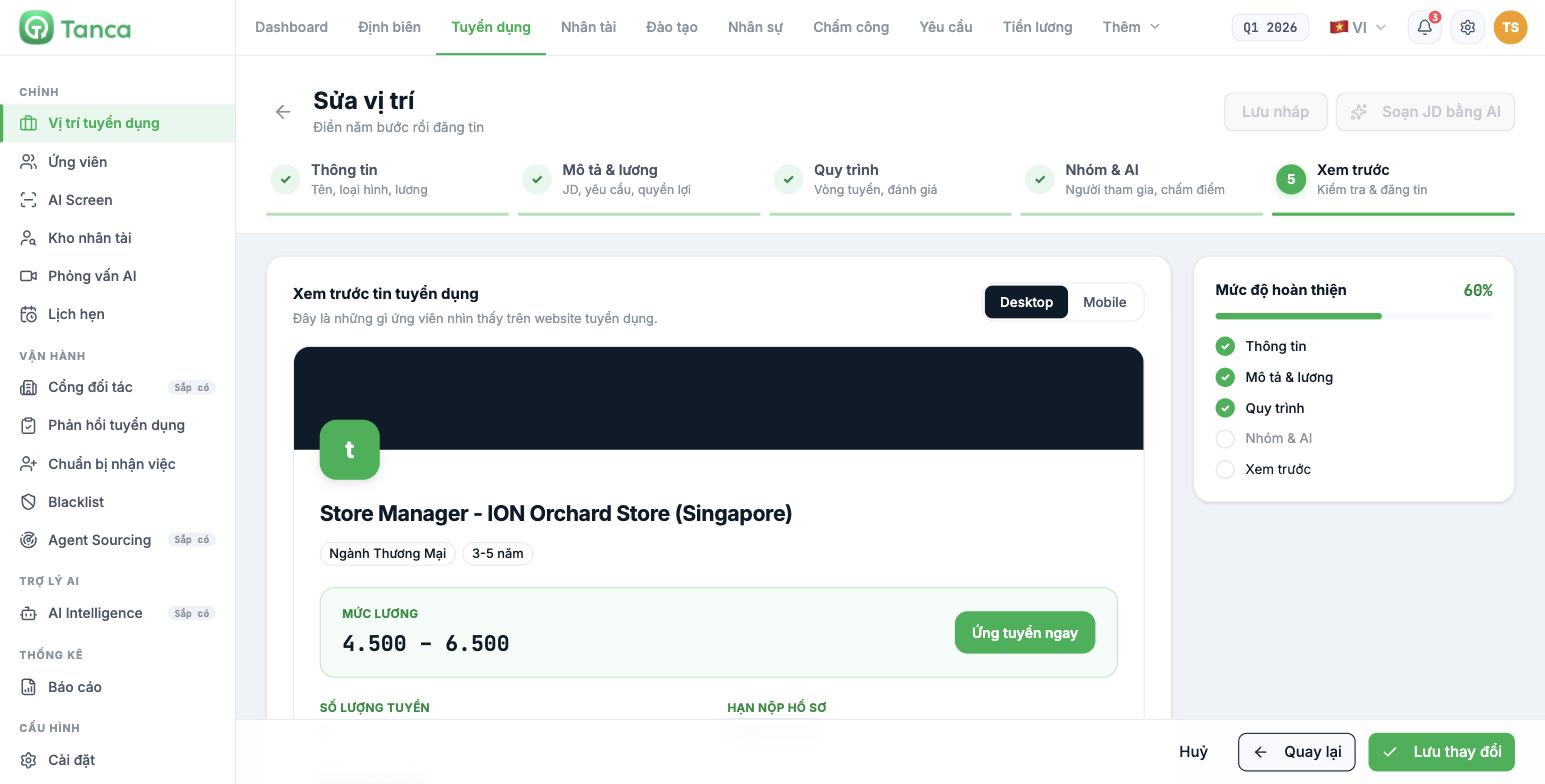
The final step shows exactly what candidates see on the career website, with two views: Desktop and Mobile.
- Check the Mobile view first — most candidates open postings on their phones.
- Review the position name, salary range, currency, and deadline.
- Reread the three description blocks.
- Click Save changes to publish.
Editing a published position
Open the position, select the Configuration tab, and click Edit job posting. The wizard reopens with the existing data; click a step name in the top bar to jump straight to the step you want to edit.
You can't jump between steps while step 1 is missing required fields — the system shows an exclamation mark and keeps you on step 1 until you've filled in the position name and deadline.

