Six tabs, each a way to verify that an employee is in the right place. The app only has something to check against once you set it up here.
Six tabs
| Tab | What to set up | Used for |
|---|---|---|
| GPS | Attendance points with address and branch | The most common method |
| WiFi | The WiFi network at each location | Offices and factories with WiFi coverage |
| Photo | Rules for taking a photo when clocking in | Places that need photo evidence |
| QR | A QR code placed at the work location | Construction sites, warehouses, mobile points of sale |
| WAN IP | The public IP address of the company network | Offices with a fixed internet line |
| Projects | Attendance points tied to a project or site | Construction, services at customers' homes |
The GPS tab — the most important
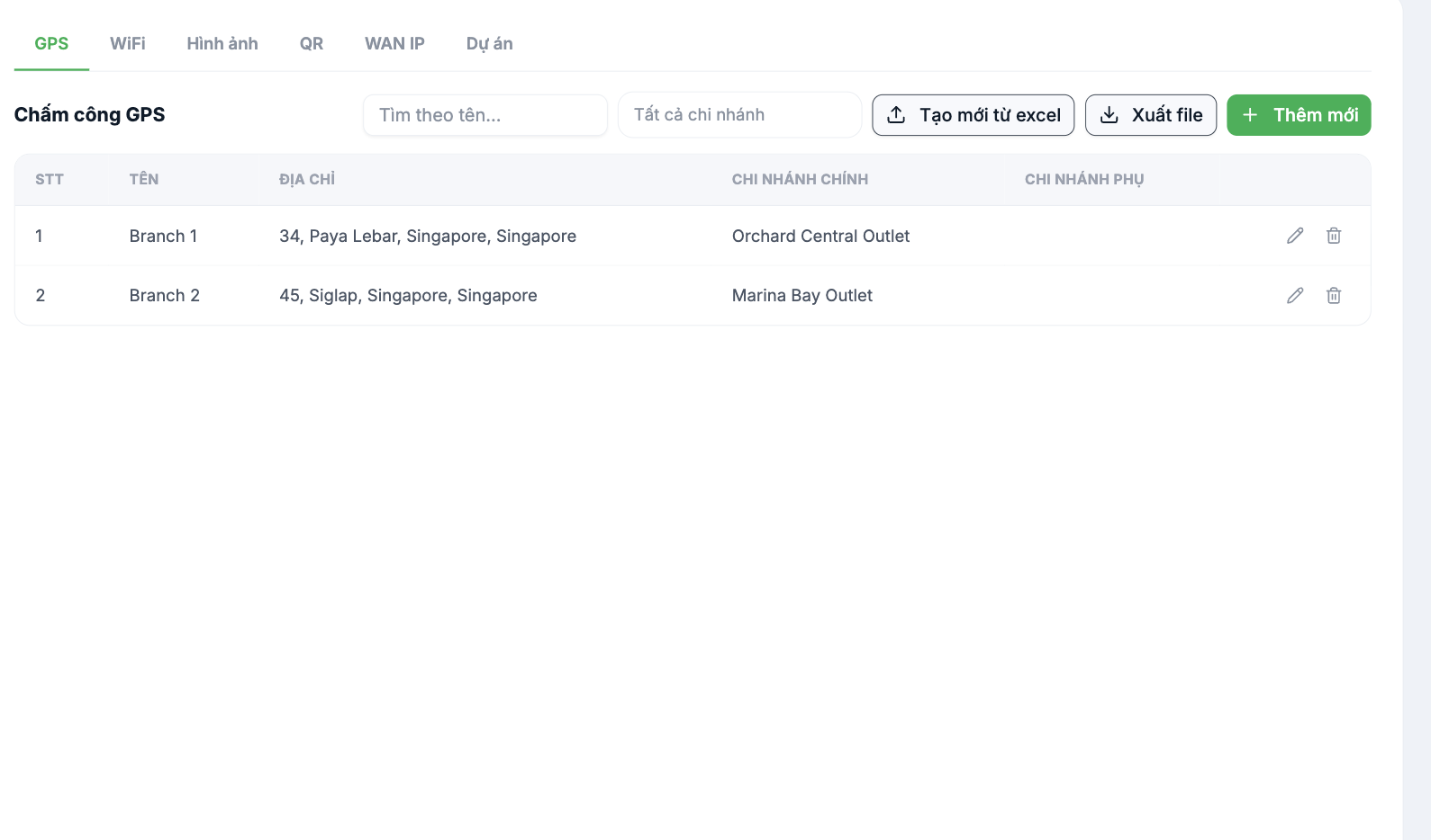
| Column | Meaning |
|---|---|
| Name | The name of the attendance point |
| Address | The actual address of the point — these are the coordinates the system uses to verify location |
| Main branch | The branch this point belongs to |
| Secondary branches | Other branches that also use this point |
A GPS attendance point is a separate record, not the branch address. Many people think entering the address in Settings › Business › Branches is enough. It isn't. The branch address is used for records and contracts; the GPS point is used to verify location, and must be set up separately here.
Add a GPS attendance point
- Go to Time & Attendance › Settings › Phone and select the GPS tab.
- Click + Add new.
- Fill in the Name and the actual Address of the point, and select the Main branch and Secondary branches if any.
- Save, then go on site and do a test clock-in once.
Three utility buttons
- Create from Excel — bulk set up attendance points for a chain with many stores.
- Export file — back up the list of points before bulk editing.
- Search by name and the All branches filter — use these when the list is long.
Notes when setting up GPS points
- The address must be detailed enough for the map to locate it correctly. Missing the house number or street name will produce coordinates off by several hundred meters.
- Check on site. Go to the exact spot and do a test clock-in — this is the only sure way.
- High-rise buildings and areas with many tall buildings reduce GPS accuracy. Consider using WiFi instead.
- One point can serve multiple branches via the Secondary branches field — useful for stores located in the same building.

