Shift registration reverses the direction of scheduling: instead of managers assigning shifts to each person, employees choose their own shifts in the app and managers approve them. It's a great fit for part-time staff and students working part-time jobs.
Enabling the feature
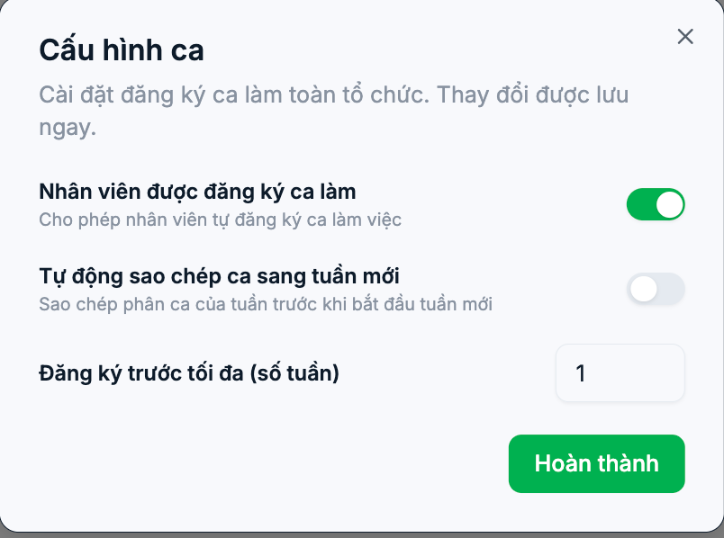
There are two places to enable it, both affecting the same feature:
- Settings › Scheduling › General — the Shift Registration toggle (Employees register for shifts via phone).
- Settings › Scheduling › Shift Templates › Shift Configuration — a dialog with three options that apply to the entire organization.
| Option | Meaning |
|---|---|
| Employees can register for shifts | Allows employees to register for work shifts themselves |
| Automatically copy shifts to the new week | Copy the previous week's shift assignments when a new week begins |
| Maximum advance registration (weeks) | The maximum number of weeks in advance employees can register |
The Shift Configuration dialog saves immediately when you make a change — note the text "Changes are saved immediately" at the top of the dialog. The Done button only closes the dialog.
Setting the registration deadline
In Settings › Scheduling › General, turn on Lock next week's shift registration and then select a day of the week as the deadline. After that point, employees can no longer edit their registrations for the following week, giving managers time to finalize the schedule.
The Lock this week's registration button immediately locks the current week; use it when you need to finalize urgently.
The Repeat for ... weeks field determines how many upcoming weeks the registration schedule is opened for in advance.
Weekly operating process
- At the start of the week, the manager creates open shifts for the following week on the Scheduling screen.
- Employees open the app, view available shifts, and register (article B7-12).
- On the day set as the deadline, the system locks registration.
- The manager opens the Scheduling screen and filters By overlapping shifts to check for conflicting schedules.
- Fill any remaining open shifts by assigning them manually.
- If Publish Shifts is turned on, click publish so the schedule appears to employees.
- Print the on-duty list on the Finalize Weekly Shifts screen.
Turn on Publish Shifts when you want to draft the schedule without employees seeing it yet. If it's off, every change appears immediately in the app, which can cause confusion while you're still arranging things.
Troubleshooting
| Symptom | Solution |
|---|---|
| Employees can't see the shift registration button | Check the Shift Registration toggle in Settings › Scheduling › General and the Employees can register for shifts option in the Shift Configuration dialog |
| Employees can no longer register for next week | The Lock next week's shift registration deadline has passed |
| Weeks further ahead aren't available for registration | Increase the Maximum advance registration (weeks) value |
| Open shifts don't appear in the app | Shifts haven't been published yet, or the open shifts were created for a different branch |

