The top two tiers of the organizational structure. Branches are especially important because their address is the coordinate that GPS time & attendance uses to determine whether an employee is in the right place.
Regions
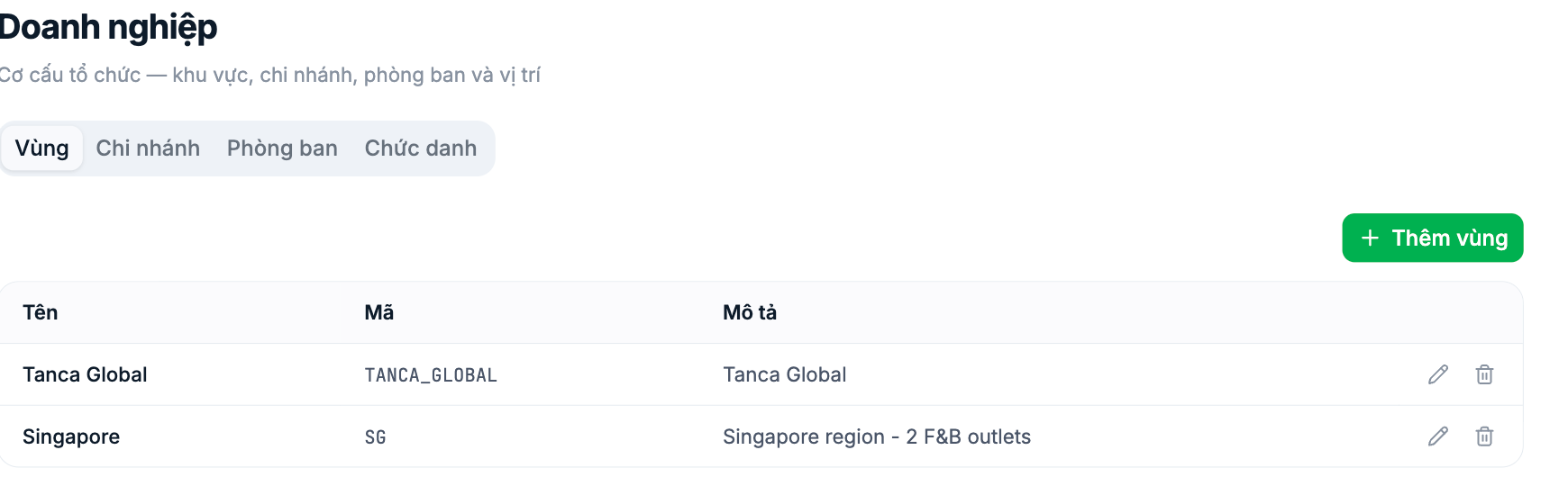
- A Region groups multiple branches together. Use it when your business spans multiple provinces or multiple countries.
- Three fields: Name, Code, Description. Codes should be uppercase without diacritics, joined with underscores.
- Businesses with a single location should still create a default region, for example Headquarters. Leaving this tier empty means opening a second branch will require reorganizing everything.
Branches
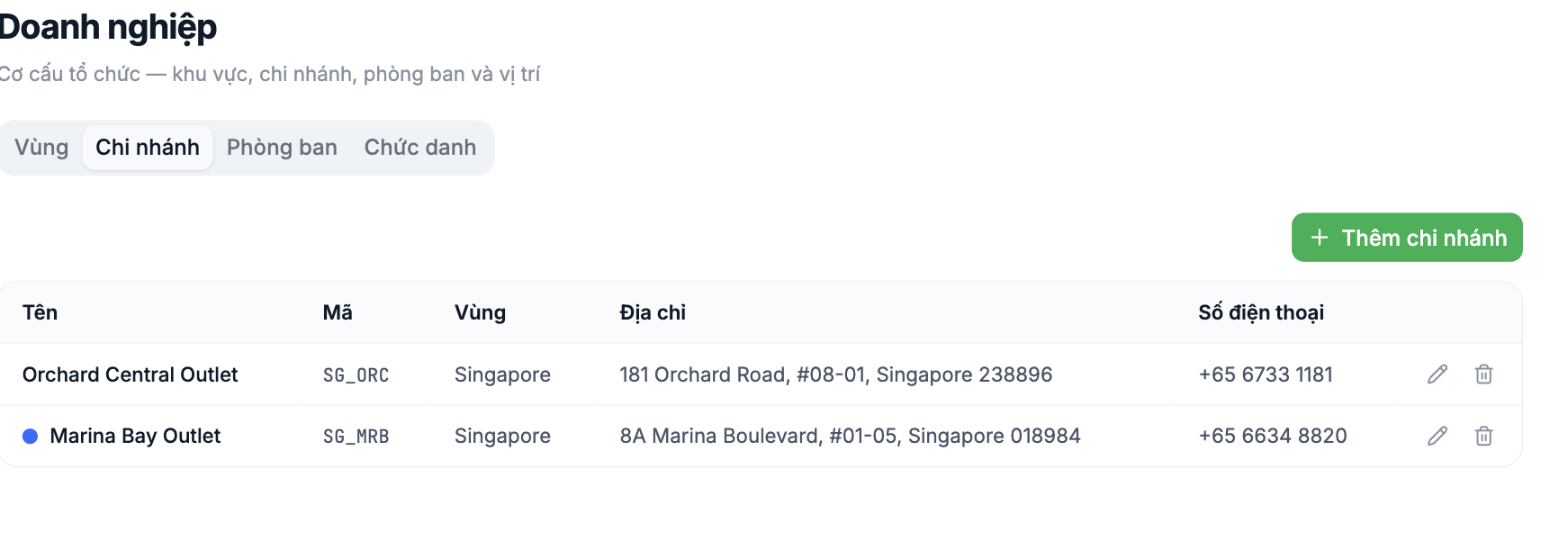
| Field | What to enter | Why it matters |
|---|---|---|
| Name | The commonly used name of the location | |
| Code | Uppercase without diacritics | Used in import files and exported data |
| Region | Select the region containing this branch | Determines the data scope of the Regional Manager |
| Address | The real, complete address | Displayed in profiles and on contracts. Not the GPS clock-in coordinate — GPS points are set up separately in Time & Attendance › Settings › Phone › GPS; see article B6-04. |
| Phone number | The branch's phone number | Displayed in profiles and for internal contact |
If an employee reports "I'm standing right at the store but the app still says I'm outside the allowed area", the place to check is the GPS clock-in point in Time & Attendance › Settings › Phone › GPS tab (article B6-04), not the branch address on this screen. These two are set up separately: the GPS point links to the branch, but the coordinates used to check location are in the GPS record.
Steps
- Go to Settings › Organization › Company.
- Select the Regions tab, click + Add Region, fill in Name, Code, Description, and save.
- Switch to the Branches tab, click + Add Branch, fill in all five fields, and save.
- Use the pencil icon to edit and the trash icon to delete.
Notes
- Finalize your codes and keep them unchanged. Codes appear in import files and exported data; changing a code after data exists breaks all old files.
- Don't delete a branch that still has employees. Move people to another branch first.
- When opening a new branch, set it up here first, then move employees over.

