Reconciliation is a step you must not skip. A payroll is only trustworthy when every figure can be traced back to its source: working days to the timesheet, days off to requests, overtime hours to approved overtime requests.
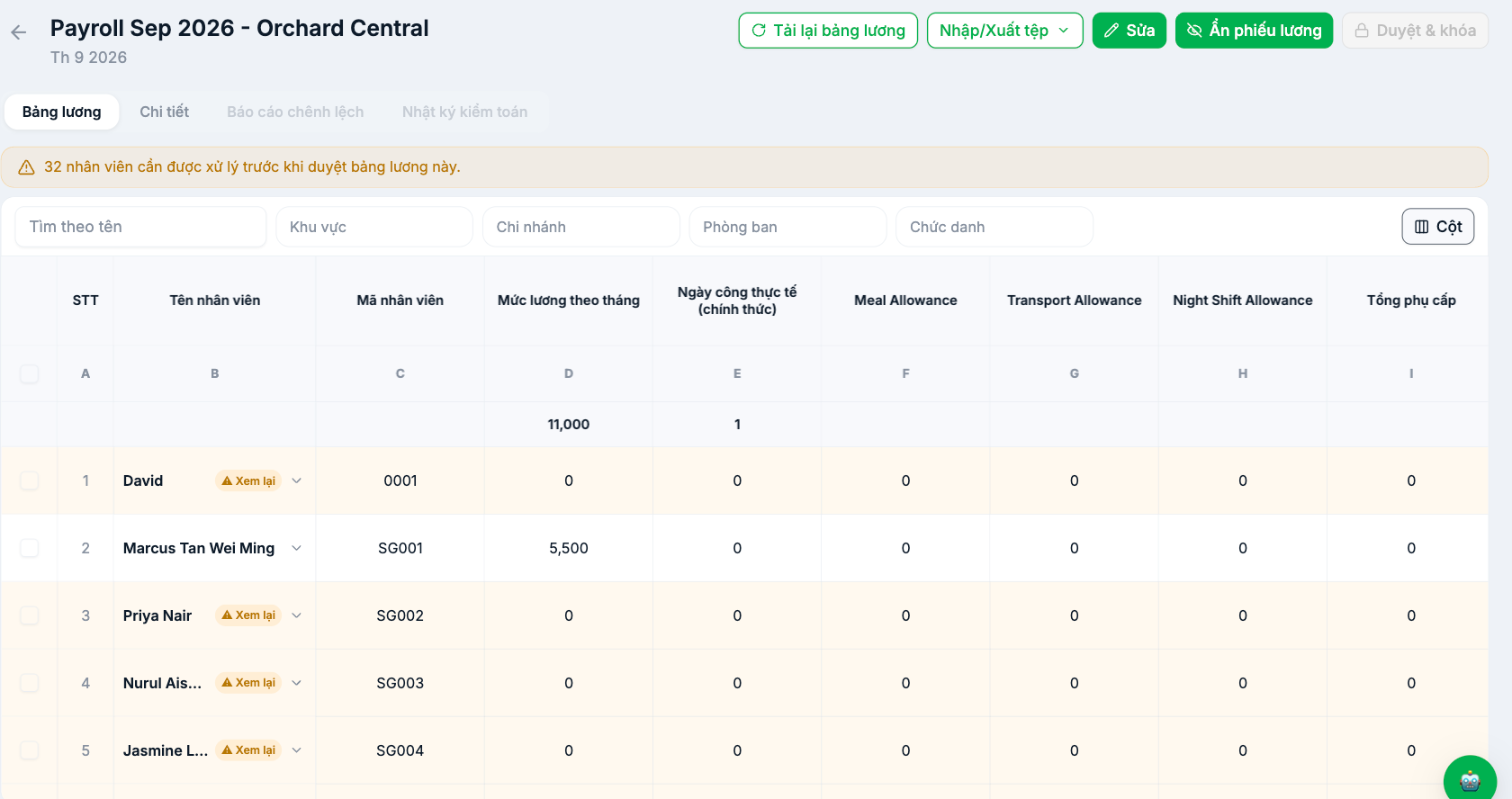
The four tabs of a pay period
| Tab | Used to |
|---|---|
| Payroll | The main grid, one row per employee |
| Details | The detailed breakdown for each person |
| Variance Report | Compare with the previous period and flag rows with unusual changes |
| Audit Log | Who changed what, and when — evidence in case of disputes |
The Variance Report tab is the most powerful reconciliation tool. Instead of reviewing 300 rows, it points out the people with large changes compared to the previous period — and that is exactly where errors tend to be.
Four-layer reconciliation process
- Total layer — compare this period's total cost with the previous period. Large differences must be explainable by real events: new hires, raises, bonuses.
- Group layer — filter by department and compare each group.
- Anomaly layer — open the Variance Report tab and review each flagged row.
- Sample layer — randomly select five employees, calculate everything by hand, and compare with the system.
Mandatory checklist
| What to check | Compare with |
|---|---|
| Number of employees in the period | The list of active employees |
| Each person's working days | The finalized timesheet (article B6-12) |
| Paid days off | Approved leave requests (article B8-14) |
| Overtime hours | Approved overtime requests |
| Salary advances | Approved salary advance requests |
| New hires, departing employees | Start dates and end dates in their profiles |
| Formula error cells | No cells showing `#NAME?` or unexpectedly blank |
The last row matters more than it appears. Formula error cells appear directly on employees' payslips if they aren't resolved before publishing.
Review tools
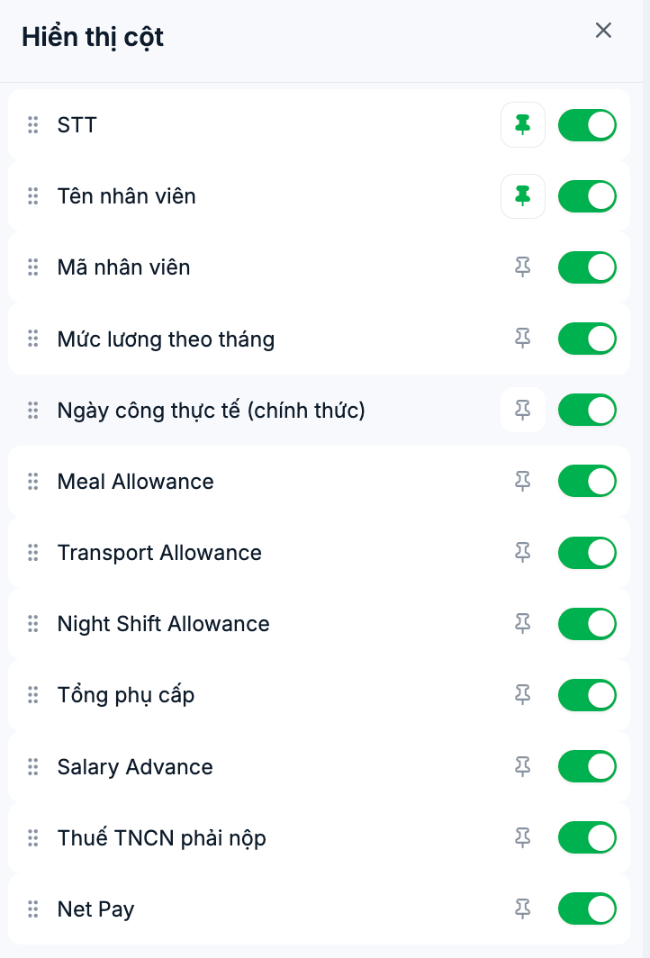
- Filters at the top of the table: by name, region, branch, department, job title.
- Columns button: show or hide columns to focus on what you're reviewing, pin the employee name column so it doesn't scroll away when scrolling horizontally, and drag to reorder.
- Column letters (A, B, C…): use them when talking with colleagues — "column H, row 12 is wrong" is clearer than "the night shift allowance column".
When you find a discrepancy
- Determine whether the discrepancy affects one person or a whole group. One person usually means data; a whole group usually means a formula.
- Open that person's Details tab to see the breakdown.
- Trace back to the source following article B9-18.
- Fix it at the source; don't overwrite values on the payroll.
- Click Reload payroll and check again.
Overwriting values directly on the payroll should only be used for truly exceptional cases, and a reason must be recorded. Overwriting to compensate for a formula error will cause that error to recur in every subsequent period.

