Two screens determine who can do what in the library and how large the library can grow: Settings (security and role-based permissions) and Storage (how much is in use and what the quota is).
Role-based permissions
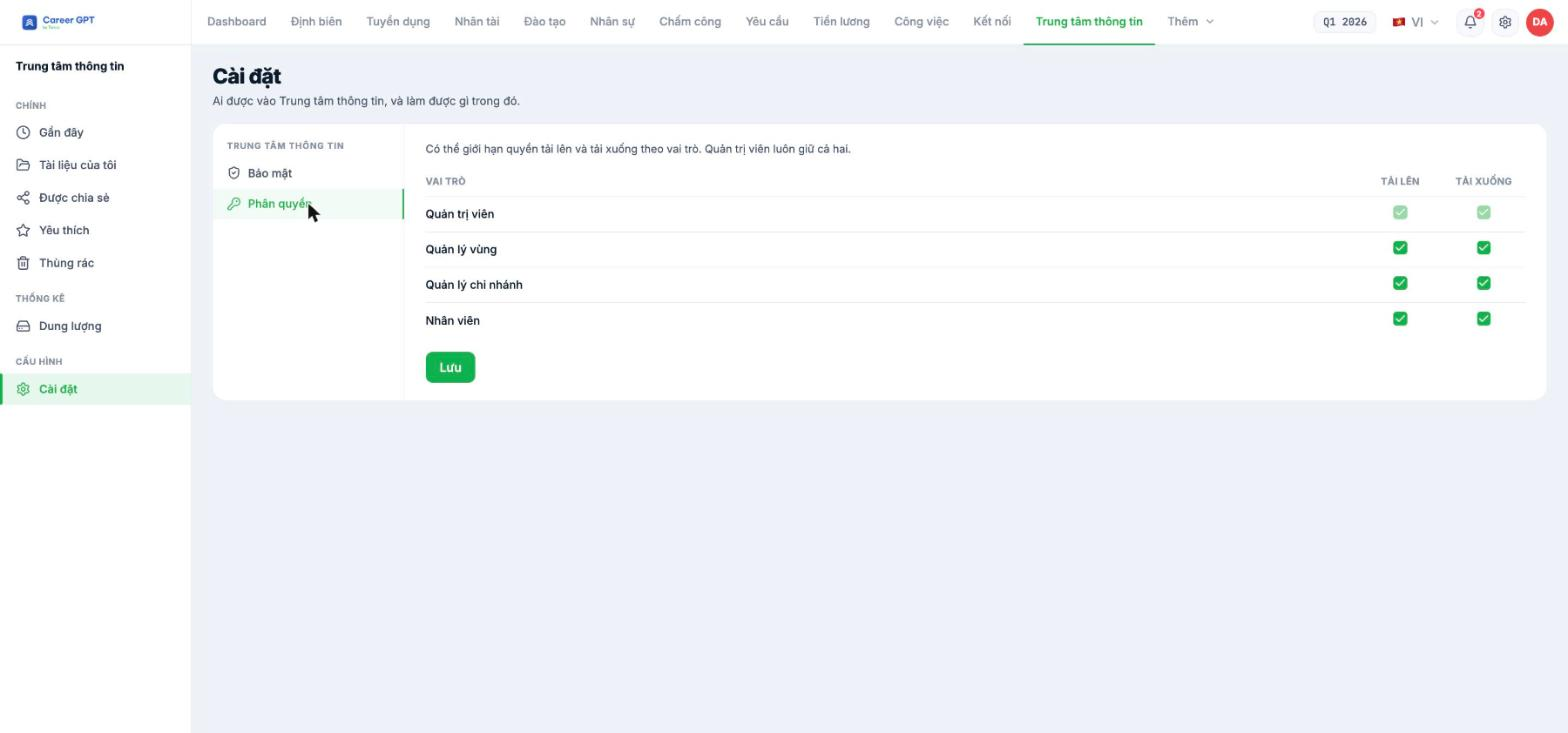
Go to Settings › Permissions. The table has four roles — Administrator, Regional manager, Branch manager, Employee — and two permissions: Upload and Download. Uncheck as needed, then click Save.
The Administrator row is locked: administrators always keep both permissions, as the description line on the table states.
| Common configuration | Upload | Download |
|---|---|---|
| Read-only library for employees | Employee: Off | Employee: On |
| Documents must not leave the company | On | Employee: Off |
| Branch managers post their own branch documents | Branch manager: On | On |
The Download permission is enforced correctly: when it is off, the Download option disappears from every file's menu. However, during testing on September 5, 2026, the Upload permission was not enforced — the Upload button was still clickable and files still uploaded successfully even when it was turned off. Don't treat this toggle as a security measure until you have verified it yourself in the version you are using. TO BE CONFIRMED BY THE COMPANY before publishing.
Three security toggles
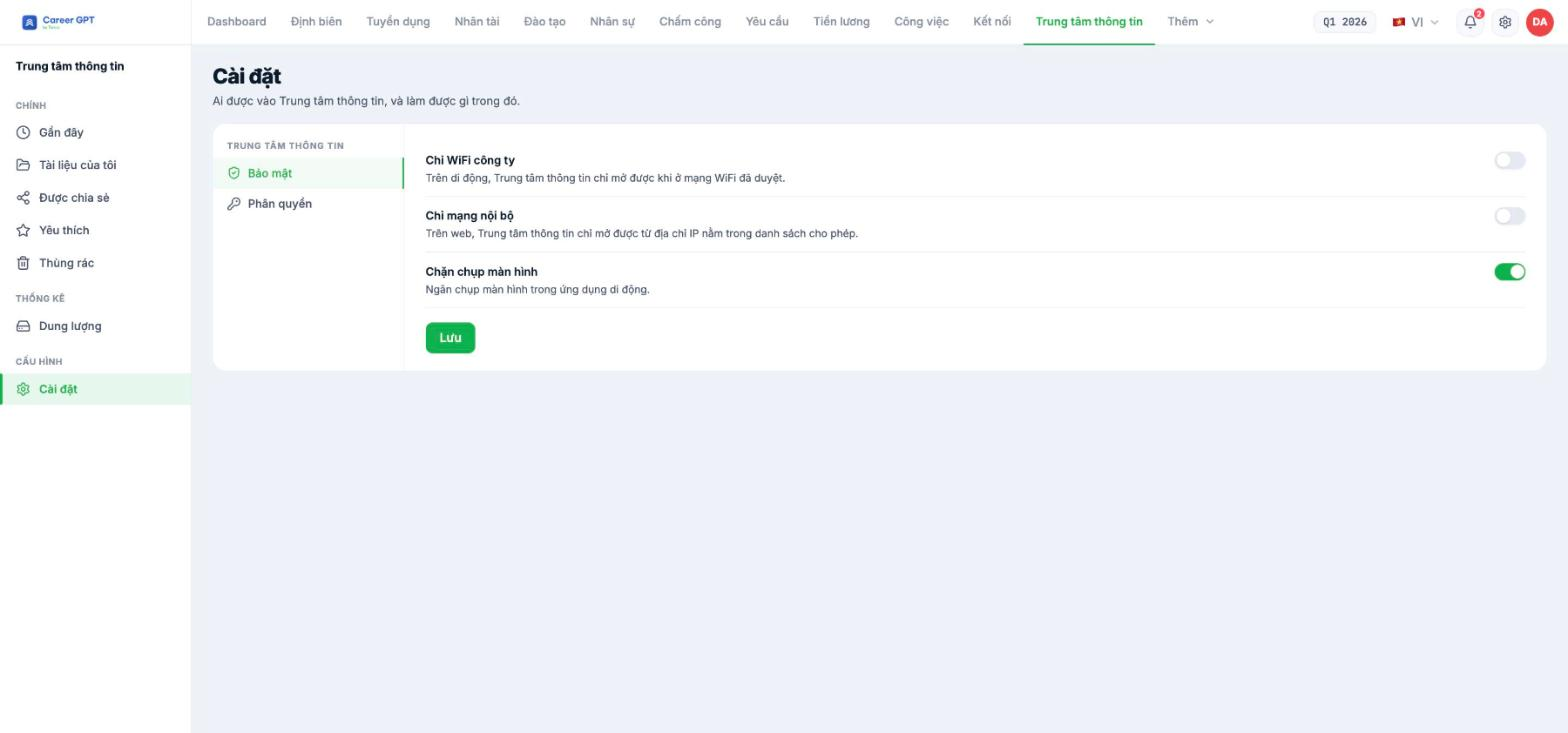
| Toggle | Effect |
|---|---|
| Company WiFi only | On mobile, the Information Center can only be opened on an approved WiFi network |
| Internal network only | On the web, it can only be opened from IP addresses on the allowed list |
| Block screenshots | Prevents screenshots in the mobile app |
Don't turn on “Internal network only” right now. Both of the first two toggles refer to a WiFi list or an IP list, but there is currently no place in the product to define that list — not on this screen, not in General Settings. Turning it on while the list is empty risks locking the entire organization out of the module on the web. Contact Tanca first if your business needs to restrict by IP. TO BE CONFIRMED BY THE COMPANY before publishing.
Monitor storage
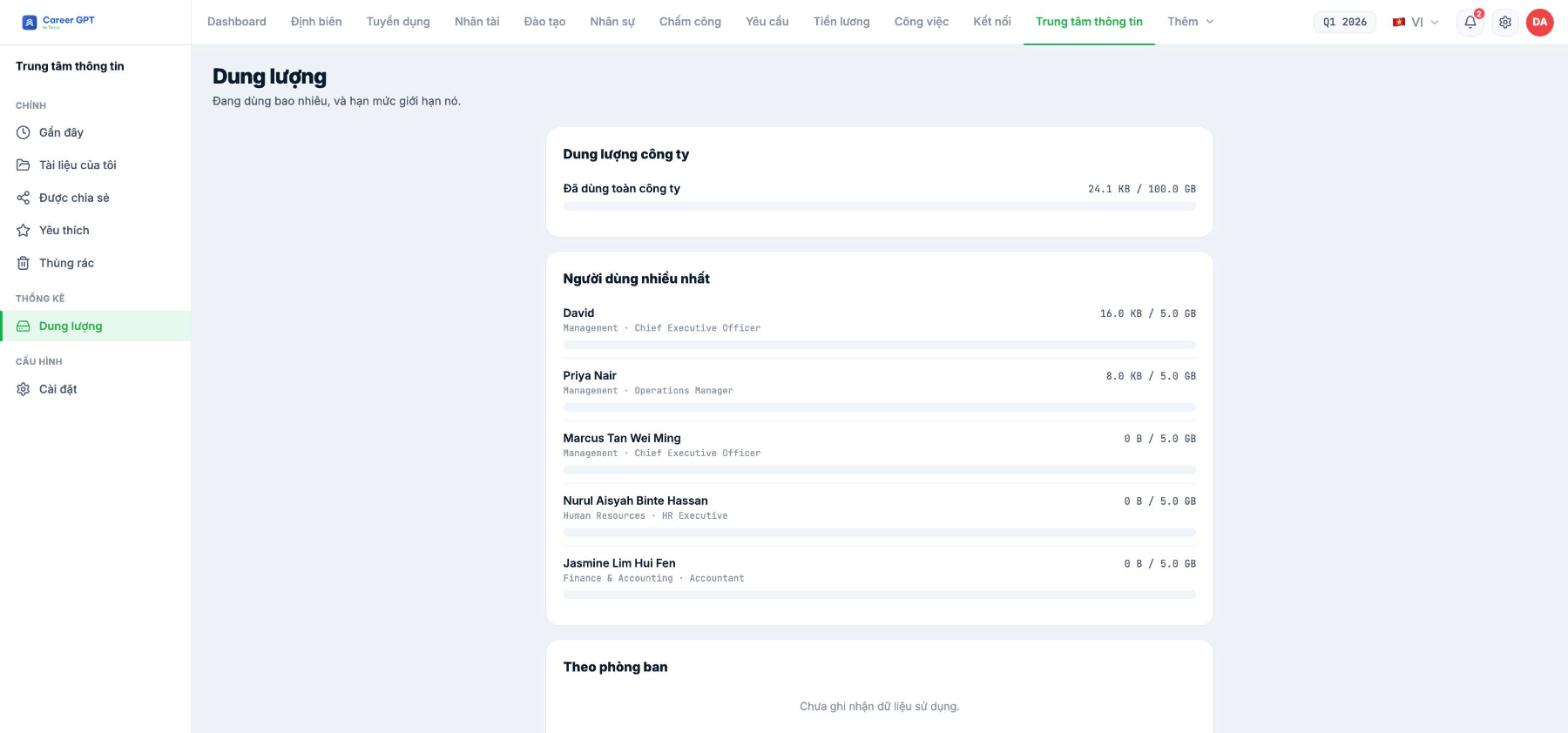
The Storage screen has three blocks:
- Company storage — used out of the total quota of your plan.
- Top users — ranked by storage used, with each person's quota.
- By department — storage by each department.
The quota configuration section lets you turn on Quota by member and enter the default number of GB for each person, along with Quota by department.
Three things to know about this screen: (1) the By department block currently always shows “No usage data recorded” even though there is data in the block above; (2) after turning on Quota by department, there is no button to add a rule to select a department and enter GB; (3) the GB field accepts negative numbers, displaying a negative number but actually saving it as 0 while still showing “Settings saved”. Only use Quota by member with positive integers, and check the value again after saving.
Suggested configuration for mid-sized businesses
- Permissions: Employee — Upload Off, Download On. Branch manager — both On.
- Quota by member: on, 5 GB per person. Enough for text documents, and prevents using the library to store personal videos.
- Block screenshots: on, if the library contains workflow documents you don't want to spread outside.
- Company WiFi only / Internal network only: leave off until Tanca adds a place to define the lists.
- Review the Storage screen every quarter; remind anyone exceeding 80% of their quota to clean up before they hit the cap.

