A sheet template is a set of targets shared by a group of people: one set for sales staff, one for cashiers, one for store managers. Build the template once, and each month simply generate a results sheet from it.
Creating a template and choosing who it applies to
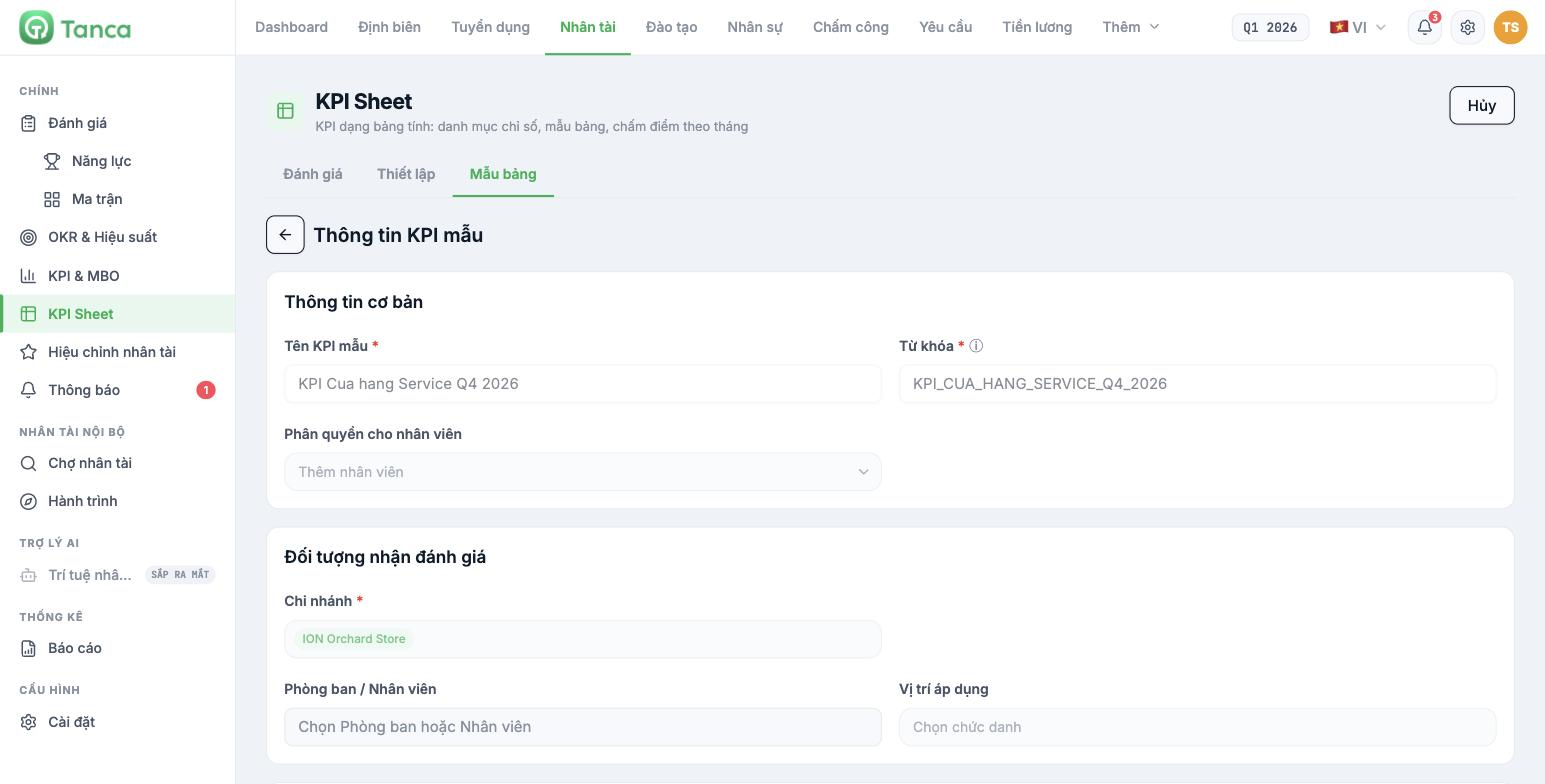
- Go to Talent › KPI Sheet › Sheet Templates and click + Create new.
- Enter the KPI template name and check the Keyword (applying the warning in article B11-03).
- Employee permissions — add people other than administrators who are allowed to open and edit this template.
The Review subjects block determines whose names will appear on the results sheet:
| Field | Required | Meaning |
|---|---|---|
| Branch | Yes | Choose one or more branches. This is the base filter |
| Department / Employee | No | Narrow it down to one department, or name specific people |
| Applicable position | No | Choose a job title. This is how you attach the template to a job title |
To build a true KPI set by job title: select all branches, leave Department / Employee blank, and only set Applicable position = the job title to be reviewed. When someone new takes on that job title, they automatically appear in the next period's sheet without you having to edit the template.
Declaring scorers and criteria
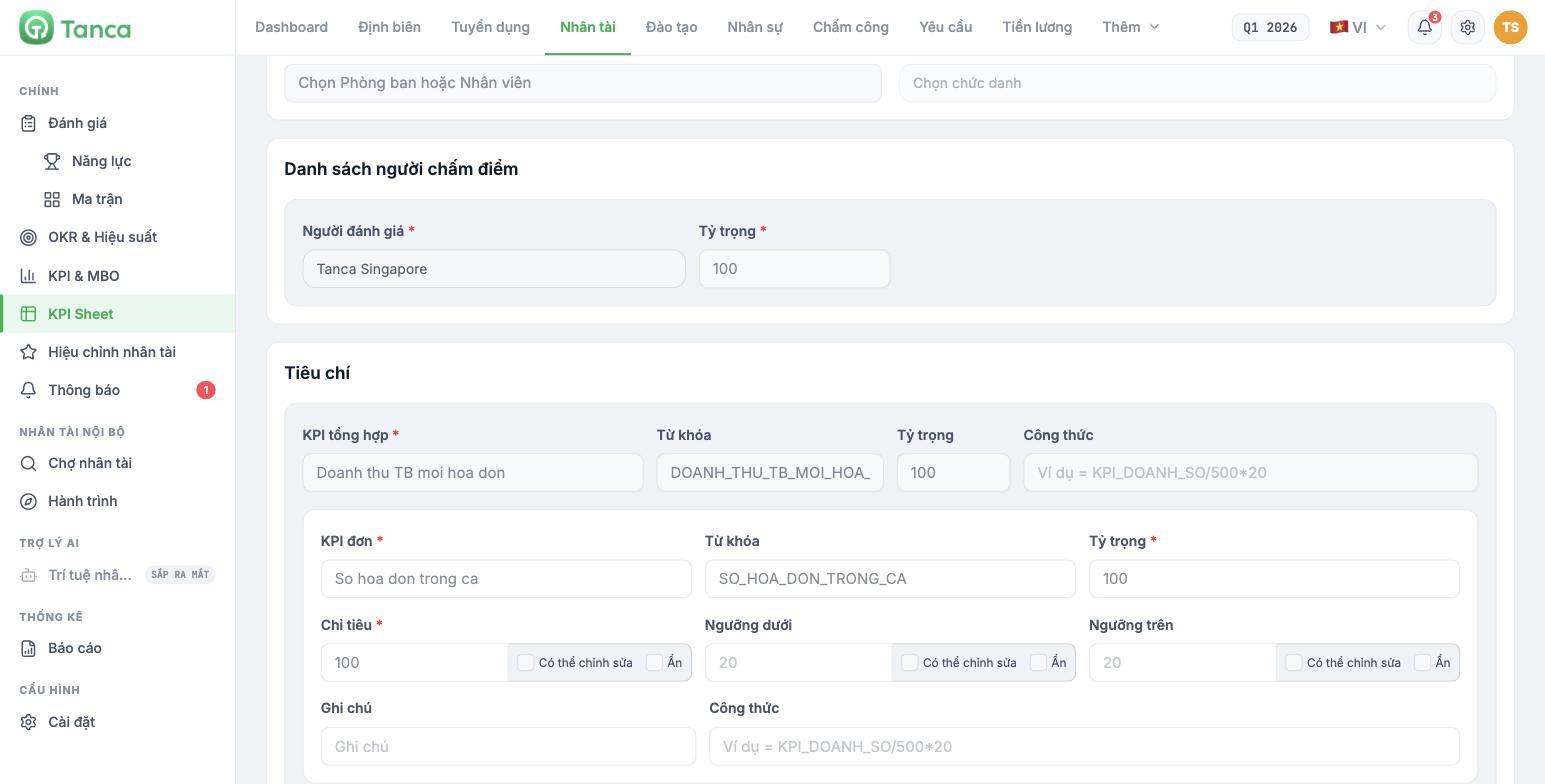
The Scorer list block: each row includes a Reviewer and a Weight. The total weight of all scorers must equal 100. With one scorer, set it to 100; line manager 70 and regional manager 30 if you want two layers of review.
The Criteria block is a two-level tree. The upper level is the composite KPI (criteria group), and the lower level is the individual KPIs belonging to that group. For each individual KPI you declare:
- Weight — this metric's weight within the group.
- Target — the figure to achieve (required).
- Lower threshold / Upper threshold — the lower and upper bounds for reference when scoring.
- Editable / Hidden — enabled separately for each of the Target, Lower threshold and Upper threshold cells, so scorers can either edit or only view them.
- Notes and Formula — describe how to obtain the figure, or a dedicated calculation formula for this row.
Before using the template for a whole department
- Save the template and generate one test results sheet (article B11-05).
- Test-score one employee with real figures.
- Check that the CRITERIA RESULT and FINAL RESULT columns produce numbers — if they show 0, the composite KPI formula is calling a keyword that isn't in the sheet.
- Fix the template, and only then roll it out.
To be confirmed by the company — it is not yet clear whether the system allows copying a template to another job title. If not, build the template for the most complex job title first, then create the remaining templates using the same set of keywords to keep reports comparable.

