A poll is the single-question version of a survey: choosing a team-building venue, picking a meeting date, selecting a uniform design. It's much faster than a survey — but there are a few limitations to know before you use it.
Creating a poll
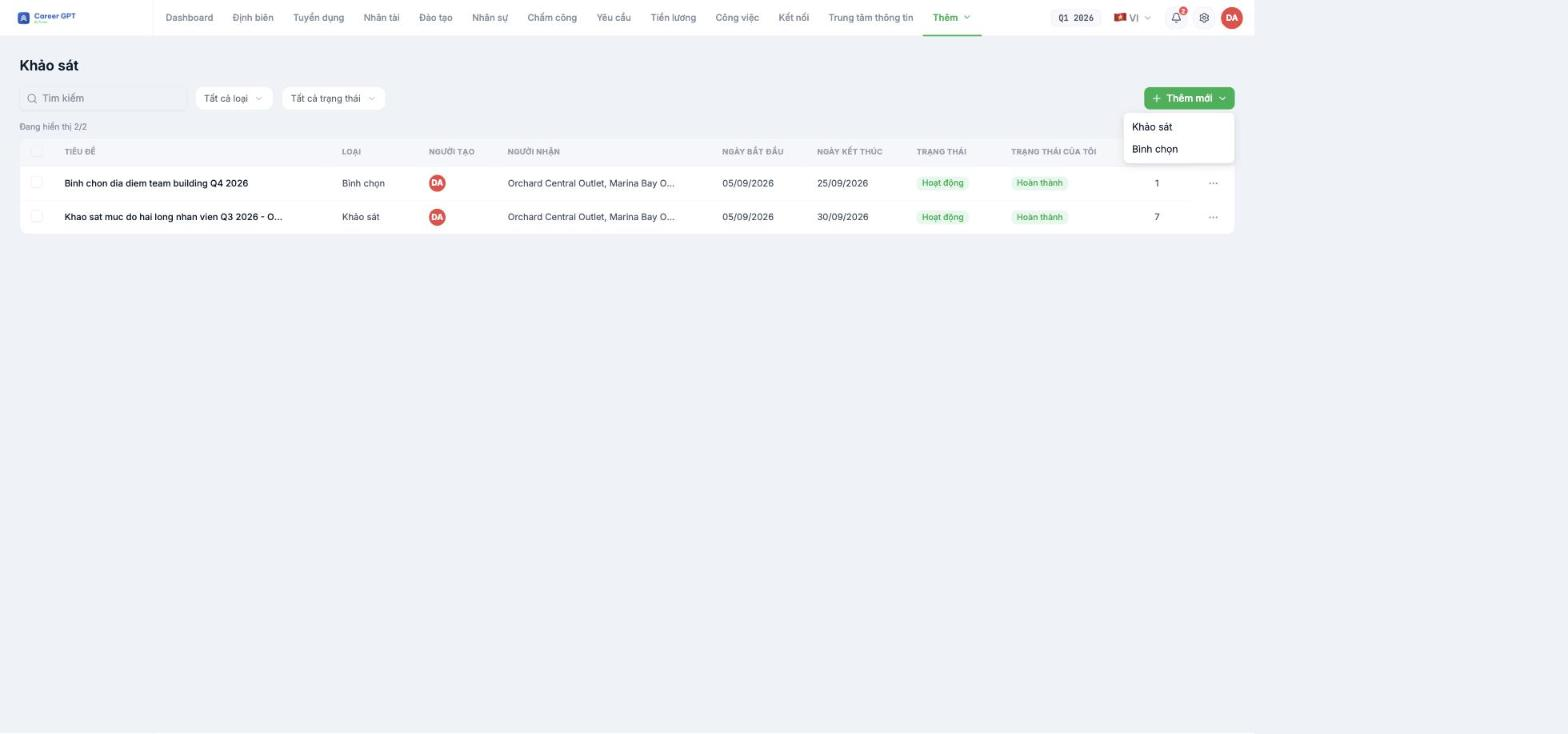
- Go to Surveys and click Add New › Poll.
- Step 1 is the same as for a survey: Title, Description, Recipients, End Date, cover image, and toggles.
- Step 2: enter the options for employees to vote on.
- Click Create and confirm publishing.
Important content must go in the Title and Description in step 1. The Question and Question description fields in step 2 are currently never shown to voters — the poll page only shows the step 1 title and description, followed directly by the list of options. If you put the amount of cost support or accompanying conditions in the question field in step 2, employees won't be able to read it. The bug was logged on 09/05/2026 and is awaiting a fix.
How polls differ from surveys
| Survey | Poll | |
|---|---|---|
| Number of questions | Many, can be divided into sections | One |
| Question types | 12 types | Only choosing from a list of options |
| Instant results | No | Yes — percentage bars and avatars of people who voted |
| Dedicated Statistics screen | Yes | No |
| Editable after creation | Yes | No |
| Duplicate | Yes | Yes |
Two limitations to know before clicking Create
- It can't be edited after creation. A poll's menu only has Vote · Duplicate · Delete. A single typo in an option means deleting it and starting over, losing all votes cast. Re-read the list of options carefully before publishing.
- There's no Statistics screen. You view results by opening the poll page yourself. If you choose the completely hide results display mode, it's currently unclear where the creator can see the results — avoid that mode until a statistics screen is available. TO BE CONFIRMED BY THE COMPANY before publishing.
Tips
- Make the title the question itself: “Choose the Q4 2026 team-building venue” — because the question field in step 2 isn't displayed.
- Put all conditions in the step 1 Description: budget, timing, headcount.
- Keep the number of options to 3–5. With more, votes get spread out and no decision emerges.
- Use Duplicate for polls that repeat each quarter — duplicating opens a new creation form titled “Copy of …”, and nothing is saved until you actively publish it.

