The Connect Newsfeed is where you share with colleagues across the company. This article explains how to post, choose who can see it, comment and reshare other people's posts.
Publish a post
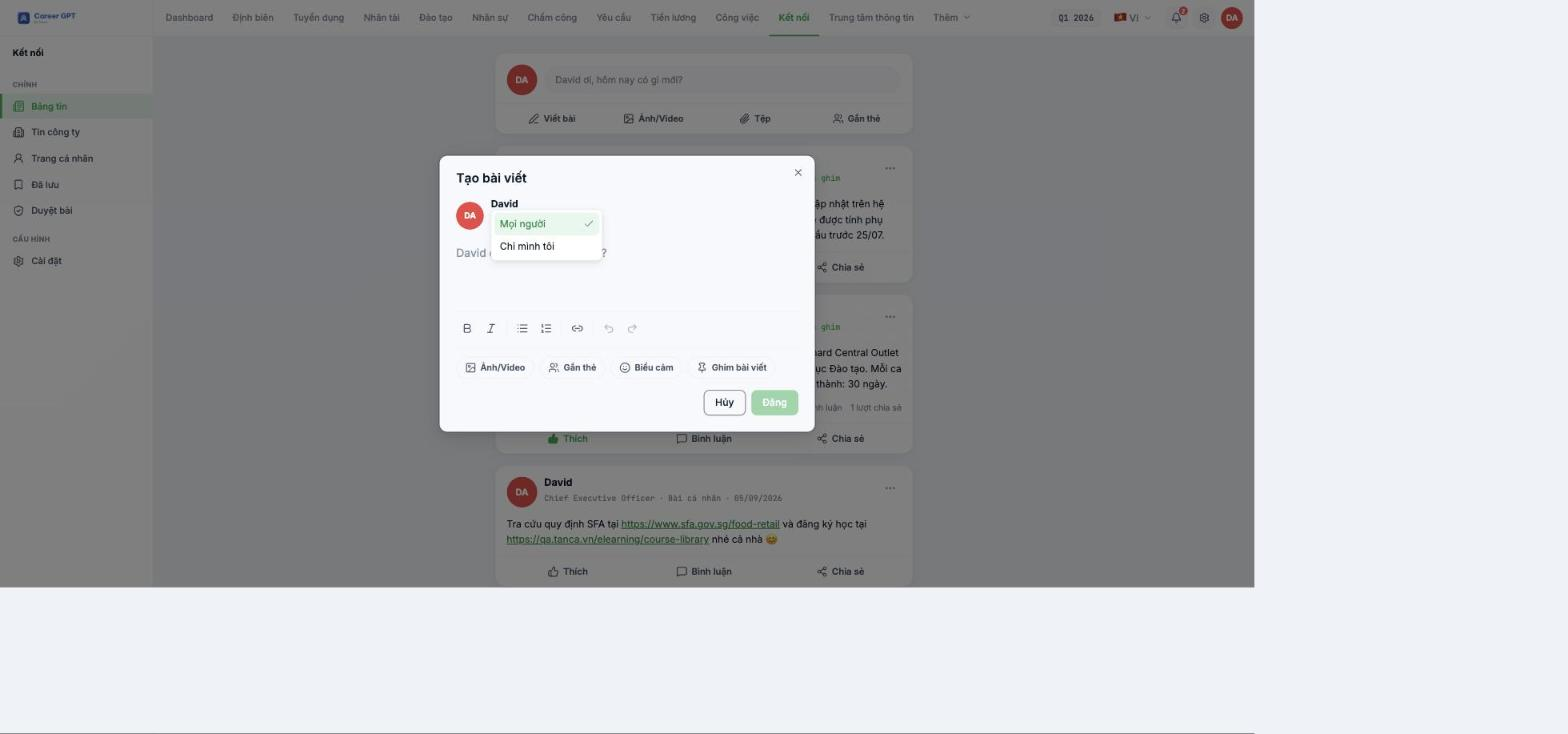
- At the top of the Newsfeed, click Write a post.
- Choose who can see it in the field right below your name: Everyone (everyone in the company) or Only me.
- Enter your content. You have bold, italic, numbered lists, bulleted lists and link insertion.
- Add Photo/Video, Tag colleagues, or Emoji if you like.
- Click Post.
The Post button only lights up when the post has content — a post consisting only of whitespace cannot be published. Links you paste in automatically become clickable.
Published posts cannot be edited. The post menu has no Edit item. If you make a mistake, you have to delete the post and post it again — and the new post will lose all likes, comments and shares. Read it through once before clicking Post.
Tag colleagues
Click Tag, type a name into the Employee field, and select the person you want to mention. Their name will appear on the post card as “you with Priya Nair”.
For personal posts, you can only tag employees. If you select a Branch or Department, the system will reject the post when you click Post.
Comments and replies
- Click Comment on the post card, type your comment and press Enter to send.
- Comments have two levels: you can reply directly to a comment.
- Each comment has its own Like button, and you can delete your own comments.
If a post has few comments but you still see a View more comments line, just click it — the line will disappear on its own. This is a minor display bug awaiting a fix; you are not missing any comments.
Reshare someone else's post
Click Share on the post card, add your own intro and post it. The shared post shows the original post nested inside with the author's name and time, and the original post counts one more share.
Your profile page
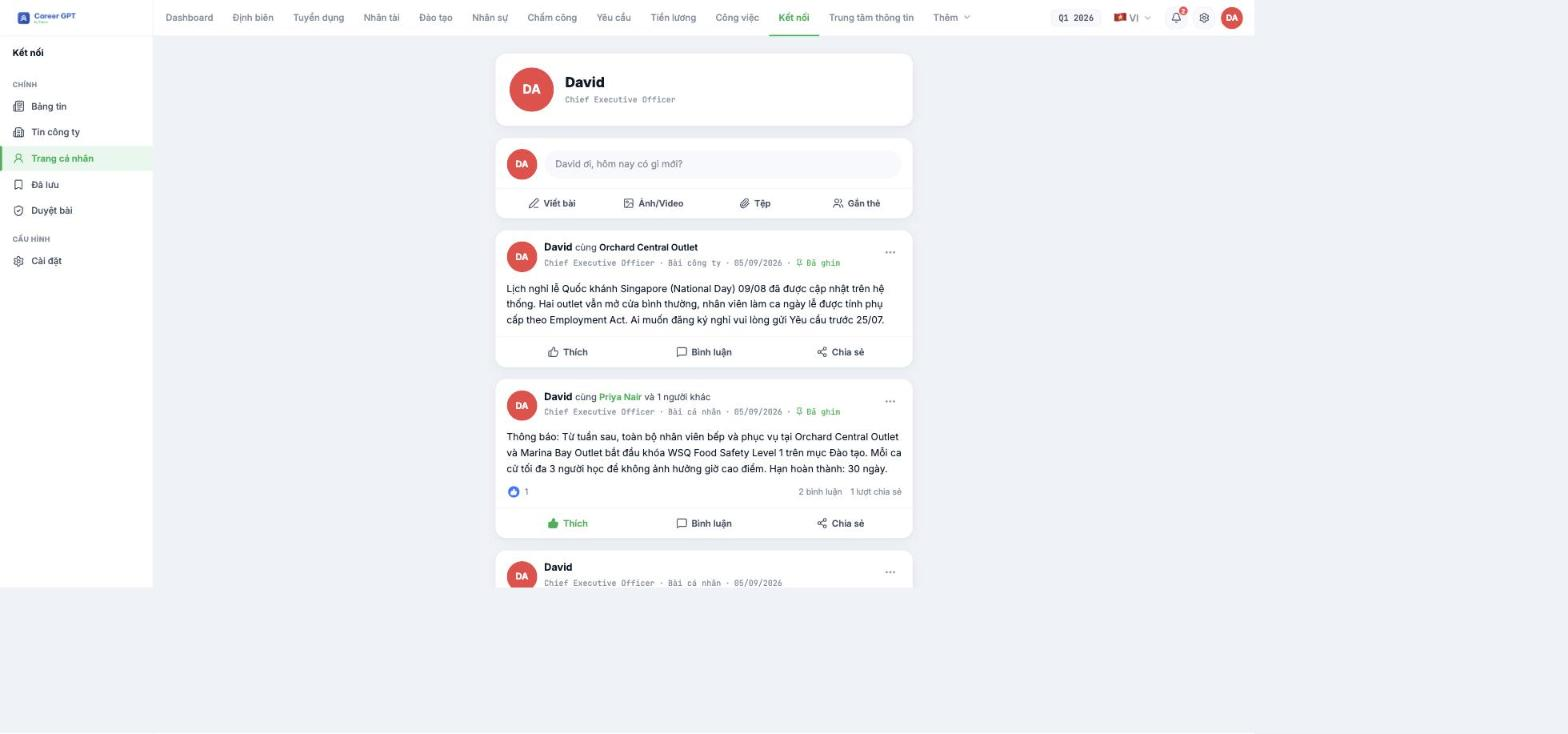
Connect › Profile page gathers all the posts you have published, with a post composer at the top of the page. If you want to hide this page from colleagues, go to Connect › Settings and select Only me.
Note: you currently cannot view colleagues' Connect profile pages — clicking an author's name does not open their page. This feature is being added.

