This is the question Customer Support receives most often about the Surveys module, and also the area where it's easiest to overpromise to employees. This article explains exactly how Tanca's anonymity mechanism currently works.
What the Anonymous toggle does
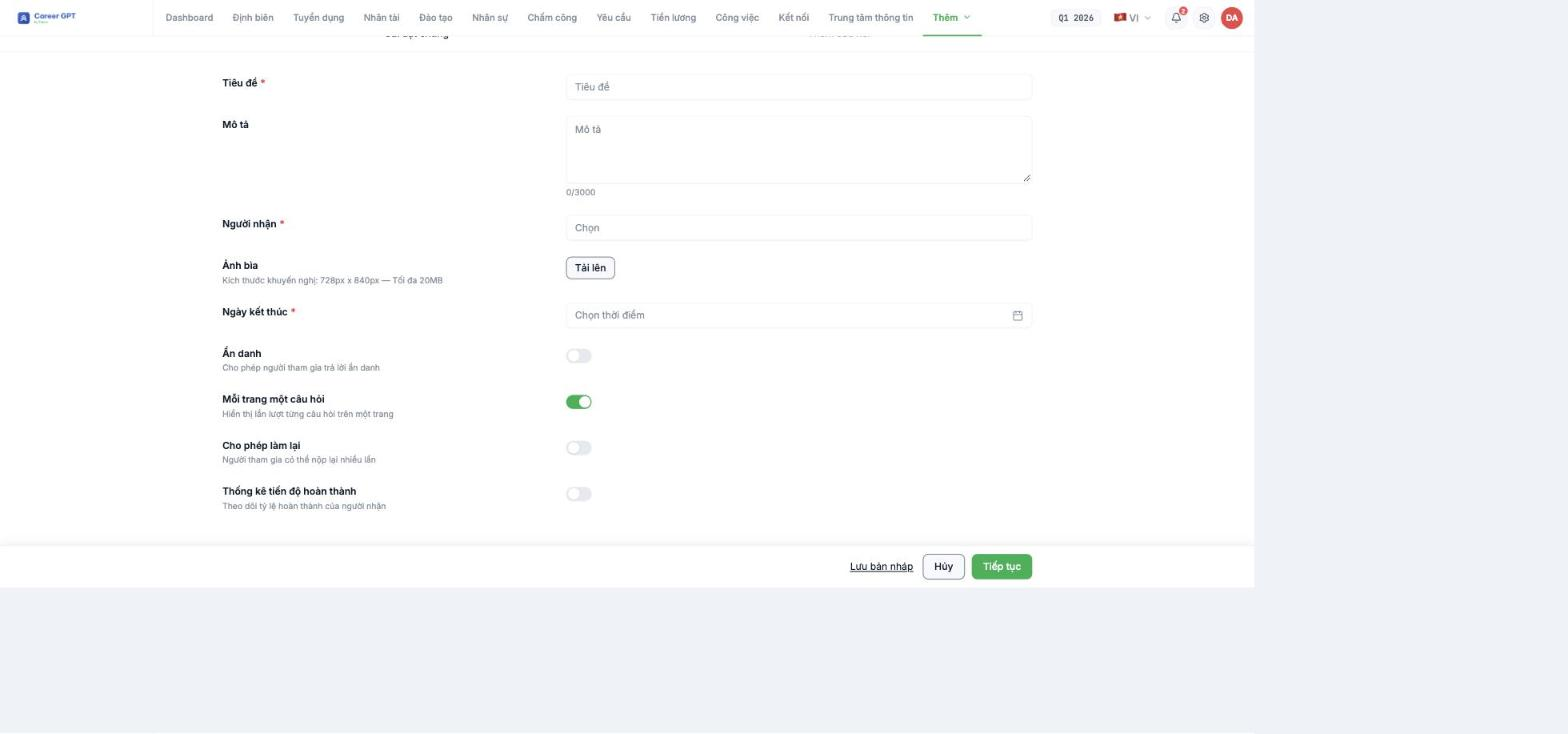
Turning on Anonymous in step 1 means “allow participants to respond anonymously”. When a response is submitted anonymously, the Individual tab on the Statistics screen shows “Response from Anonymous” instead of the respondent's name — administrators can read the content of the response but don't know whose it is.
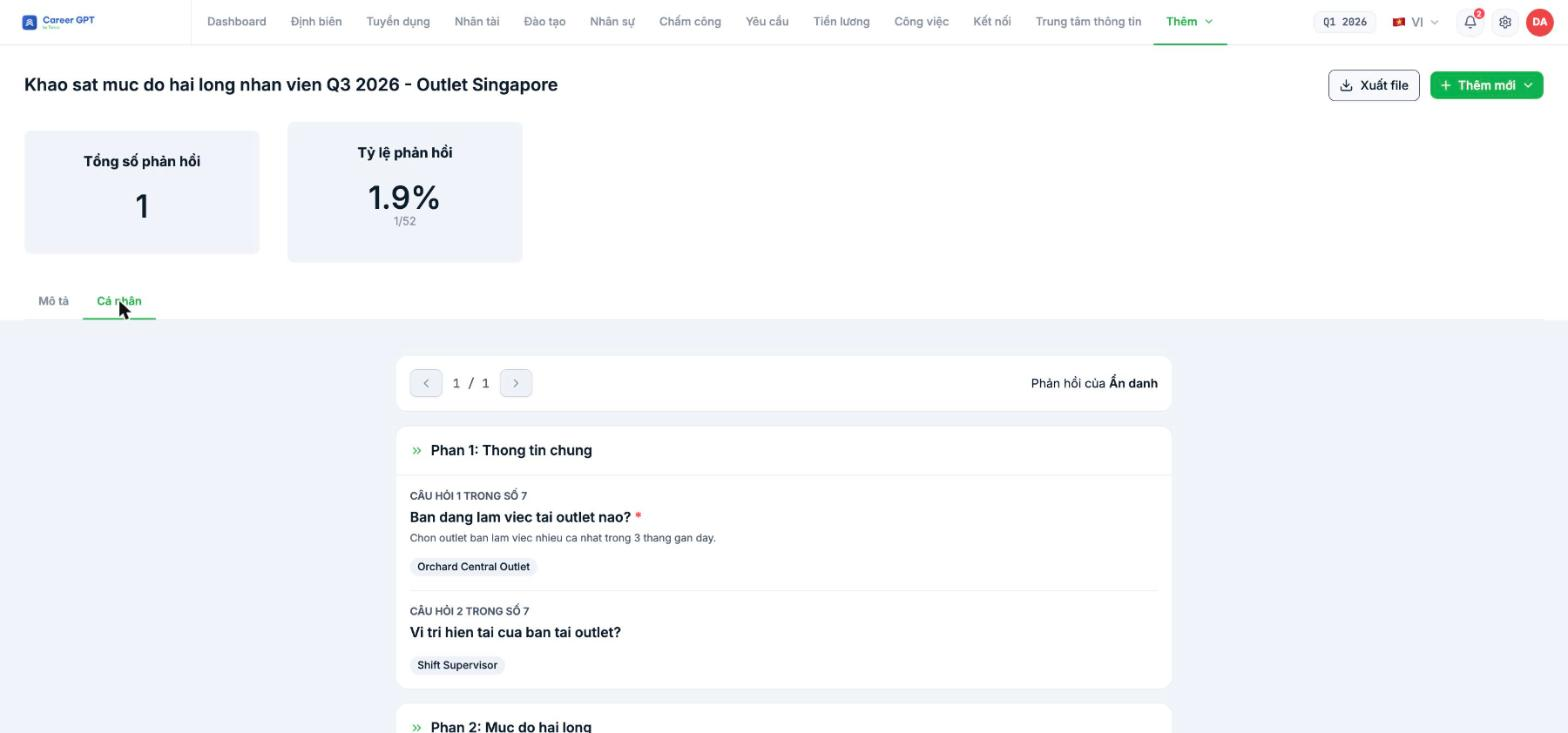
What you must know before promoting a “100% anonymous survey”
The toggle on the respondent's side is OFF by default. When a survey has Anonymous turned on, the employee's submission screen has an additional toggle “Submit anonymously — Turn on this option to hide your identity when submitting”, and that toggle is off by default. If the employee doesn't turn it on themselves, the response is still submitted with their identity. This means: turning on Anonymous at the survey level does not automatically make every response anonymous. This is a bug logged on 09/05/2026, and a fix has been requested (the default should be on). Until it's fixed, don't tell employees the survey is completely anonymous.
Three things to do right away
- Write instructions in the survey's Description, in bold on the first line: “This survey allows anonymous responses. On the submission screen, turn on the Submit anonymously toggle before clicking submit.”
- Verify with a real employee account before sending it out widely: submit a test response, then open the Individual tab to see whether it shows Anonymous or a name.
- Be accurate about what you commit to employees. Use the phrase “we do not view the identity behind anonymous responses” instead of “the system does not record identities”, until the default behavior is fixed.
Anonymous and Completion progress tracking
The Anonymous and Completion progress tracking toggles can be turned on at the same time, and the system gives no warning. Conceptually they pull in opposite directions: one hides identity, the other tracks the completion rate of recipients.
The safe interpretation: when both are on, the system knows who has submitted but doesn't attach identity to the content of responses. If your company commits to strict anonymity, turn off Completion progress tracking and accept not knowing who hasn't responded.
TO BE CONFIRMED BY THE COMPANY before publishing (the development team needs to confirm exactly what data is stored when Anonymous and Completion progress tracking are both on).
Limiting viewer data
Permission to view survey results currently follows module access permissions; there are no separate permissions per survey. Anyone who can access Surveys can open the Statistics screen of surveys visible to them.
If a survey contains sensitive content — feedback about line managers, engagement surveys — restrict access to the module in Permissions & Security (C1-02) before running it, rather than restricting it afterward.
TO BE REVIEWED BY LEGAL before publishing. HR surveys that collect employees' opinions may be subject to personal data protection laws, especially when questions touch on health, labor relations, or individual evaluations. Response retention periods, who has access, and anonymity commitments should be confirmed by your company's legal department. Tanca does not provide legal opinions on this matter.

