When someone doesn't fit the four built-in groups — an accountant who needs to see salaries but must not edit HR records, an executive assistant who needs to see company-wide reports — this is where you handle it. Each employee profile has its own set of permissions, separate from the group matrix.
Open a person's Permissions tab
- Go to HR and click the name of the person you want to grant permissions to.
- In the profile, select the Permissions tab.
- Select Web or Mobile — the two platforms have separate permission sets.
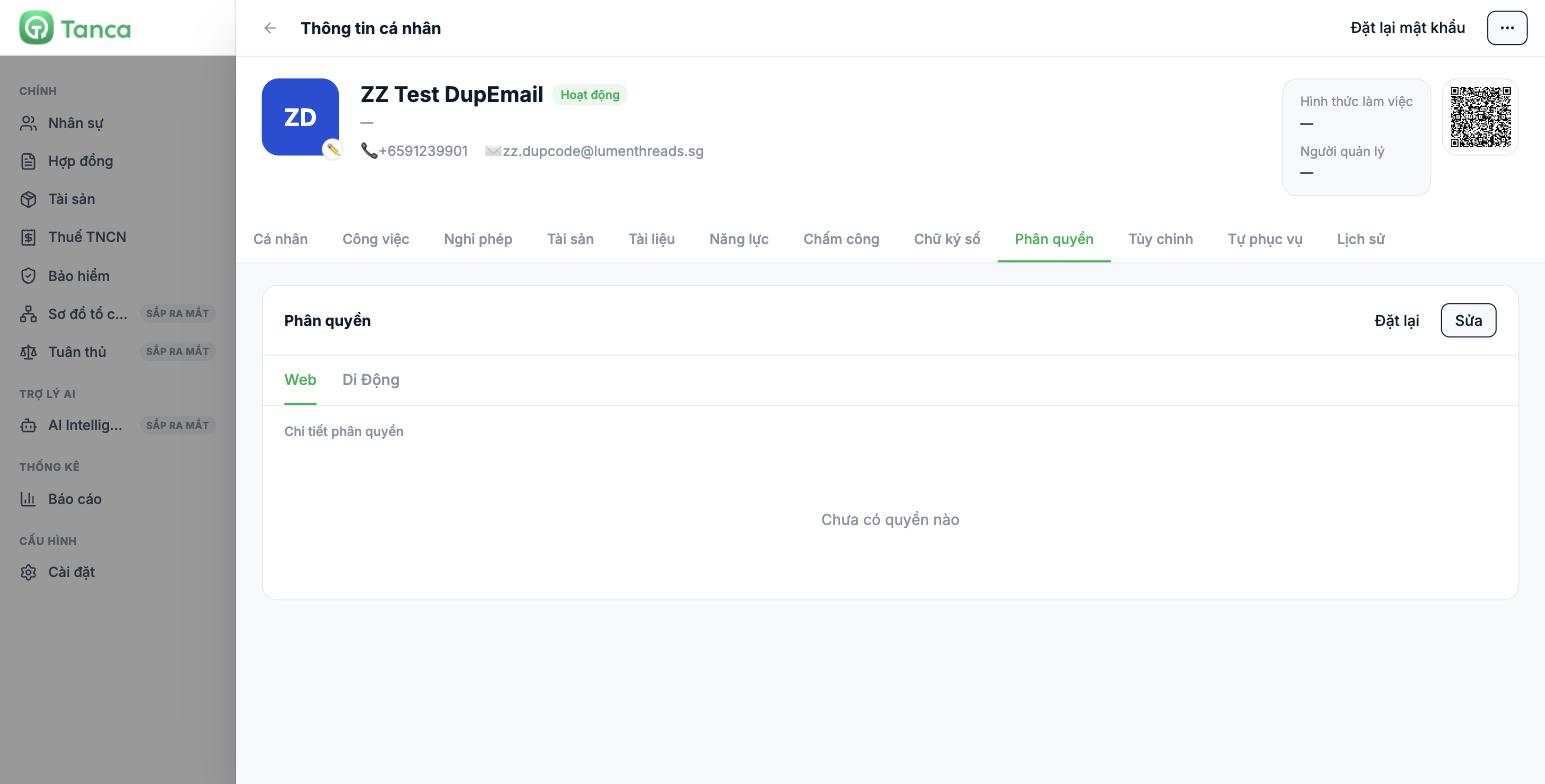
A profile that hasn't been granted individual permissions shows No permissions yet. That doesn't mean this person can't do anything — they still get the permissions of their access group. This box only records additional permissions granted to the individual.
Enable permissions for an individual
- Click Edit in the right corner of the Permissions section.
- The list of permissions appears, grouped by module, with each permission as a toggle.
- Turn on the toggles you need.
- Click Save. Click Cancel if you want to discard.
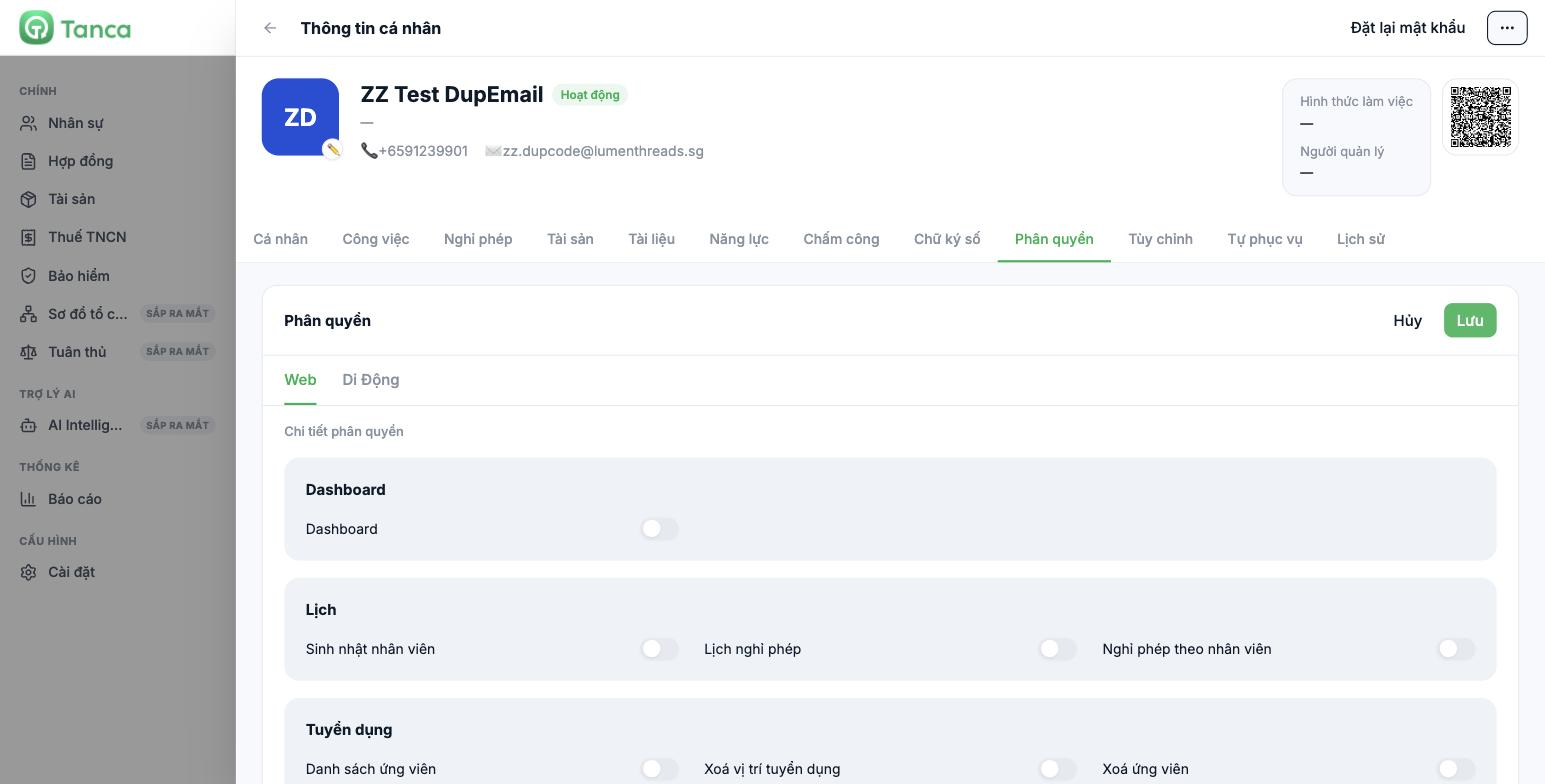
Unlike the group matrix, this screen has a Save button. Nothing changes until you click Save. This is also why you should prefer granting permissions here rather than editing the group matrix when you only need to handle one person.
Two platforms, two permission sets
| Tab | Applies to |
|---|---|
| Web | Browser on a computer |
| Mobile | Tanca app on a phone |
Enabling a permission on the Web tab does not automatically enable it on the Mobile tab. If a user reports "it works on my computer but not on my phone", this is the first place to check.
The Reset button
The Reset button deletes all of this person's individual permissions and returns them to exactly the permissions of their access group. Use this button when someone changes position, or when you're no longer sure what has been changed in their individual permission set.
Four situations where individual permissions make sense
| Situation | How to do it |
|---|---|
| An accountant needs to see company-wide salaries | Keep the Employee group and individually enable the permissions in the Payroll module |
| An executive assistant needs to see reports but must not edit data | Keep the Employee group and individually enable the List and Export File permissions |
| A branch manager is given additional recruitment duties | Keep the Branch Manager group and individually enable permissions in the Recruitment module |
| A temporary stand-in while a manager is on extended leave | Enable individual permissions, and set a reminder to revoke them manually when the other person returns |
Individual permissions have no expiration date. The system won't revoke them automatically and won't remind you. Every temporary permission must have an entry in your calendar with a revocation date, otherwise it will stay forever.

