Besides task groups, the Configuration tab has three more things that shape your team's day-to-day experience: labels, notification time, and two detailed permission tables.
Labels
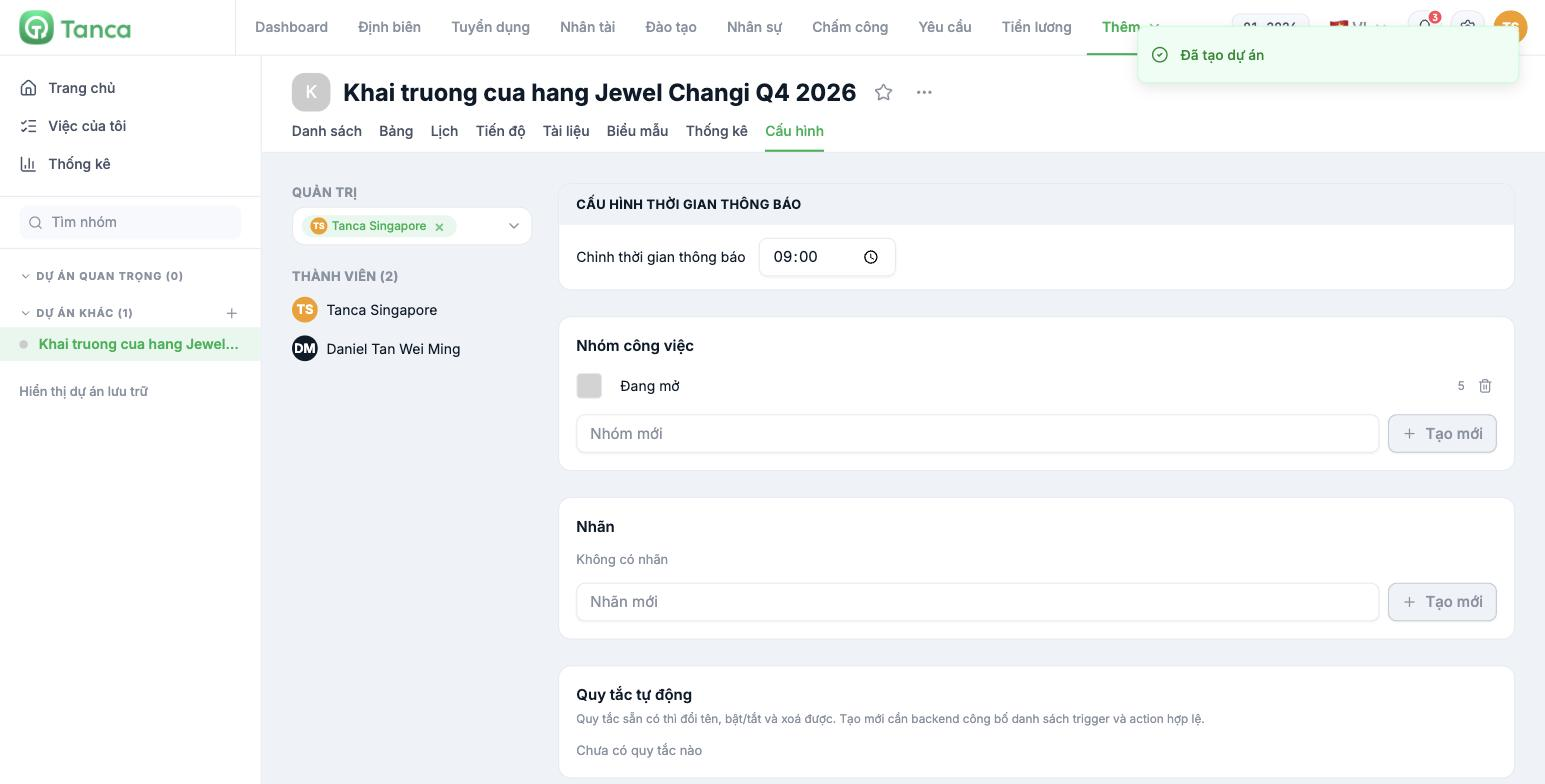
Labels are a second dimension of classification, independent of task groups. Groups answer "which step is the task at"; labels answer "what kind of task is it". Type a name into the New label field and click Create.
- By category: Premises · HR · Merchandise · Communications.
- By nature: Needs budget · Waiting on partner · Legal risk.
- By location: the name of each branch, when the project spans multiple stores.
Don't use labels to mark urgency — tasks already have a built-in Priority field (High · Medium · Low). Duplicating these two dimensions is the fastest way to make your data unreliable.
Notification time
The Notification time settings block sets the time of day the system sends task reminders, 09:00 by default. Choose a time that matches your team's real working rhythm — for a retail chain that opens at 10 a.m., 09:30 makes more sense than 07:00.
Automation rules
The Automation rules block is where you build rules such as "when a task moves to the Done step, notify the team lead".
Current limitation: this block states "Existing rules can be renamed, turned on/off, and deleted. Creating new ones requires the backend to publish the list of valid triggers and actions." This means you can't create new rules yet. In the meantime, use the Collaborators field and `@` mentions in comments as a substitute.
Two permission tables
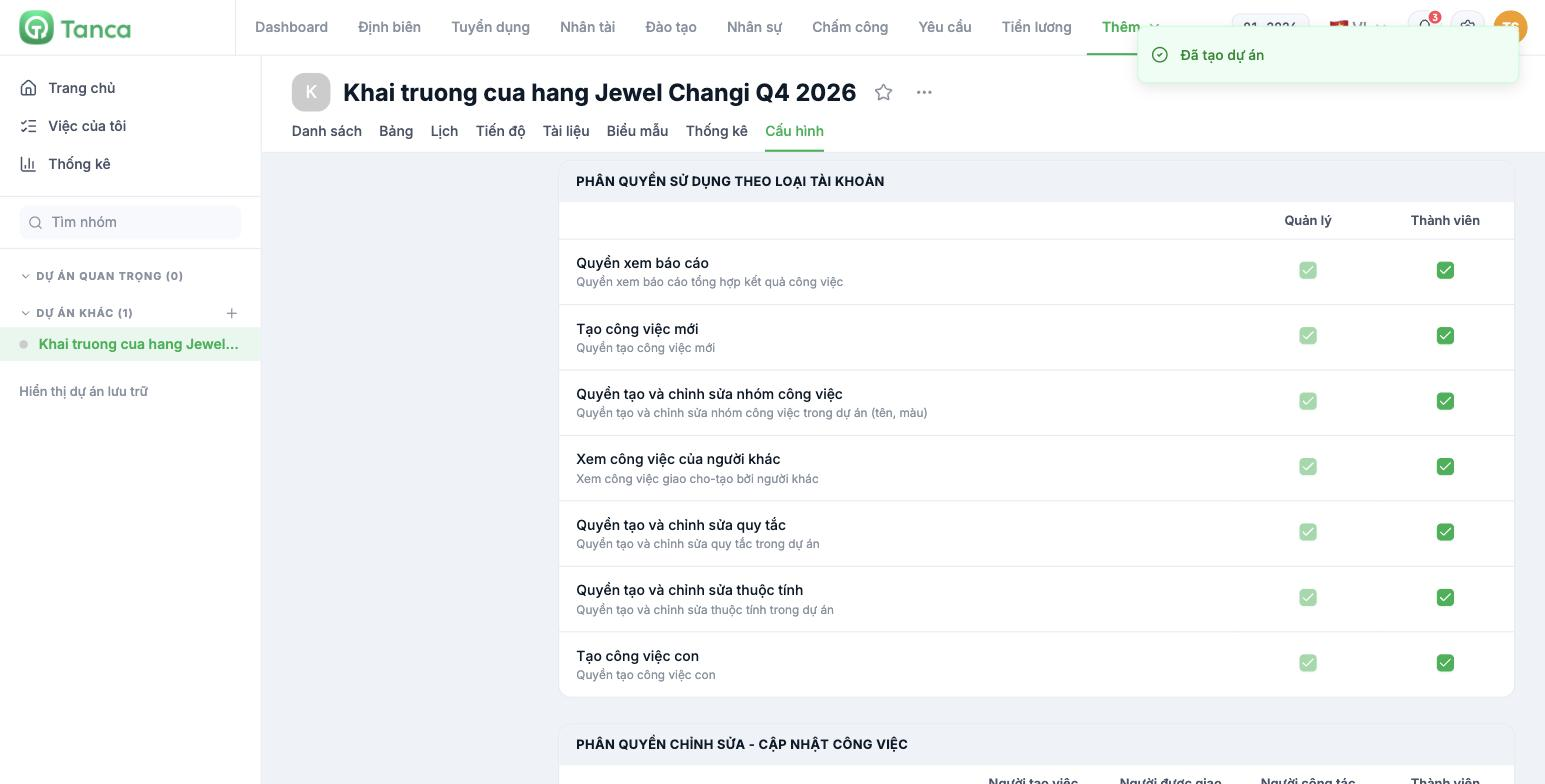
Usage permissions by account type — two columns, Manager and Member, with these permissions: view reports, create new tasks, create and edit task groups, view other people's tasks, create and edit rules, create and edit properties, create subtasks.
Task edit/update permissions — four columns, Task creator · Assignee · Collaborator · Member, with more than ten detailed permissions: edit description, edit due date, delete task, edit priority, change assignee, change project, edit labels, change task group, start a new discussion, create a new document…
Two permissions to tighten early for projects with many people: Delete task permission and Change task group permission in the Member column. By default they're open to every role — fine for small teams that trust each other, but risky when a project has a few dozen people.
Forms
The project's Forms tab lets you create forms that collect information in a structured way — useful when you want people outside the team to submit requests to the project in the right format instead of scattered messages. Click + Create to get started.
REQUIRES COMPANY CONFIRMATION before publishing: the question types Forms supports, and which group submitted forms will create tasks in.

