Once the payroll template is correct, creating a pay period each month takes only a few steps. This article walks through the steps and what to check right after the payroll is generated.
Before you create it
- All requests for the period have been approved or rejected (article B8-14).
- The timesheet has been finalized and locked (article B6-15).
- New employees in the period have pay configurations in their profiles.
- Employees who left during the period have had their end dates updated.
If these four tasks aren't done, the generated payroll will be incomplete or wrong, and you'll have to run it again from scratch. Checking takes five minutes; rerunning takes half a day.
Create the period
- Go to Payroll › Pay Periods and click + Create pay period.
- Select the payroll template to apply.
- Select the month and the scope — branches, departments, job titles.
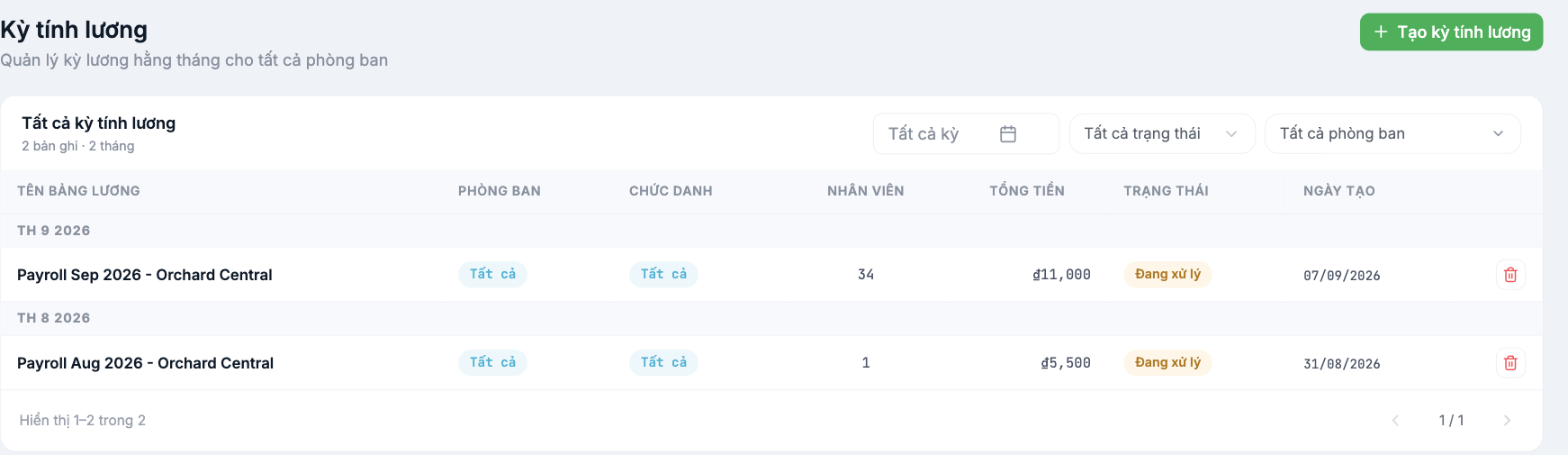
- Give the period a clear name, for example Payroll Sep 2026 - Orchard Central.
- Confirm. The system generates the payroll and pulls in the time & attendance data.
Reading the pay period list
| Column | Meaning |
|---|---|
| Payroll name | The period's name. Click to open |
| Department · Job Title | The scope the period applies to |
| Employees | Number of people in the period — compare immediately with your actual headcount |
| Total amount | Total cost for the period — compare with the previous period to spot anomalies |
| Status | Processing until it is approved and locked |
| Created date | The date the payroll was generated |
The Employees and Total amount columns are the two figures to look at first. A headcount that differs from reality means the period scope is wrong. A total that differs significantly from the previous period without a clear reason means something is broken.
Warnings right after creation
Open the newly created period. If there are issues, a warning banner appears at the top of the table, such as "N employees need attention before this payroll can be approved", and the affected rows are labeled Review with the note Pay configuration needs review.
| Cause | How to resolve |
|---|---|
| The employee has no salary in their profile | Go to HR, open the profile, enter the salary, then click Reload payroll |
| The employee joined mid-period | Check that the start date and number of working days are prorated correctly |
| The employee has left the company | Check the end date; consider removing them from the period |
The Approve & lock button is disabled as long as there are employees needing attention. This is correct behavior — don't look for a way to bypass it.
Importing data from a file
For columns that must be entered manually — product quantities, performance-based bonuses, special deductions — use Import/Export File › Import file. The safe process: first export the table using Export with column options, fill in that file, then import it back.
Editing and recalculating
- Edit — open edit mode to change values directly in the table.
- Reload payroll — reload the source data after you've updated profiles or the timesheet.
- Hide payslips — temporarily hide payslips from employees while you're still making changes.
Turn on Hide payslips throughout the payroll preparation process. Only reveal them after approving and locking — otherwise, employees will see draft figures and you'll spend an entire afternoon explaining.

