A course's content is organized in two tiers: chapters contain pages. Each page is one of three types. This article walks through all three.
Open the content editor
- Go to Training › Course management.
- Click the three dots on the row of the course you want to edit.
- Select Edit content.
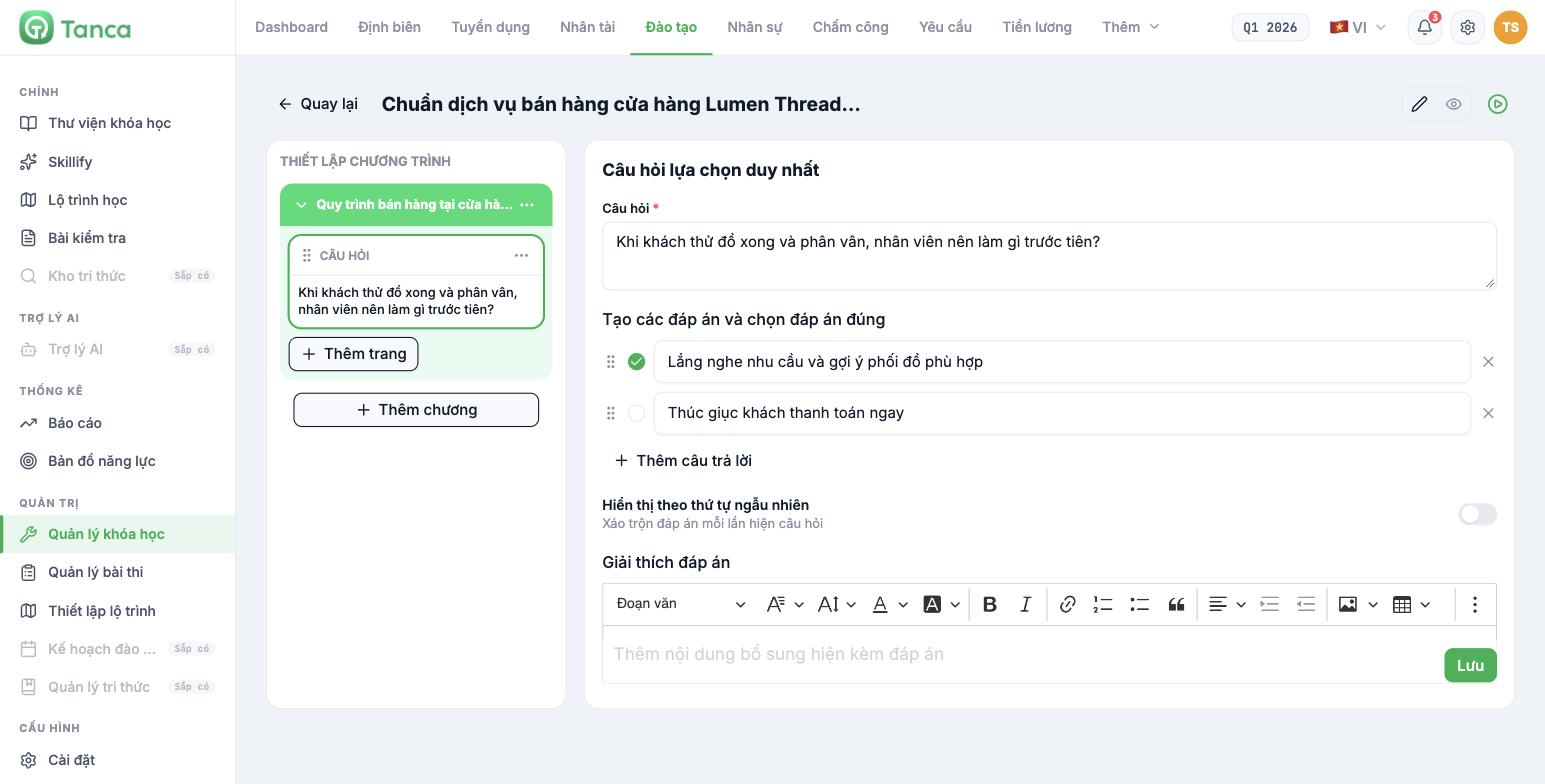
The screen is split in two: the left column is PROGRAM SETUP — the tree of chapters and pages; on the right is the editor for the selected page.
| Button | Function |
|---|---|
| Add chapter | Add a new chapter |
| Add page | Add a page to the selected chapter |
| Six-dot icon | Drag to reorder pages |
| Three dots on each row | Rename or delete |
Three icons in the top-right corner: Edit mode · Preview mode · Try it out.
Always click Try it out before activating the course for learners. It's the only way to see exactly what learners will see, and it's when you'll catch videos that don't play or questions missing a correct answer.
Three page types
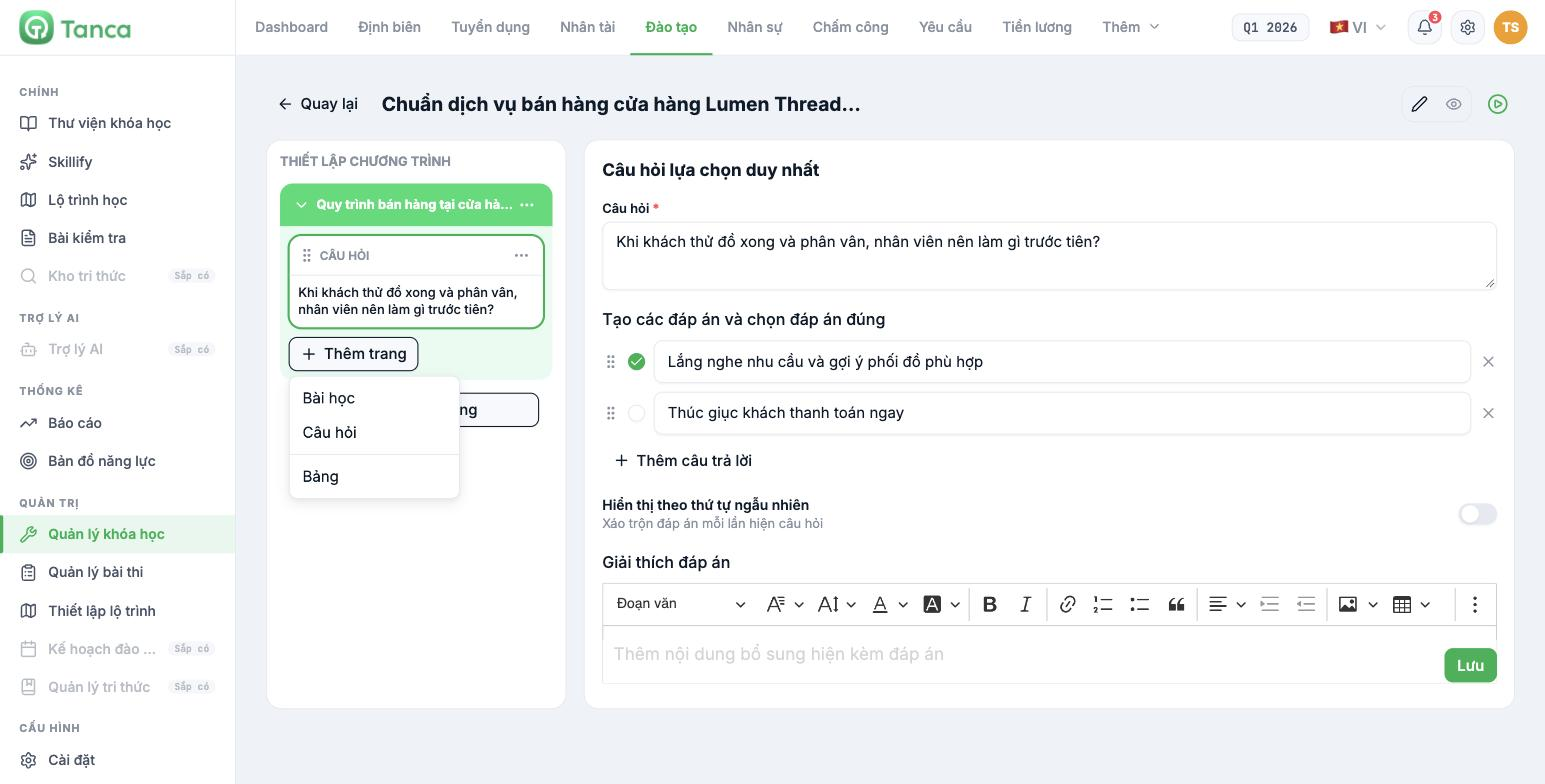
| Type | Used for |
|---|---|
| Lesson | Teaching content: video or documents |
| Question | Questions placed in between so learners can check themselves |
| Table | Presenting content in table form |
Lesson page
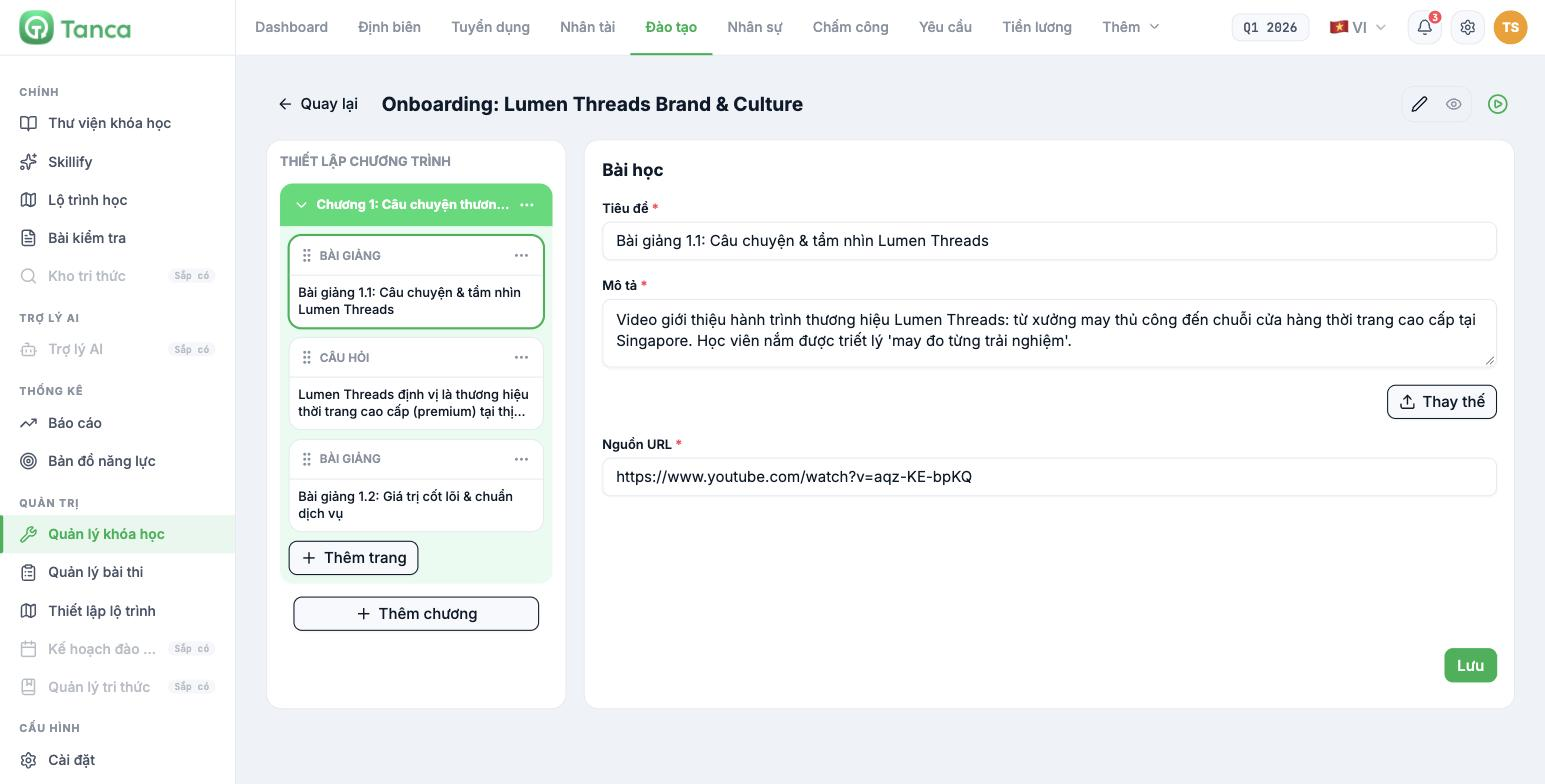
| Field | Notes |
|---|---|
| Title * | Lesson name. Number lessons by chapter, for example `Lesson 1.1: …` |
| Description * | What learners will understand after this lesson |
| Replace | Upload a content file |
| Source URL * | A link to the content, for example a video on a video-sharing platform |
A lesson page uses either an uploaded file or a URL link. With a URL, the content lives on an external platform — if that video is deleted or its privacy setting changes, the lesson in Tanca breaks too. For your company's core content, upload a file instead of pointing to a link.
Question page
The example in the image is a Single-choice question. The editor includes:
| Component | Notes |
|---|---|
| Question * | Question content |
| Answer list | Click the circle on the left to select the correct answer. Click × to delete an answer |
| + Add answer | Add an answer |
| Display in random order | Shuffle the answers each time the question is shown |
| Answer explanation | A full text editor — the content is shown along with the answer |
Always write an Answer explanation. Questions in lessons are meant to teach, not to grade; if someone answers incorrectly without knowing why, that question page teaches nothing.
Turn on Display in random order when the course is taken multiple times or when many people study side by side at the same time.
How to structure chapters
- One chapter is one complete topic, finished in 15 to 25 minutes.
- Insert questions after every two to three lessons. A chapter that's all video is a chapter learners abandon halfway.
- Split lessons longer than 10 minutes. Learners on their phones between shifts won't watch a 30-minute video to the end.
- End the course with a test if you need to prove learners have passed (article B16-05).

