Candidates enter Tanca in three ways: applying through the career page, being entered manually, or being scanned from a CV. This article covers all three, along with the three candidate management screens that sit outside individual positions.
The Candidates screen
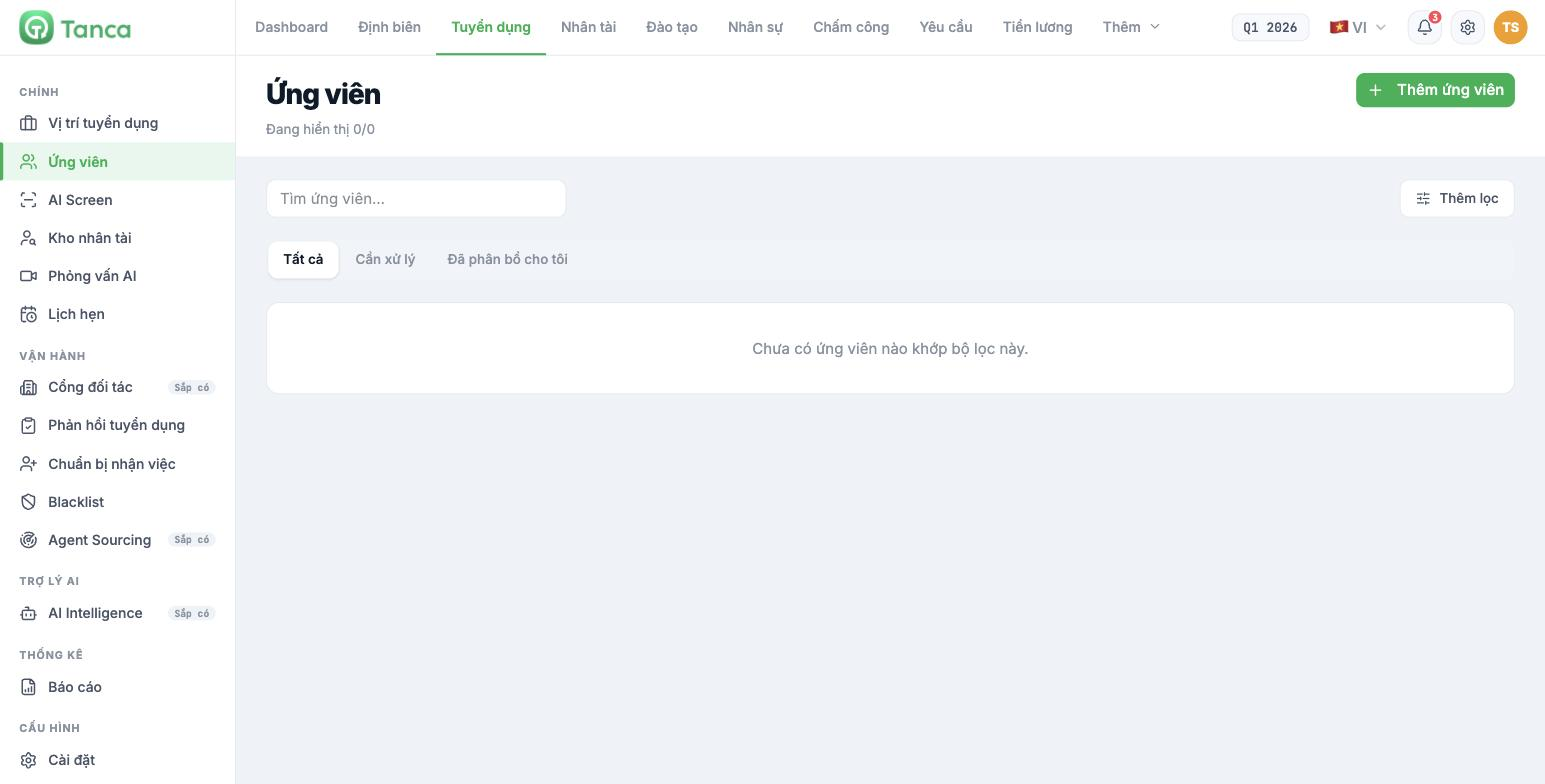
This is the candidate list for all positions, unlike each position's board. It has a search box, an Add filter button, and three quick filters:
| Filter | What it shows |
|---|---|
| All | All candidates |
| Needs action | Applications awaiting action |
| Assigned to me | Applications you're responsible for, across all positions |
People responsible for multiple positions should start their workday on this screen with the Assigned to me filter, rather than opening each position's board one by one.
Adding a candidate manually
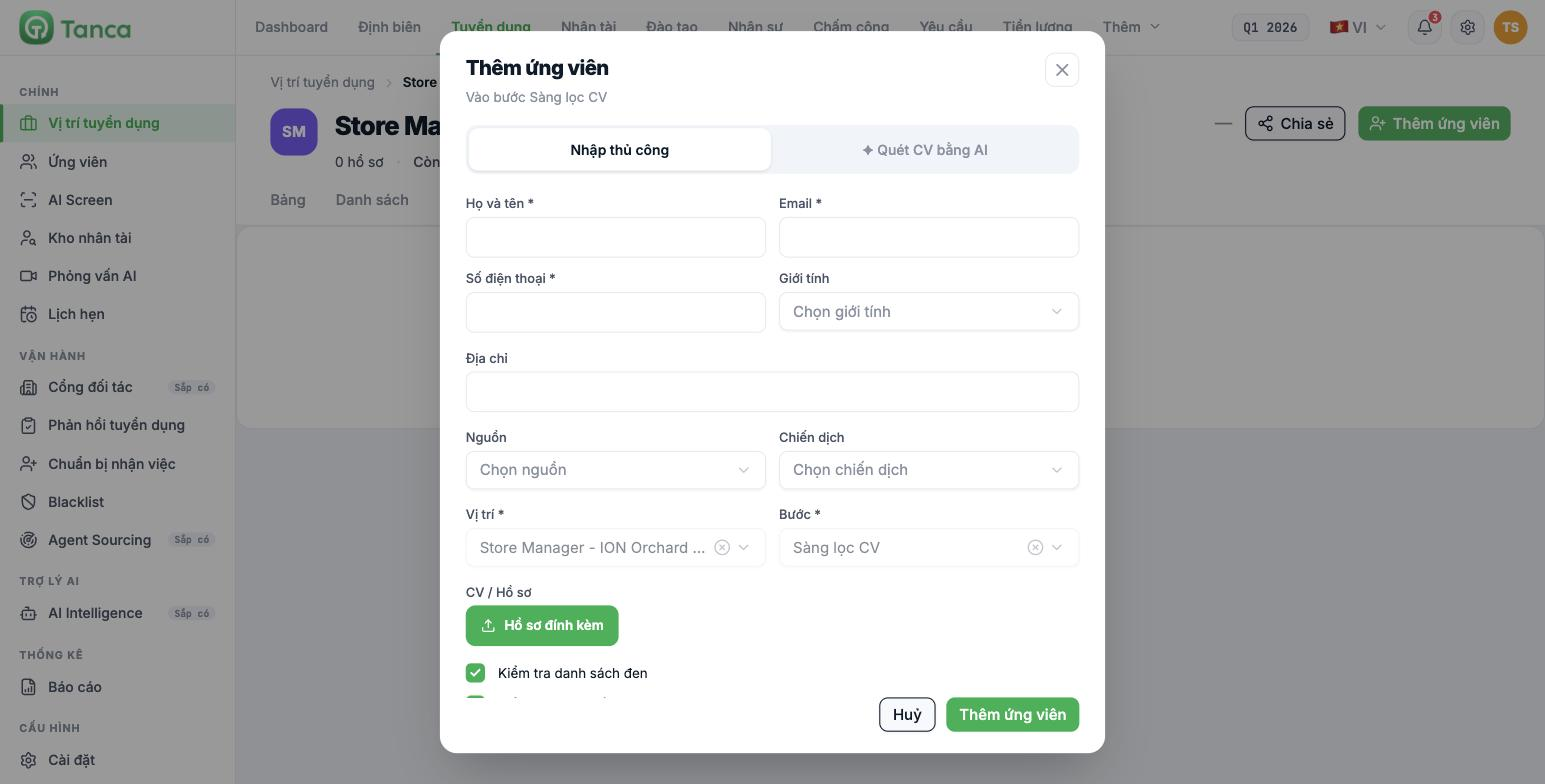
Click Add candidate — from the Candidates screen, from a position's board, or from the top of the position page. The dialog has two tabs: Manual entry and ✦ Scan CV with AI.
| Field | Required |
|---|---|
| Full name | Yes |
| Yes | |
| Phone number | Yes |
| Position | Yes |
| Step | Yes |
| Gender · Address · Source · Campaign | No |
| CV / Attached documents | No |
Always fill in the Source. It's the only field that tells you which channel the candidate came from, and it's the raw data for the recruitment source effectiveness report. Leave it blank and that channel will never be counted.
At the bottom of the dialog there are two checkboxes, checked by default:
| Checkbox | Effect |
|---|---|
| Check blacklist | Checks against the Blacklist before adding |
| Check for duplicate records | Detects candidates already in the system |
Keep both boxes checked. Duplicate records cause incorrect funnel figures and result in candidates receiving two identical emails from two different people at the same company.
Scanning CVs with AI
The ✦ Scan CV with AI tab in the Add candidate dialog lets you upload a CV and have AI extract the information instead of typing it in. If the position has Automatically score CVs turned on and a competency framework attached, AI scores the CV right at this step.
AI Screen — applications awaiting routing
Go to Recruitment › AI Screen. The system's description: applications that have been scanned but haven't yet entered any job position or talent group. This is the queue for CVs you uploaded in bulk without assigning a position.
| Filter | Meaning |
|---|---|
| Pending review | Scanned, waiting for someone to decide where they go |
| Routed | Placed into a position or a talent group |
| Blocked | Matches the blacklist |
| Merged | Matches an existing record |
The Import more CVs button at the top of the page is used to upload many CVs at once. The four metric tiles above count: scanned by AI · entered the pipeline · pending review · blocked or duplicate.
AI Screen is where you process CVs from job fairs, the recruitment inbox, or agencies — sources where CVs arrive before there's a specific position. Clear this queue weekly and don't let it pile up: a three-month-old CV is almost no longer worth contacting.
Talent pool
Go to Recruitment › Talent Pool. This screen manages talent groups — people not hired this time but worth keeping for next time. Click Create new to create a group; the system lets you define the criteria yourself or let AI build them.
- Create groups by position type rather than by hiring campaign: `Potential Store Managers`, `Sales Associates who passed interviews`.
- Add to the pool candidates who qualified but missed out for objective reasons — quota filled, timing mismatch, location mismatch.
- When opening a new position, search the pool before posting: it's the cheapest and fastest source.
Keeping candidate records after a recruitment campaign ends is governed by personal data laws in many markets, often with requirements for notification and retention periods. Have your company's legal department decide on a candidate record retention policy before using the talent pool at scale.

