When you need to answer "who edited this profile, when, and from which device", Tanca records it in the History tab of that profile. This article spells out what the log does and doesn't record, so you know before you need it.
Opening the log
- Go to HR and click the name of the person you want to look up.
- Select the History tab (the last tab).
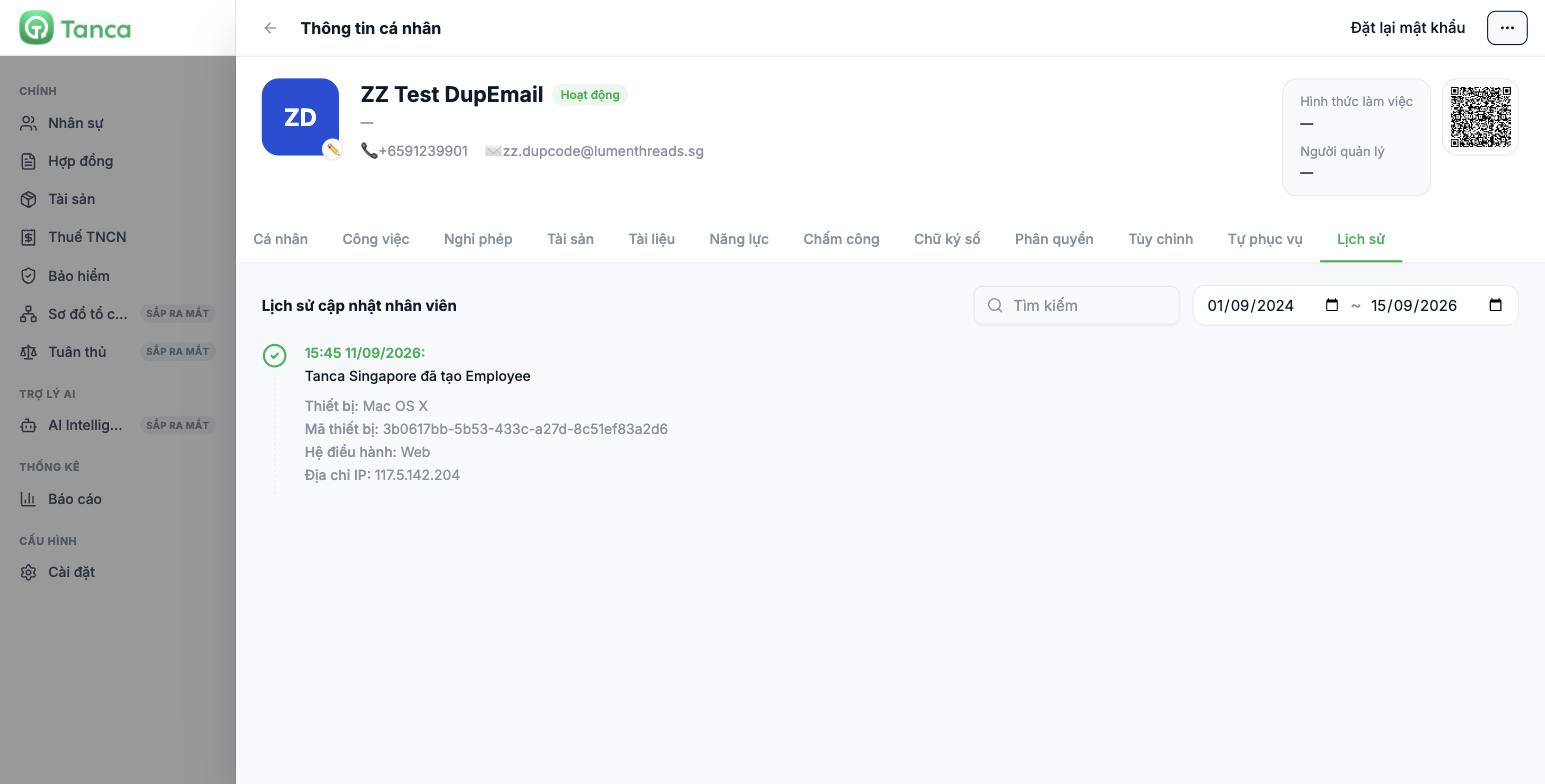
What a log entry contains
| Field | Example |
|---|---|
| Time | `15:45 11/09/2026` |
| Actor and action | `Tanca Singapore created Employee` |
| Device | `Mac OS X` |
| Device ID | The machine's identifier string |
| Operating system | `Web` |
| IP address | `117.5.142.204` |
The device ID and IP address are the two most valuable fields in an investigation: they tell you which machine and which network the action came from, even when the action was performed with a valid account.
Filtering the log
- The Search box filters by the content of log entries.
- The two date fields create a time range. By default the system opens a fairly wide range, so when investigating a specific incident, narrow it down to just a few days around that point.
Four limitations to know in advance
| Limitation | Consequence |
|---|---|
| The log is attached to each individual profile | There is no system-wide log page. To review 65 people, you have to open 65 profiles |
| Only changes to employee profiles are recorded | Actions in other modules — editing payroll, changing shifts, approving requests — don't appear here |
| Permission changes are not recorded | Editing the matrix in Settings › Permissions leaves no trace anywhere |
| Cannot be exported to a file | Take screenshots if you need to keep evidence |
Because permission changes are not logged, keep your own permissions log: each time you edit the matrix or grant individual permissions, write down a line with the date, the person making the change, the module, which cell, the old and new values, and the reason. This is almost certainly a requirement of every internal audit.
Who can view the log
Permission to view this tab is the View system history row in the matrix, in the HR module, under the Employees function group. By default it is enabled for all three manager groups. If you want only central HR to be able to look up the log, turn this row off for Regional Manager and Branch Manager (article C1-02).
Using the log in three situations
| Situation | How to look it up |
|---|---|
| A field in a profile was changed and no one admits to it | Open the History tab and narrow the date range to around the time it was discovered |
| Suspicion that an account is being used by someone else | Compare the IP address and Device ID of the most recent entries |
| Preparing documentation for an internal audit | Take screenshots of the relevant entries, along with your own permissions log |

