Where you decide who can see whose data across the entire system. This is the screen with the most serious consequences if misconfigured — whether too strict or too loose.
Four default access groups

| Group | Code | Data scope | Intended for |
|---|---|---|---|
| Manager | `MANAGER` | Entire company | Executive board, HR, system administrators |
| Regional Manager | `REGION` | Branches in the assigned region | Regional directors, area managers |
| Branch Manager | `BRANCH` | One branch | Store managers, workshop managers |
| Employee | `EMPLOYEE` | Their own data | All other employees |
The access group determines the data scope — whose profiles that person can see. This cannot be changed in an individual employee's Permissions tab; that tab only fine-tunes functional permissions within the existing scope.
Permission matrix
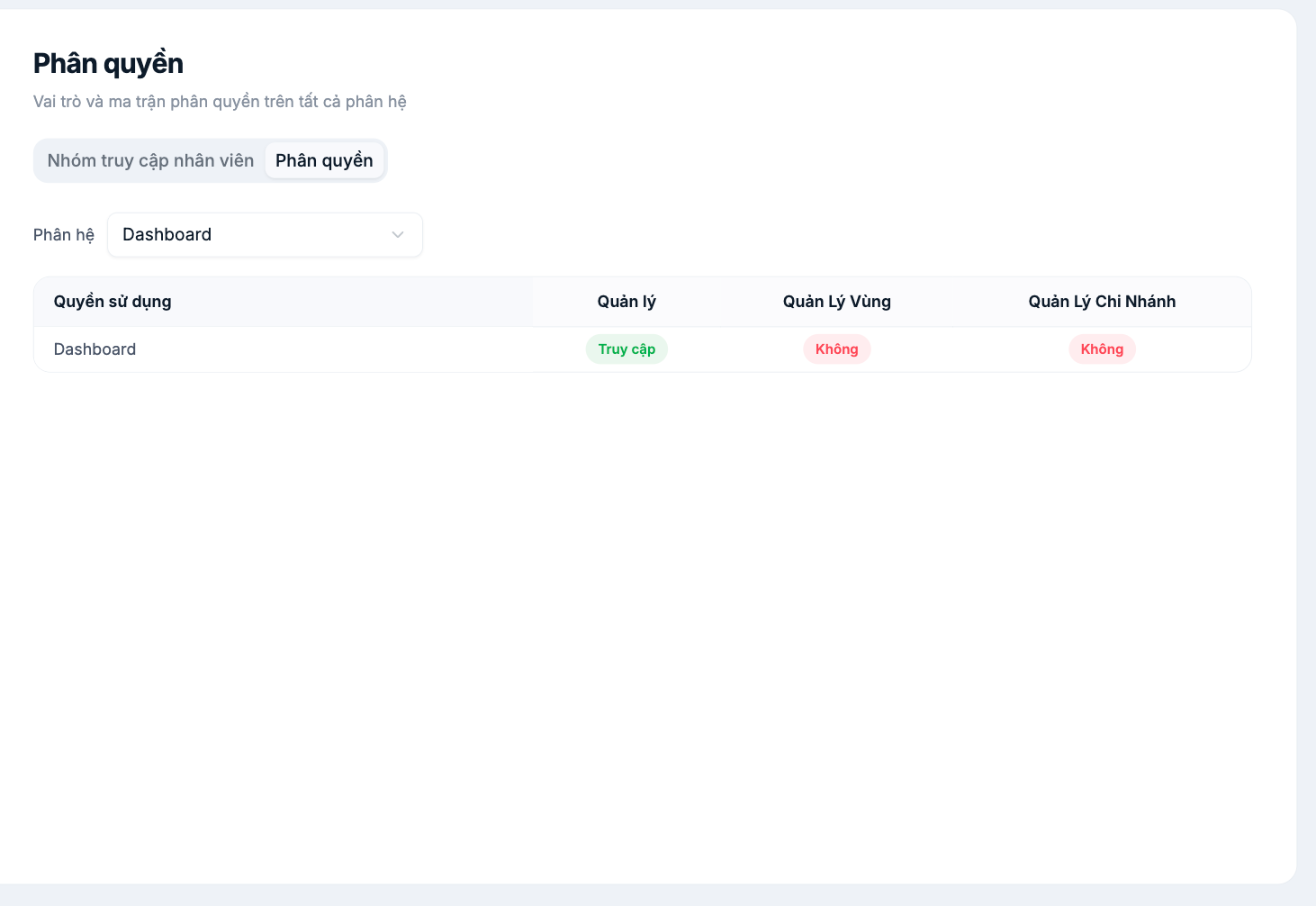
- Switch to the Permissions tab to view the matrix.
- Select a Module from the dropdown, for example Dashboard, HR, Payroll.
- The table lists each usage permission and its status for the three manager groups: Access or None.
- The Employee group has no column of its own because it is the lowest default level.
Three permissions to review most carefully
| Permission | Risk if opened too broadly |
|---|---|
| View payroll and payslips | Employees can see their coworkers' salaries — the most serious HR incident an HR system can cause |
| View other employees' profiles | Exposes other people's national ID numbers, addresses, and bank account numbers |
| Edit system configuration | People who aren't administrators can change attendance rules or payroll formulas |
How to verify — mandatory
Don't just read the matrix. After every permission change, sign in with a test account belonging to that group and see for yourself what it can access. This is the only reliable way, and it takes less than five minutes.
Periodic review
- Every quarter, filter the employee list by the Access Group column (article B2-06) and check whether anyone is still in the Manager group who isn't a manager.
- When someone changes positions, change their access group at the same time — leftover permissions are a silent risk.
- To change the group for many people at once, use Update Permissions via file (article B2-04).

